
Free tool
Minecraft pixel art maker
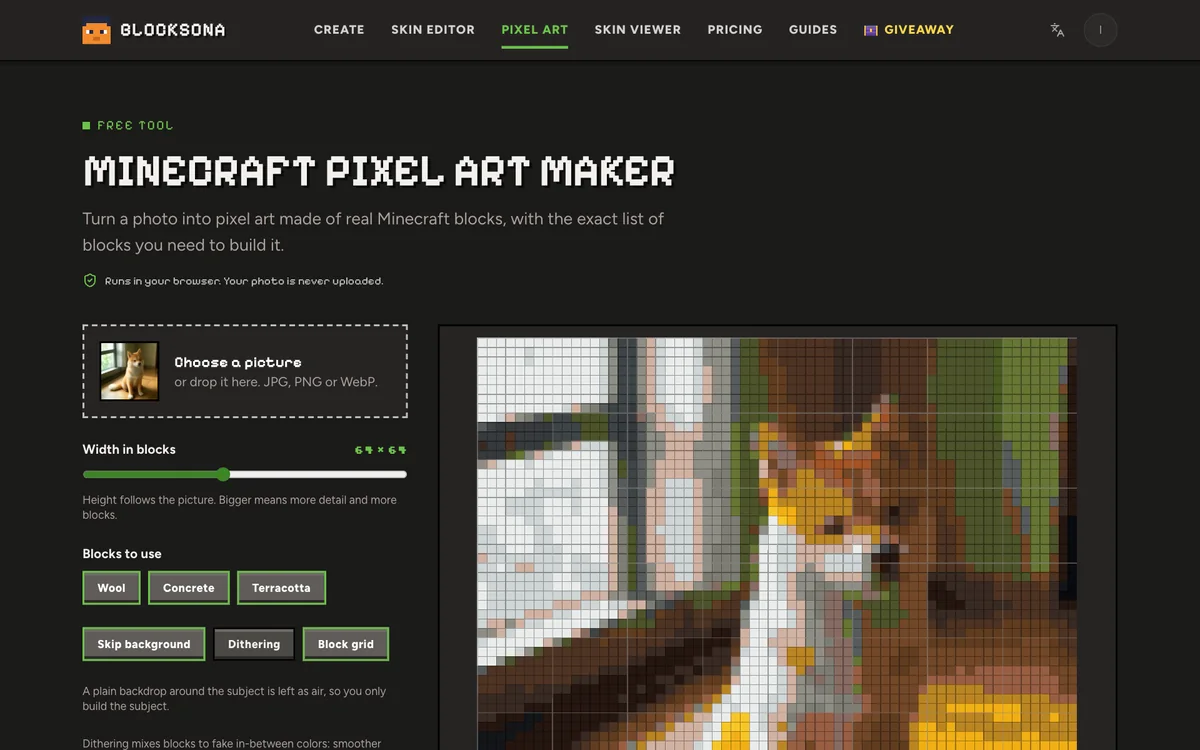
Turn a photo into pixel art made of real Minecraft blocks, with the exact list of blocks you need to build it.
Runs in your browser. Your photo is never uploaded.
A plain backdrop around the subject is left as air, so you only build the subject.
Dithering mixes blocks to fake in-between colors: smoother from far away, busier to build.
Point at a block to see what it is and where it goes.
How to turn a photo into Minecraft pixel art
This free Minecraft pixel art generator turns a photo or any picture into pixel art made of real blocks, then gives you the exact block list to build it. Everything runs in your browser. For a full walk-through with planning tips, read how to make Minecraft pixel art from a photo.
- Step 1
Choose a picture
Click Choose a picture or drop a JPG, PNG or WebP on it. The tool opens with Rusty, a cartoon fox knight, so you can play with the settings before you pick your own.
- Step 2
Set the width in blocks
Drag Width in blocks from 16 to 128, in steps of 4. The height follows the picture, and the size shows next to the slider, for example 64 × 48.
- Step 3
Pick the blocks
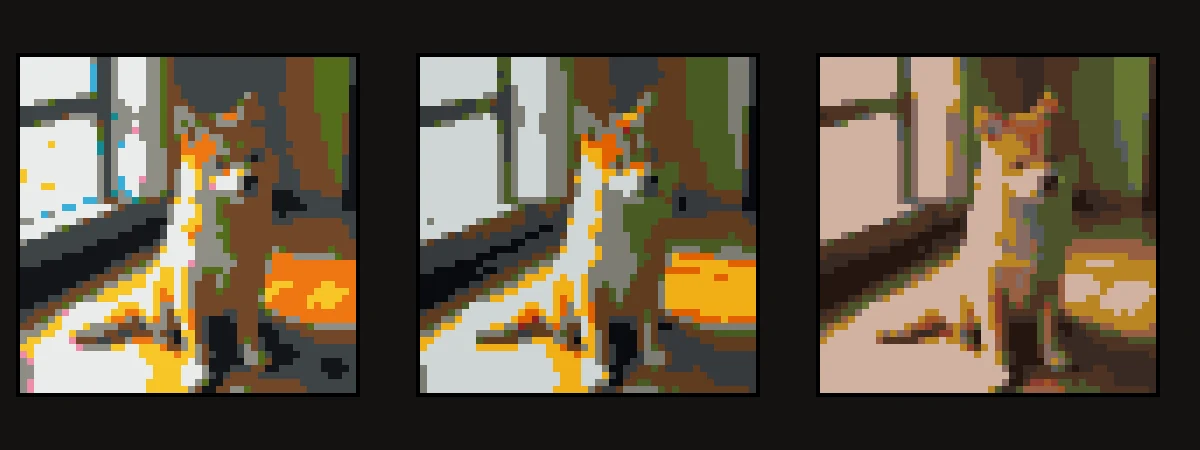
Under Blocks to use, keep Wool, Concrete and Terracotta on for the most colors, or turn sets off to build with fewer kinds. One set always stays on.
- Step 4
Choose background and dithering
Skip background leaves a plain backdrop as air. Dithering mixes blocks to fake in-between colors. Both are explained below.
- Step 5
Check it, then download
Point at any block to see its name and place, like Lime Wool (12, 30). Press and hold Hold to compare to see the original. Then download the PNG to build from and the Block list (CSV) to gather with.
How wide should your pixel art be?
Width decides both the detail and the work. Here is what each width means for a square picture and a normal 4:3 photo.
| Width | Square picture | 4:3 photo | Build size and detail |
|---|---|---|---|
| 32 blocks | 32 × 32 = 1,024 blocks (16 stacks) | 32 × 24 = 768 blocks (12 stacks) | 2 chunks wide. Good for logos, pixel characters and simple cartoons; a face in a photo turns into a few blobs. |
| 64 blocks | 64 × 64 = 4,096 blocks (64 stacks) | 64 × 48 = 3,072 blocks (48 stacks) | 4 chunks wide, and the default. Faces, pets and game characters are easy to recognize. A solid survival project. |
| 96 blocks | 96 × 96 = 9,216 blocks (144 stacks) | 96 × 72 = 6,912 blocks (108 stacks) | 6 chunks wide. Patterns on clothes and fur markings come through. Plan on a lot of gathering in survival. |
| 128 blocks | 128 × 128 = 16,384 blocks (256 stacks) | 128 × 96 = 12,288 blocks (192 stacks) | 8 chunks wide, exactly one map at its closest zoom. The most detail; usually a creative-mode build. |
Counts are before Skip background clears the backdrop, so a portrait against a plain wall needs fewer. A chunk is 16 blocks across.
Wool vs concrete vs terracotta
Mixed together, the three sets give 49 colors: 16 wool, 16 concrete, and 16 dyed terracotta plus plain terracotta. Turn a set off when you only have that block, or want one texture across the whole picture.
- Wool is soft and slightly fuzzy, the classic pixel art block. In survival, shear sheep (dye them first for color) or craft 4 string into 1 wool. It burns, so keep lava and fire away.
- Concrete has flat, bright colors and crisp edges, best for cartoons, logos and game characters. Craft 8 concrete powder from 4 sand, 4 gravel and 1 dye, then let water touch it to harden. Mine it with a pickaxe.
- Terracotta has muted, earthy shades for skin tones, hair, wood and sunsets, so photos often look best with it on. Smelt clay blocks and dye them 8 at a time, or mine the colored bands in a badlands biome.
Dithering on or off
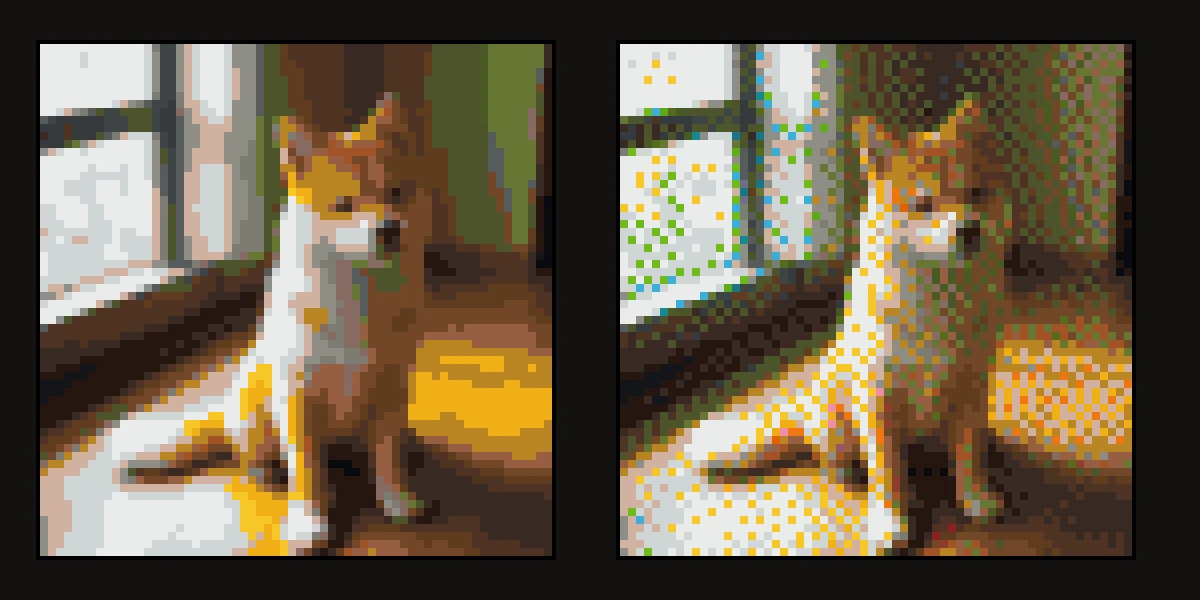
Dithering uses Floyd–Steinberg error diffusion. When no block matches a pixel exactly, the tool places the closest one and passes the leftover difference on to the next pixels, so a mix of two blocks stands in for a color no single block has.
From a distance that gives smoother skies, skin and shadows. Up close it looks speckled, uses more kinds of block, and is slower to build because the color changes almost every block. That is why it starts switched off.
- Leave it off for cartoons, logos, pixel characters and anything you place by hand in survival. You get flat patches with clean edges.
- Turn it on for photos with soft light and gradients, for creative-mode builds, and for art people will see from far away.
Skip background: build only the subject
Skip background is on when the tool opens. It looks at the edge of the picture, and if most of the edge is one plain color, it clears that color from the edges inward and leaves it as air. Only backdrop that touches the edge goes, so white inside the subject, like the eyes or a white patch on a cat, stays.
Cleared spots read Air when you point at them. A busy background, like a room or a park, is kept because no single color fills the edge, so crop close or shoot against a plain wall. Turn the option off to keep the sky or a frame.
Reading the block list and stacks
Under the preview, Blocks needed shows the total number of blocks and kinds, then every block with its count and stacks. A stack is 64 blocks, so 5×64 + 27 means 5 full stacks and 27 more: 347 blocks.
Block list (CSV) downloads it as a spreadsheet with five columns: block, id, count, stacks and rest. Open it in Google Sheets, Excel or Numbers and tick blocks off as you gather them. The id, like minecraft:white_wool, is the block's in-game name.
Download PNG saves the preview at 16 pixels per block, with grid lines if Block grid is on, to keep open on a phone or second screen while you build. For storage: a shulker box holds 27 stacks (1,728 blocks), so a 64 × 48 build fits in two.
Tips for building pixel art in Minecraft
A few habits keep a big build quick and stop you counting the same row twice.
Works well
- Build a wall from the bottom up. Rows are counted from the top of the picture, so on a 64 × 48 build, row 48 is the first row you place.
- Turn on coordinates (F3 in Java, Show Coordinates in Bedrock world settings) and mark where column 1 starts; column 20 is 19 blocks along.
- Keep Block grid on. Every 8th line is brighter, so you can count in groups of 8.
- For map art, build flat on the ground and use 128 blocks wide to fill one map at its closest zoom.
Avoid
- Starting at 128 blocks in survival before you have the materials. Try 32 or 48 first.
- Dithering on a survival build you place by hand.
- Group photos and busy scenes at small widths: each face ends up a few blocks wide.
- Wool builds next to lava or fire.
- Expecting a map to match the preview: maps show flat map colors, not block textures.
Your picture stays on your device
The pixel art maker runs entirely in your browser. Your photo is never uploaded, there is no account to make, and it costs no credits. Close the tab and the picture is gone.
Want your pet or yourself as something you wear instead of something you build? Use pet to Minecraft skin or photo to Minecraft skin. Those use the AI generator, which uploads the photo for one generation and deletes it within 24 hours.
Pixel art or a skin?
Pixel art is something you build in a world; a skin is what your character wears. To turn your drawing into a character you can play as, use image to Minecraft skin. To paint a 64×64 skin by hand, open the Minecraft skin editor.
You can spin any finished skin in the 3D skin viewer. Short on ideas? Browse Minecraft skin ideas, or try all five modes on the Workbench.
More free tools
- WorkbenchFive modes in one place: photo, pet, image, Roblox or text, painted into a wearable 64×64 skin.
- Image to skinTurn a drawing, OC or mascot into a skin that walks around your world.
- Skin editorPaint on the flat texture or the 3D model, mirror left and right, and download PNG or .mcpack.
- 3D skin viewerOpen any skin PNG, spin it in 3D and save a 512×512 face avatar.
- Pet to skinTurn a dog, cat or parrot into a pet-sona skin you can wear.
FAQ
Questions people ask
Is the Minecraft pixel art maker free?
Yes. It is free, needs no account and uses no credits. Make as many versions as you like.
How do I make Minecraft pixel art from an image?
Choose a picture, set the width, pick the block sets, then download the PNG and the block list and build it row by row.
How many blocks will my pixel art need?
Width times height, minus any background that was skipped. A 64 × 48 build is up to 3,072 blocks. The Blocks needed panel shows the exact count for your settings.
What is the biggest pixel art I can make?
128 blocks wide. The height follows the picture, up to 256 blocks for a very tall image.
Can I use other blocks, like glass or planks?
Not right now. The maker uses wool, concrete and terracotta only.
Why do the colors look different in the game?
The tool picks the closest block in OKLab, a color space where distance matches how different colors look to people, using the average color of each block texture. In the game you see the texture itself, with light and shade, so the build looks a bit different up close.
Does it work for Java and Bedrock?
Yes. Wool, concrete and terracotta are in both editions, so the same plan works in either one.
Is my photo uploaded?
No. Everything happens in your browser, and the picture never leaves your device.
What do the numbers mean when I hover a block?
They are the column and the row, counted from the top-left corner and starting at 1. (12, 30) means column 12, row 30.
Can I turn the pixel art into a Minecraft skin?
No. A skin uses a fixed 64×64 layout, not a flat picture. To get a wearable character from your image, use image to Minecraft skin.
Guides
Read next
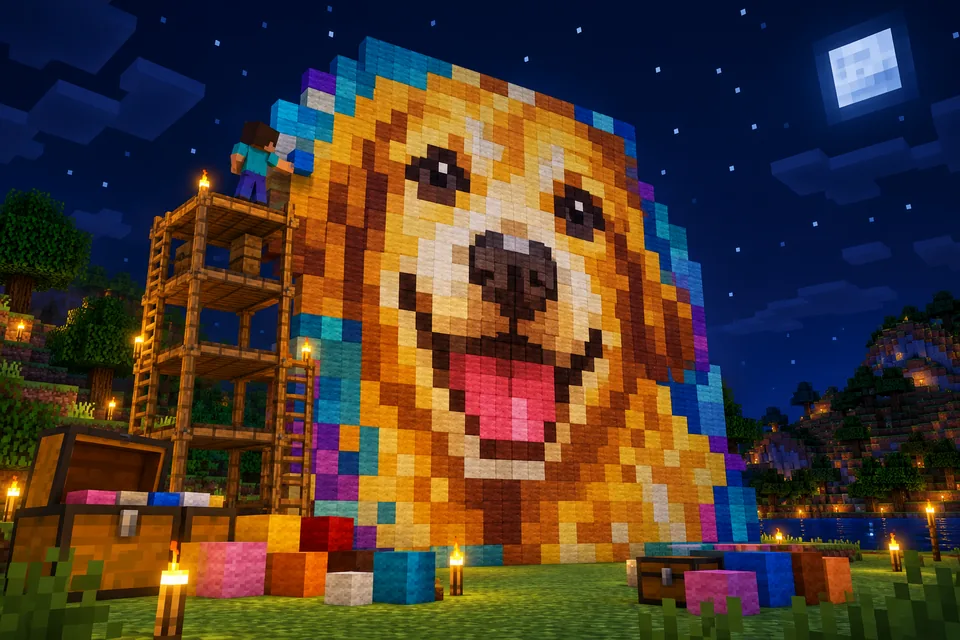 How to make Minecraft pixel art from a photo (and build it)Turn any photo into Minecraft pixel art made of wool, concrete or terracotta, pick the right size, get the exact block list and build it on a wall or a map.
 30 Minecraft skin ideas with prompts you can copy and pasteCool Minecraft skin ideas as ready-to-paste prompts: fantasy, jobs, animals, sci-fi, seasonal and matching skins for friends, plus a formula for your own.
Further reading
Outside sources, for the details behind this page.
- Minecraft Wiki: WoolEvery way to get wool in survival, from shearing dyed sheep to crafting it from string.
- Minecraft Wiki: ConcreteHow to craft concrete powder and harden it with water, with all 16 colors.
- Minecraft Wiki: TerracottaSmelting clay, dyeing terracotta and where the colored badlands bands are.
- Wikipedia: Floyd–Steinberg ditheringHow the error diffusion behind the Dithering switch works, with pictures.
By the Blocksona teamUpdated