
How to make Minecraft pixel art from a photo (and build it)
Turn any photo into Minecraft pixel art made of wool, concrete or terracotta, pick the right size, get the exact block list and build it on a wall or a map.
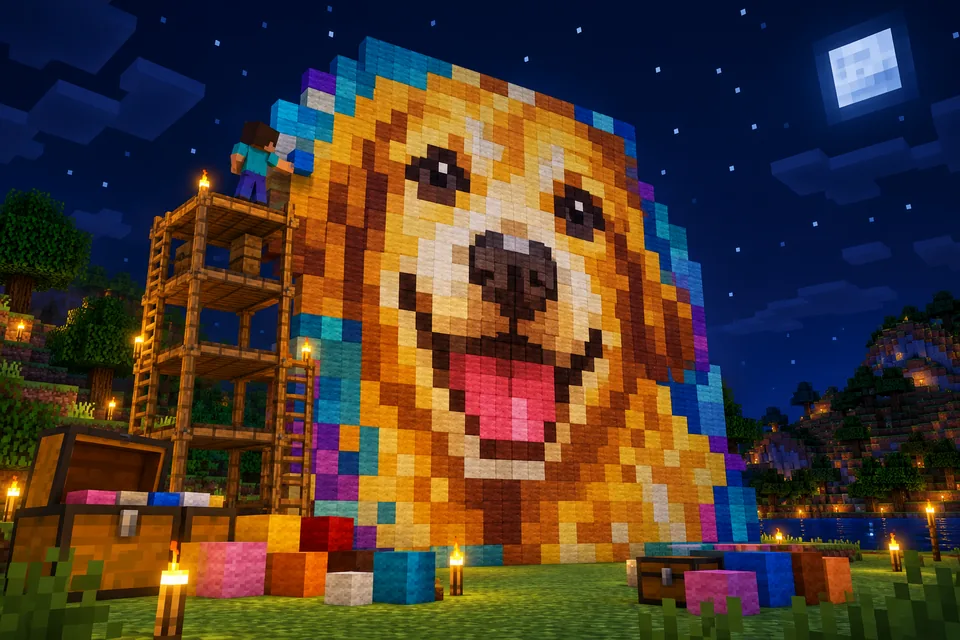
Making Minecraft pixel art from a photo takes about a minute on screen and an afternoon in the game. The free Blocksona pixel art maker turns any picture into real Minecraft blocks and tells you which blocks you need and where each one goes. It runs in your browser, and your photo is never uploaded. This guide covers the whole job: choosing the picture, picking a size and block set, reading the block list, and building it without losing count.
Choose a picture that works in blocks
At 64 blocks wide, a whole face might be 20 blocks across. The best pictures still make sense when you squint:
- One subject that fills the frame. Crop away empty space first. Every column spent on background is one you could have spent on the eyes.
- Big areas of color and strong contrast. A red parrot on a white wall turns into clean pixel art. A brown dog on a brown sofa melts into one blob.
- A plain backdrop. A wall or the sky lets Skip background clear it, so you only build the subject.
- Bright, even light. Dark photos land on the few darkest blocks and lose detail. Brighten them first.
- Simple art shrinks best. Logos, cartoons, game sprites and flat illustrations stay sharp even at 32 blocks wide. Detailed photos need 64 or more.
What works badly: group photos at small sizes, busy street scenes and small text. Letters need to be at least 5 blocks tall to read, so a word on a T-shirt usually vanishes. Pets are a favorite subject, and the pet skin guide has tips for getting a clear shot of an animal.
Make the pixel art in five steps
Open the Minecraft pixel art maker. A sample drawing (Rusty, a fox knight) is already converted, so you can try the settings first.
- Choose a picture. Click Choose a picture, or drop a JPG, PNG or WebP onto the box.
- Set the width. Drag Width in blocks from 16 to 128, in steps of 4. The size beside it shows width × height; the height follows your picture's shape.
- Pick your blocks. Under Blocks to use, switch Wool, Concrete and Terracotta on or off. At least one set stays on.
- Set the options. Skip background starts on, Dithering starts off, Block grid starts on.
- Check and download. Point at a block to see its name and its place as (column, row). Press and hold Hold to compare to see your original. Then click Download PNG for the plan and Block list (CSV) for the shopping list.
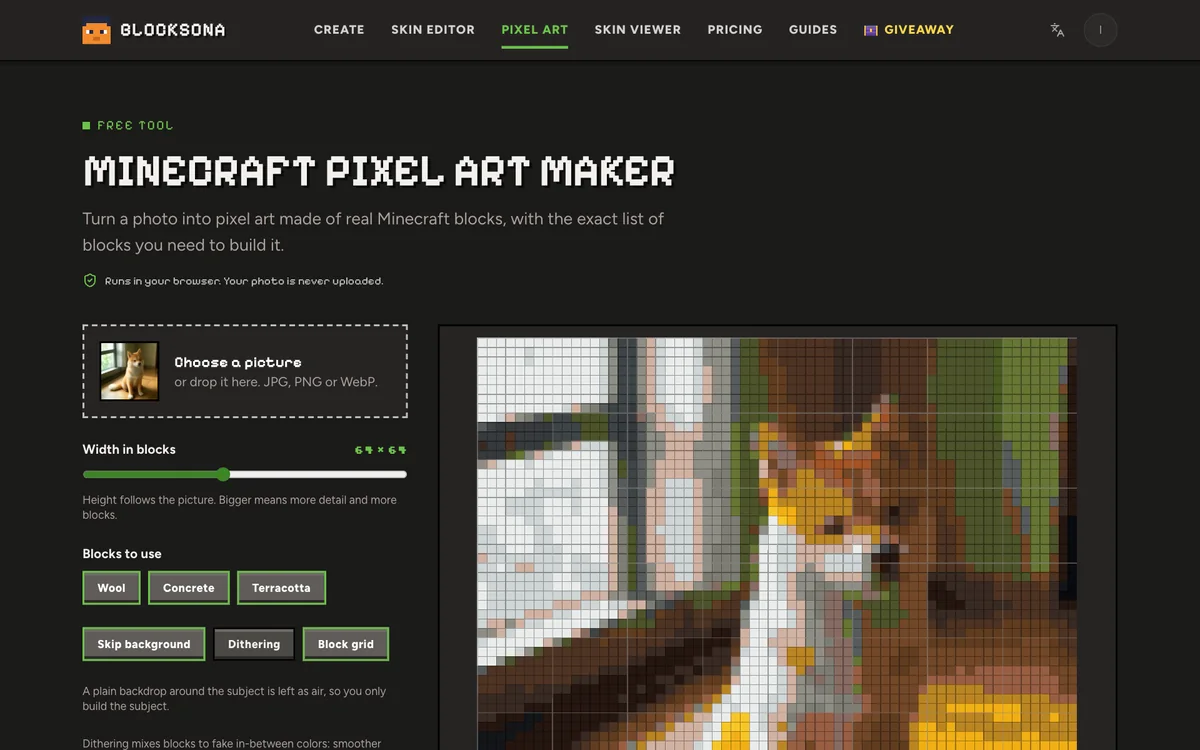
Under the preview, the Blocks needed panel lists every block with its count, the same count in stacks of 64, and the totals.
Pick a size: width and block counts
Width is the biggest decision: double it and you need four times the blocks. The table assumes a square picture with every cell filled, and Skip background usually cuts the count a lot. Build times are rough, at about 1,000 blocks an hour, a steady survival pace with every block already in chests. Creative is quicker.
| Width | Blocks (square picture) | Stacks of 64 | Rough build time | Good for |
|---|---|---|---|---|
| 16 | 256 | 4 | 15 to 20 minutes | Icons, logos, a first try |
| 32 | 1,024 | 16 | About 1 hour | Cartoon faces, simple pets |
| 48 | 2,304 | 36 | 2 to 3 hours | Pets and characters |
| 64 | 4,096 | 64 | 4 to 5 hours | The default; detailed portraits |
| 96 | 9,216 | 144 | 9 to 10 hours | Big wall art |
| 128 | 16,384 | 256 | 16 hours or more | Full map art, a group project |
One map at its closest zoom covers exactly 128 × 128 blocks, so 128 wide is the size for map art. Photos are rarely square: a 3:4 portrait at 64 wide comes out 64 × 85, or 5,440 blocks before the background goes. For scale, your inventory holds 36 stacks (2,304 blocks) and a double chest 54 stacks (3,456 blocks).
Wool, concrete or terracotta
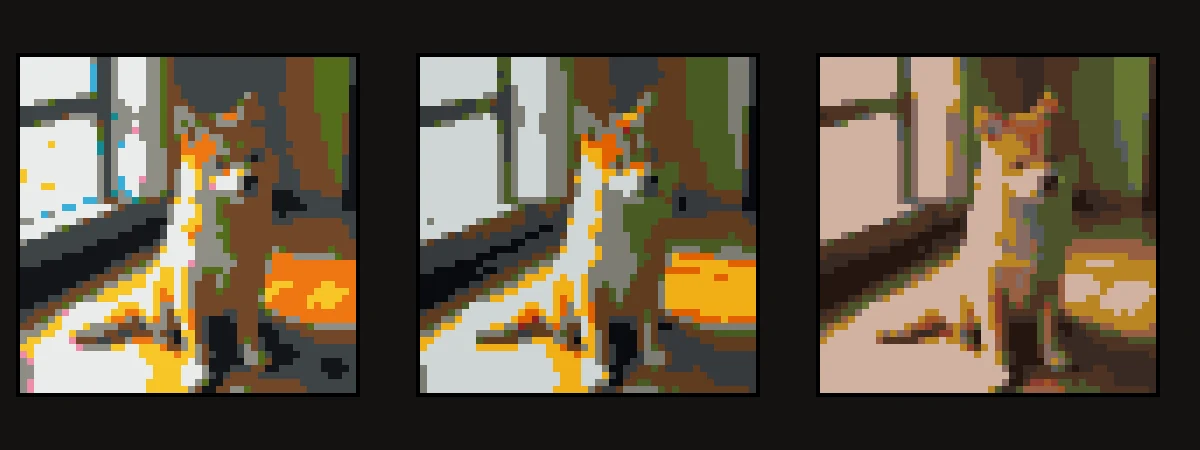
Wool and concrete each come in the 16 dye colors. Terracotta has the 16 dyed colors plus plain terracotta, so with all three sets on, the maker chooses from 49 colors. Mixing sets gives the closest match; one set is easier to gather.
| Block | Look | How to get it in survival | Watch out for |
|---|---|---|---|
| Wool | Soft, bright colors, woven texture | Shear sheep. A dyed sheep regrows that color after eating grass, so one sheep is an endless supply. Four string also make one white wool. | It burns. Keep it away from lava and fire. |
| Concrete | The brightest, flattest colors | Craft 4 sand, 4 gravel and 1 dye into 8 concrete powder, then let the powder touch water to harden. | Powder falls like sand. Harden it before a wall. |
| Terracotta | Muted browns, skin tones, dusty pinks | Smelt clay blocks in a furnace, then craft 8 terracotta with 1 dye into 8 stained terracotta. Badlands biomes have whole cliffs of it. | Duller than the names: white is a pinkish beige. |
For portraits and pets, leave terracotta on: most skin tones and fur browns come from it. For cartoons and logos, concrete gives the cleanest colors. The Minecraft Wiki page on concrete has the full crafting details.
The maker matches colors in OKLab, a color space where distance matches how different two colors look to people. It uses each block's average texture color, so real blocks look slightly different, wool most of all.
Dithering: on or off?
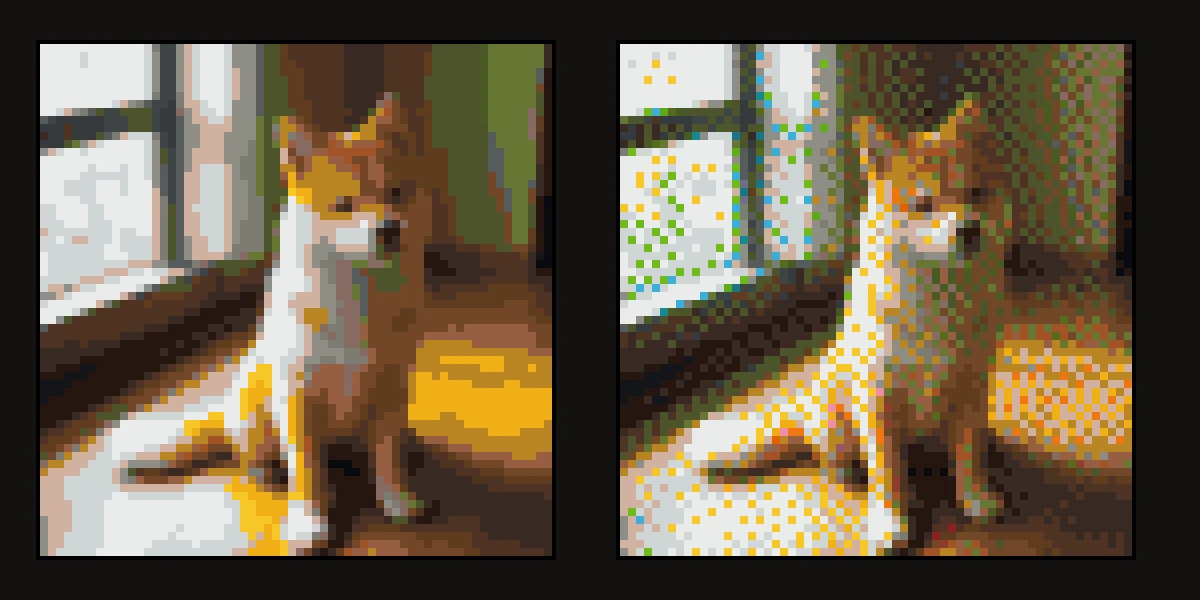
Even 49 colors cannot show a soft gradient like a sky or the shadow on a cheek; it turns into flat bands. Dithering mixes two block colors in a scattered pattern, and from a distance your eye blends them. The maker uses Floyd–Steinberg dithering: when it rounds a cell to the nearest block, it passes the leftover difference to the cells next to it.
Turn it on for big builds (96 wide and up), photos with smooth light, and art seen from far away or on a map. Leave it off for small builds, logos, flat cartoons and most survival builds: it scatters more kinds of blocks through the picture, so you switch blocks constantly and mistakes are harder to spot.
Quick test: flip it on and off and watch Blocks needed. If the number of kinds jumps but the preview barely changes, leave it off.
Skip background and air
Skip background checks the edge of your picture. If most of the edge is one plain color, it clears that color inward from the edges and leaves those cells as air. Point at one and the readout says Air. Air is not in the block list, so there is nothing to gather or place.
Only background touching the edge goes, so white inside the subject (eyes, teeth, a white belly) stays. If the edge is busy, like a room full of furniture, nothing is removed; crop tighter or use a photo against a plain wall. Turn it off when you want a full rectangle, like a poster with its backdrop.
A fun build: your own skin's face. Open your skin in the 3D skin viewer, click Download face avatar, then convert that picture at 16, 32 or 64 wide. The face is 8×8 pixels, so those widths turn each skin pixel into a clean square of blocks. Switch Skip background off here, or hair along the edge can be cleared like a backdrop. Want to change the face first? Fix a few pixels in the skin editor using our skin editor tutorial.
Read the block list (CSV)
Block list (CSV) downloads a small spreadsheet with five columns. Two example rows (your numbers depend on your picture):
| block | id | count | stacks | rest |
|---|---|---|---|---|
| White Wool | minecraft:white_wool | 412 | 6 | 28 |
| Orange Concrete | minecraft:orange_concrete | 150 | 2 | 22 |
Open it in Google Sheets, Excel or Numbers. Count is the number of blocks; stacks and rest turn it into what you carry, so 412 white wool is 6 stacks plus 28. Rows run from most used to least, so the top rows take most of your gathering time. Add a column and tick off each color as you fill its chest.
In a Java Edition creative world with cheats on, the id works in commands: /give @s minecraft:white_wool 412 hands you the whole row.
Build it in the game
Pick a floor or a wall.
- Flat on the ground is how map art is made. Build on flat, open land and view it with a map: at its closest zoom a map shows 128 × 128 blocks, one pixel per block, north at the top. Maps cover fixed squares of the world, so open a map where you plan to build and check the picture fits inside. Maps use their own colors, so expect small differences.
- A vertical wall is easier to admire and needs no map, but it needs height: a 64 × 85 portrait stands 85 blocks tall.
Mark the corner with coordinates. In Java Edition press F3: XYZ on the left is where you stand, and Targeted Block on the right is the block you are looking at. On Bedrock, turn on Show Coordinates in the world settings. Note where column 1, row 1 (the picture's top-left) goes. On a floor, put row 1 along the north edge so the picture is upright on a map; column c, row r then goes at X = start X + c − 1, Z = start Z + r − 1.
Start from a corner row. Lay the whole first row, check it against the preview, then build the next row beside it. On a wall, start at the bottom so you always have something to stand on; the maker counts rows from the top, so that is the highest row number.
Count in eights. The preview draws a brighter line every 8 blocks. Put a marker block at every 8th block along the first row and column in game, and you never count past 8. A mistake stays inside one 8 × 8 square.
Use scaffolding for walls. Craft 6 bamboo and 1 string into 6 scaffolding. Jump to climb, sneak to go down, and break the bottom piece to collect the whole tower.
In creative, use pick block. Middle-click a placed block to put it in your hand.
FAQ
Is the pixel art maker free, and does it upload my photo?
It is free with no account. Everything runs in your browser and your photo never leaves your device.
Why do the colors look different in the game?
The maker uses each block's average color, but real blocks have texture and the game adds light and shade. On a map, the game draws its own map colors.
Does it work for Bedrock Edition?
Yes. Wool, concrete and terracotta exist in Java and Bedrock, so the same plan and block counts work in either. The /give example is for Java.
What is the biggest pixel art I can make?
128 blocks wide, with the height following your picture. For bigger art, cut the picture into pieces and convert each one at 128.
Can I turn the same photo into a Minecraft skin?
Yes, with the AI generator. Use photo to Minecraft skin for people, pet to Minecraft skin for animals or image to Minecraft skin for drawings. Each skin costs one credit, and new accounts get 3 free. Need inspiration? Browse the Minecraft skin ideas.