Roblox → Skin
Roblox to Minecraft Skin: Convert Your Roblox Avatar
Type a Roblox username or upload a screenshot, and Blocksona paints that avatar as a real 64×64 Minecraft skin with the same face, shirt, pants and hair. No Roblox password and no Roblox login.
Your Roblox avatar, by username or from a screenshot.
Uses 1 creditNew accounts get 3 free credits.
Tips for a better skin
- Face the camera and fill most of the frame.
- Even daylight beats flash and filters.
- Use the notes to fix colors the photo gets wrong.
Your skin shows up here
Until then, meet Mika. Drag to spin.
Turn your Roblox avatar into a Minecraft skin
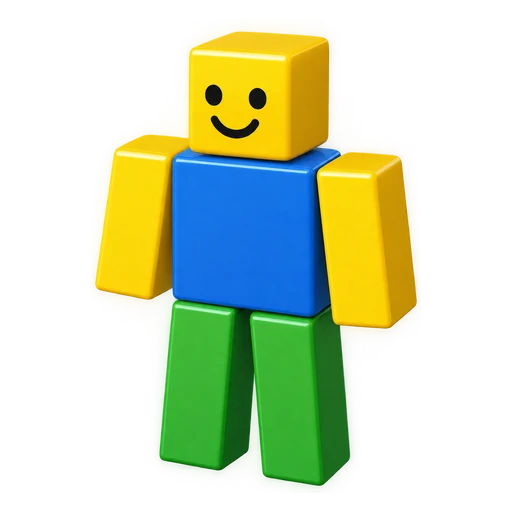
Roblox and Minecraft characters are built from the same six blocks: a head, a torso, two arms and two legs. That is why Roblox to Minecraft skin is one of the cleanest conversions you can do. Roblox mode maps each part to its twin: the face decal onto the 8×8 front of the head, the shirt onto the body, the pants onto the legs with the shoes on the bottom rows, and the hair or hat around the head.
The result is a real skin file, not a screenshot of your avatar: 64×64 pixels in the layout Minecraft reads, with the back, sides, top and soles filled in. You can wear it on Java Edition and on Bedrock for Windows, iPhone, iPad and Android. Not a Roblox player? The same Workbench turns a selfie into a skin or one sentence into a character.
Blocksona is not affiliated with Roblox, Mojang or Microsoft. Roblox mode only reads the avatar picture that Roblox already shows to everyone.
Roblox avatars converted to Minecraft skins
Two unedited results. These avatars were made for this page, not taken from real Roblox accounts. Click one to spin it in 3D.
Bolt shows the one-to-one mapping at work: his smile decal sits on the face, the red cap wraps the top of the head, the lightning bolt on his green tee is redrawn as a bold yellow shape, his arms stay skin-colored below the short sleeves, and the red sneakers fill the bottom rows of the legs. Kai shows that a full outfit survives too: the black hood stays on the head, and the red scarf and the red shin wraps carry over onto the body and legs.
Username or screenshot: two ways to bring your avatar over
Roblox mode has two tabs, Username and Screenshot. Both make the same kind of skin. The difference is where the picture of your avatar comes from.
| Username | Screenshot | |
|---|---|---|
| What you enter | A Roblox username: 3 to 20 letters, digits or underscores | A JPG, PNG or WebP picture of the avatar |
| Where the picture comes from | The public full-body picture Roblox shows for that avatar | Your own capture, from the Avatar editor or in a game |
| Best when | The outfit you wear right now is the one you want | You want an old outfit, a look from one game, or the lookup did not work |
| Watch out for | Type the username (the @ name), not the display name | Face the camera, one avatar only, no chat or menus over the body |
| If something goes wrong | Username not found, or Roblox not answering: no credit used | A failed generation refunds its credit |
Just changed your outfit? Roblox can take a moment to update the public picture. Wait a few minutes before you generate, or switch to Screenshot.
What converts one to one, and what cannot
A Minecraft skin colors a fixed blocky body. Anything on your avatar that is a flat picture carries over well. Anything that is a 3D shape gets flattened or left out.
| On your Roblox avatar | On the Minecraft skin |
|---|---|
| Skin color | The same color on the head, the hands and any bare arms or legs |
| Face decal | Redrawn as an 8×8 pixel face, with both eyes and the mouth kept readable |
| Shirt or T-shirt | On the body, and on the arms only as far as the sleeves go; prints become bold, simple shapes |
| Pants | On the legs, with the shoes on the bottom rows |
| Hair and hats | Painted on the top, sides and back of the head |
| Layered clothing (3D jackets, puffy dresses) | Flattened onto the body: the colors stay, the bulk and folds do not |
| Wings, back items and large 3D accessories | Flattened or dropped, since a skin cannot add shapes to the model |
| Bundles with a different body shape | Squeezed into the standard Minecraft body: tall, wide or animal-shaped bodies keep their colors, not their proportions |
| Gear held in the hands | Left out; hold a real item in the game instead |
Classic Roblox shirts and pants are flat images wrapped around the body, just like a Minecraft skin, which is why they convert so cleanly.
No password, no login, nothing lost on a typo
Roblox mode never asks for a Roblox password and never signs in to Roblox. It looks up the username and reads the avatar’s public full-body picture, the same picture anyone can see on a Roblox profile. It reads nothing private from the account and cannot change anything on it.
For parents, the rules in short:
- A username that does not exist costs nothing. The page says “No Roblox player with that username” so you can fix the spelling.
- If Roblox does not answer, you are asked to try again in a minute, and no credit is used.
- If a generation fails, its credit is refunded automatically.
- An uploaded screenshot is used for that one skin, deleted within 24 hours and never used to train models.
- The finished skin goes into your private My skins library and stays there until you delete it.
- Generating needs a Blocksona account, not a Roblox one. That account holds the 3 free credits and the library; packs and prices are listed if you need more.
How to convert a Roblox avatar to a Minecraft skin
- Step 1
Open Roblox mode
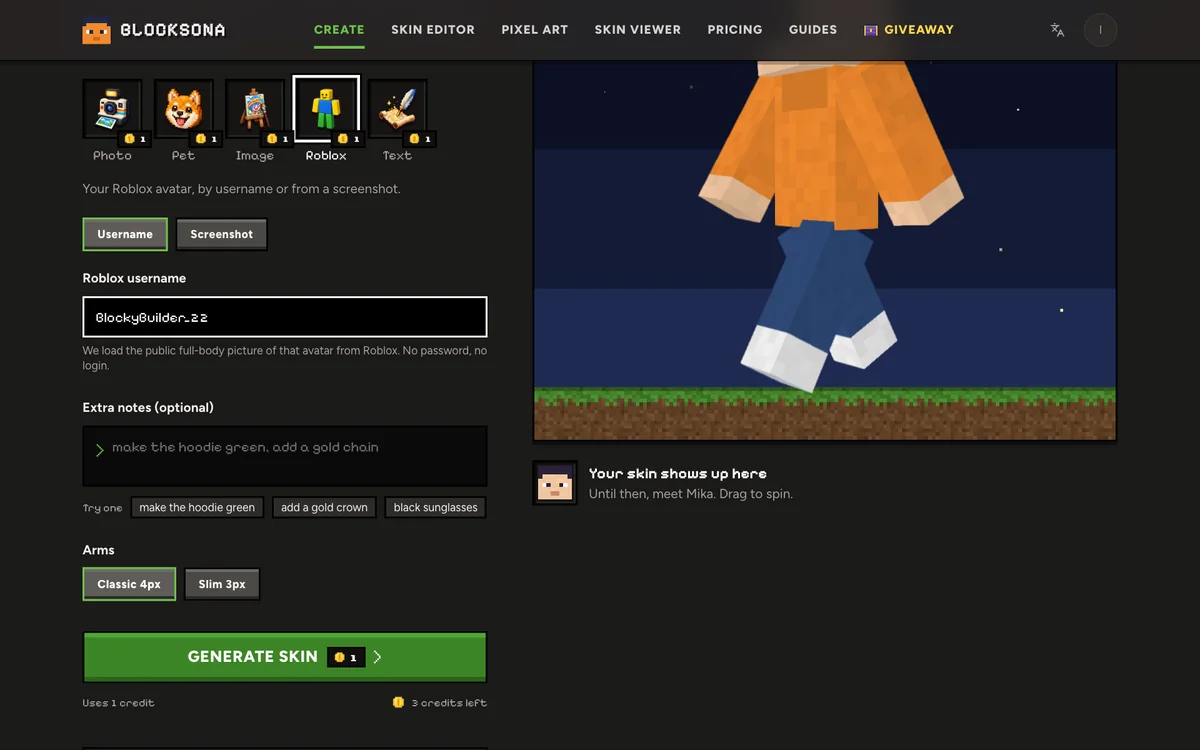
Use the Workbench at the top of this page, already set to Roblox, or open the full Workbench and pick Roblox. Sign in first; new accounts start with 3 free credits.
- Step 2
Enter the username or upload a screenshot
On Username, type the name that follows the @ on the Roblox profile. On Screenshot, upload a front view of the avatar with nothing in front of it.
- Step 3
Add notes and pick the arms
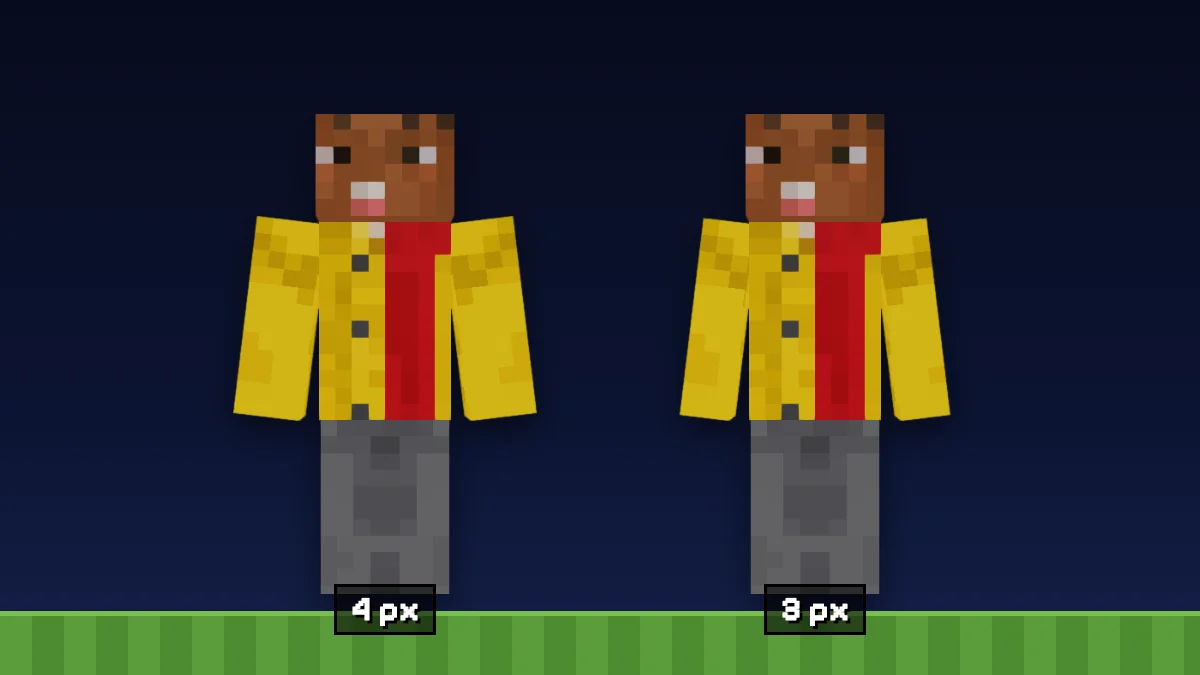
Extra notes (optional) covers what the front picture cannot show: “the back of the shirt has a big number 7”, “make the hair dark brown”. Classic Roblox bodies are blocky, so Classic 4px usually fits; pick Slim 3px for a slender avatar.
- Step 4
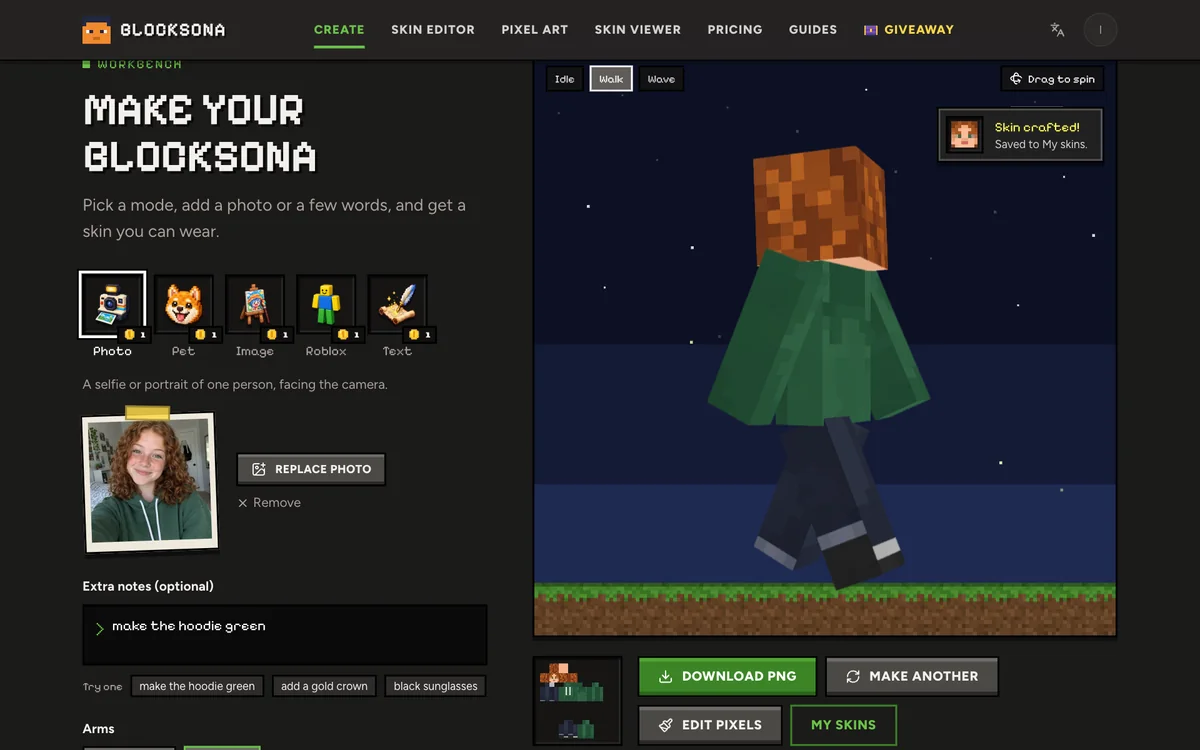
Generate and check the result
Press Generate skin. It usually takes 1 to 2 minutes, and you can leave the page. Spin the 3D preview, try Walk and Wave, and check that the face reads well and the shoes landed on the feet.
- Step 5
Wear it in Minecraft
Download PNG for Java, Download .mcpack for Bedrock. The Java install guide and the Bedrock install guide cover every platform. Xbox, PlayStation and Switch cannot import skin files.
Tips for a cleaner Roblox conversion
A few minutes of prep in Roblox makes a big difference on 64×64 pixels.
Works well
- Wear classic shirts and pants in bold colors; they carry over best
- Pick a face decal with clear eyes and a clear mouth, since it has to read on 8×8 pixels
- For screenshots, use the Avatar editor with a plain background and the avatar facing you
- Describe any design on the back in Extra notes; the public picture only shows the front
- Choose Classic arms for blocky avatars (classic vs slim arms explained)
Avoid
- Typing the display name: the lookup only knows usernames
- Expecting wings, swords or giant hats to stick out of the model
- Screenshots with chat, menus or other players in front of the avatar
- Tiny writing on a shirt, which turns into a few unreadable pixels
- Giving your Roblox password to any skin site: Blocksona never needs it
Edit your skin after converting it
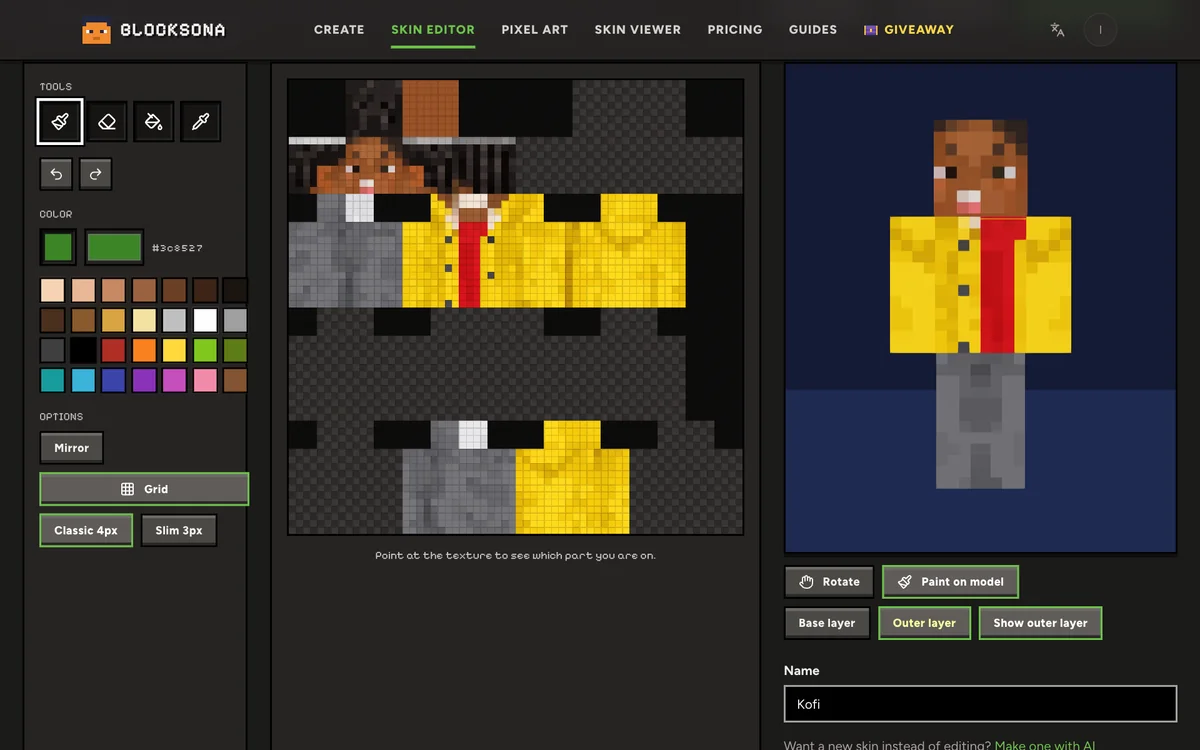
Press Edit pixels on the result to open the skin in the free Minecraft skin editor. Fix a logo, change a sneaker color or add a detail that got lost, without spending a credit.
The converted skin is painted on the base layer, and the Outer layer, a second shell around the model, starts empty. Select it to add a cap brim or a puffier hairdo, or turn off Show outer layer to see the base layer underneath. The eraser only works on the outer layer, because the base layer is always solid in the game. The skin editor guide walks through layers, Mirror and Fill.
Want a matching profile picture for a server or a chat app? Open the skin in the 3D skin viewer and use Download face avatar for a 512×512 PNG of the face.
More ways to make a skin
- Image to skinAvatars from other games, drawings and screenshots of one character.
- Photo to skinMake a skin of the real you from a selfie.
- Text to skinDesign a brand-new character from one sentence.
- Skin editorPaint or fix any skin by hand, free.
- Creator challengePost a reveal video of your new skin for a chance at a $25 gift card or free credits.
FAQ
Questions people ask
Can I convert my Roblox avatar to a Minecraft skin for free?
Yes, for your first three. New accounts get 3 free credits and one conversion uses 1 credit. After that, packs start at $4.99 for 20 credits on the pricing page. A username that is not found costs nothing.
Do I need my Roblox password?
No, never. Blocksona looks up the username and reads the avatar’s public full-body picture. It does not sign in to Roblox and has no way to change your account. If any site asks for your Roblox password to make a skin, close it.
Why does it say no Roblox player was found?
The lookup needs the username, not the display name. Usernames are 3 to 20 letters, digits or underscores, with no spaces. Copy it from the profile, or upload a screenshot instead. No credit is used.
Will layered clothing and accessories show up?
Flat clothing converts well. Layered 3D clothing is flattened onto the body, and wings, back items and big hats are flattened or left out, because a Minecraft skin cannot change the shape of the model. Describe anything important in Extra notes.
Does it work with bundles and different body shapes?
Yes, but every avatar ends up in the standard Minecraft body. Tall, chunky or animal-shaped bundles keep their colors and face, not their proportions.
Can I use the skin back in Roblox?
No. The result is a Minecraft skin, a 64×64 PNG or a .mcpack. Roblox uses its own clothing system, so the file will not work there.
Which Minecraft versions can wear it?
Java Edition on PC and Mac, and Bedrock on Windows, iPhone, iPad and Android. Consoles cannot import skin files. Phone and tablet steps are in the Bedrock install guide.
Is this an official Roblox or Minecraft tool?
No. Blocksona is an independent site. It is not affiliated with Roblox, Mojang or Microsoft, and it is not an official Minecraft product.
How long does the conversion take?
Usually 1 to 2 minutes. You can leave the page while it works; the finished skin is saved to My skins.
Guides
Read next
 How to change or install a skin in Minecraft Java EditionChange your Minecraft Java skin in about a minute with the launcher or minecraft.net. Steps for Windows and Mac, classic vs slim arms and fixes that work.
 How to import a custom skin in Minecraft Bedrock (Windows, iPhone, Android)Import a custom skin in Minecraft Bedrock with a one-tap .mcpack or a PNG in the Dressing Room. Steps for Windows, iPhone, iPad and Android, plus consoles.
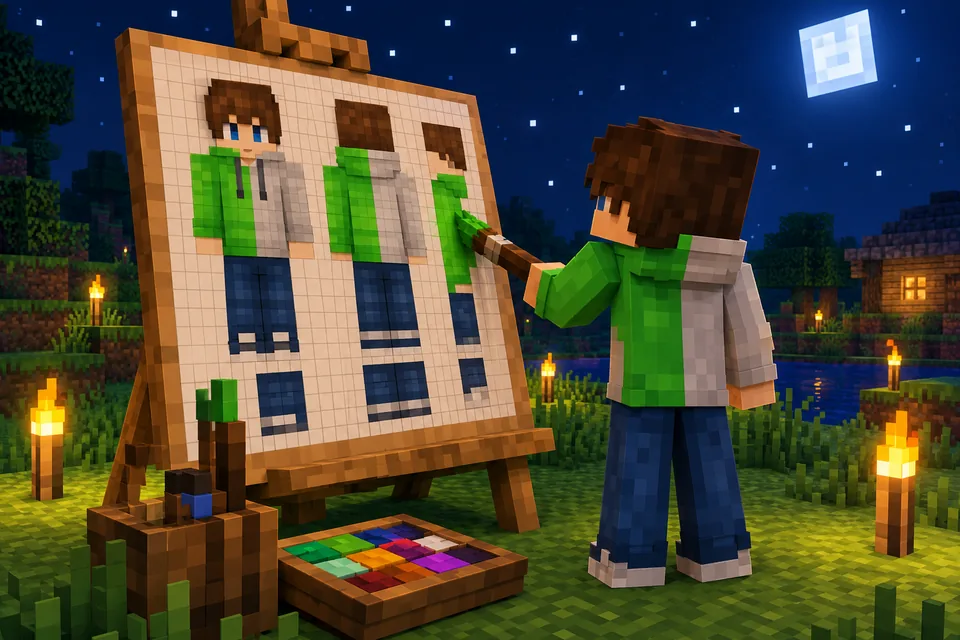 How to use a Minecraft skin editor: edit any skin pixel by pixelA step-by-step tutorial for the free Blocksona skin editor: open a skin, read the 64×64 map, use every tool and shortcut, shade it, and wear it in game.
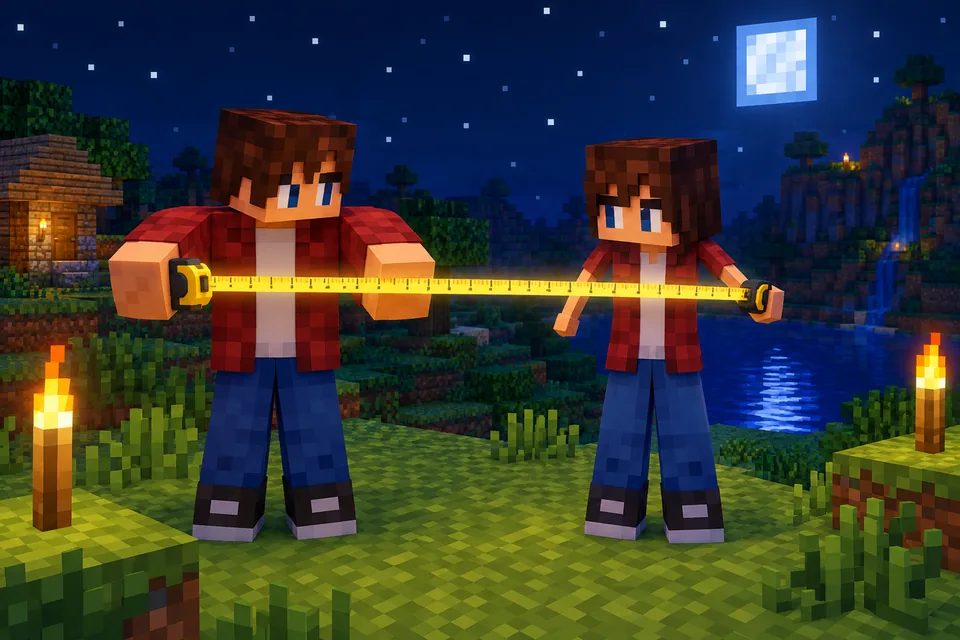 Minecraft skin classic vs slim arms: Steve or Alex, and how to pickClassic arms are 4 pixels wide, slim arms 3. See where each sits on the 64×64 skin, what goes wrong with the wrong model, and how to check and pick yours.
Further reading
Outside sources, for the details behind this page.
- Roblox Creator Hub: AvatarRoblox’s own docs on avatar bodies, classic and layered clothing, and accessories. Handy for seeing which parts of your avatar are flat.
- Minecraft Wiki: SkinThe 64×64 skin format and its two layers, so you know what the converted file holds.
- Minecraft Wiki: Character CreatorBedrock’s Dressing Room, where a .mcpack import shows up after you open it.
By the Blocksona teamUpdated