
Photo → Skin
Photo to Minecraft Skin: Turn a Selfie Into a Skin of Yourself
Turn a picture of yourself into a real 64×64 Minecraft skin: upload one clear photo and Blocksona paints your hair, glasses and outfit colors on the front, back and sides, ready to wear in Java or Bedrock. It takes 1 to 2 minutes, and new accounts get 3 skins free.
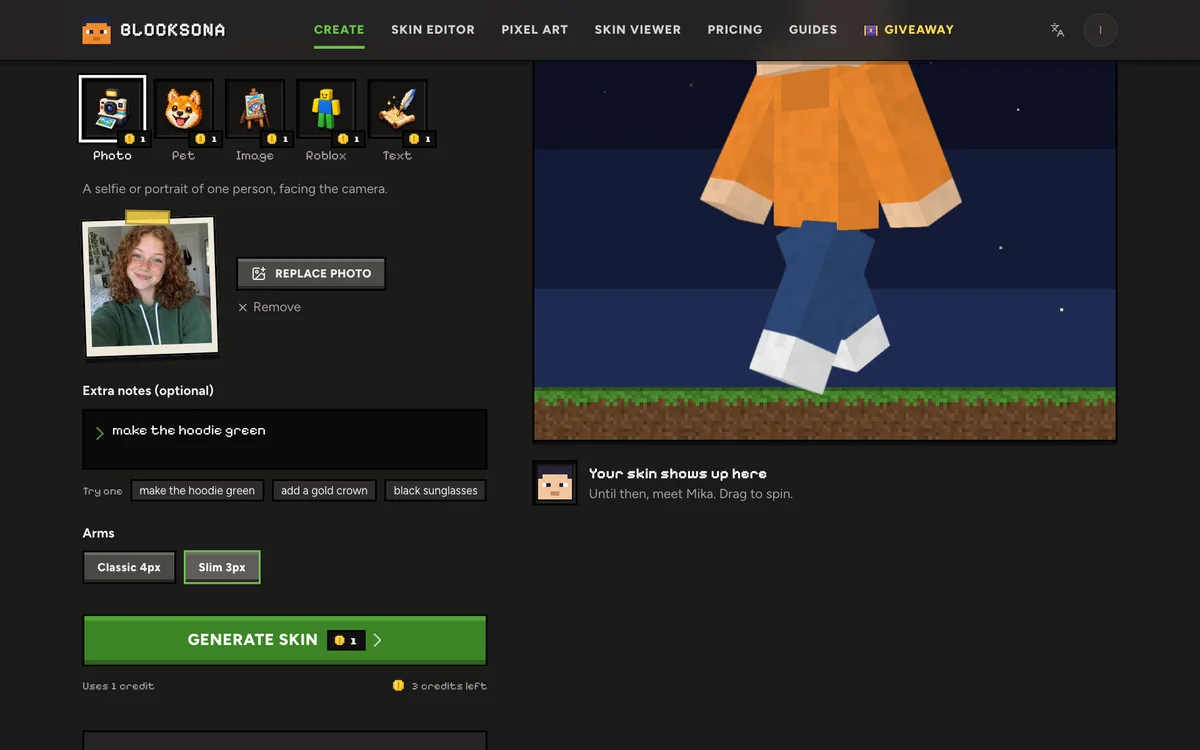
A selfie or portrait of one person, facing the camera.
Uses 1 creditNew accounts get 3 free credits.
Tips for a better skin
- Face the camera and fill most of the frame.
- Even daylight beats flash and filters.
- Use the notes to fix colors the photo gets wrong.
Your skin shows up here
Until then, meet Mika. Drag to spin.
How to turn a photo into a Minecraft skin
Everything happens in Photo mode of the Workbench. You need one photo and about two minutes.
- Step 1
Upload one clear photo of yourself
Pick Photo mode and drop in a JPG, PNG or WebP. A selfie works. A waist-up or full-body shot works better, because the AI can see your whole outfit. Your browser shrinks the photo to 1024 px before it uploads, so big phone pictures are fine.
- Step 2
Add Extra notes (optional)
The Extra notes box takes up to 400 characters for anything the photo gets wrong or does not show: "hair is dark red, not brown", "blue jeans and white sneakers", "add my black sunglasses". Notes cost nothing extra.
- Step 3
Choose Classic or Slim arms
Classic arms are 4 pixels wide, Slim arms are 3. Pick before you generate, because the AI paints the arms at that width. Still deciding? Read the classic vs slim arms guide.
- Step 4
Click Generate skin
One skin uses 1 credit and usually takes 1 to 2 minutes. You can leave the page while it paints. If the first result does not fit the Minecraft layout, it is painted again automatically at no extra cost. If it fails, your credit comes back.
- Step 5
Check it in 3D and download
Drag the 3D preview to spin it and switch between idle, walk and wave. Then click Download PNG for Java, or Download .mcpack for one-tap import on Bedrock. Every skin is also saved to your private My skins library.
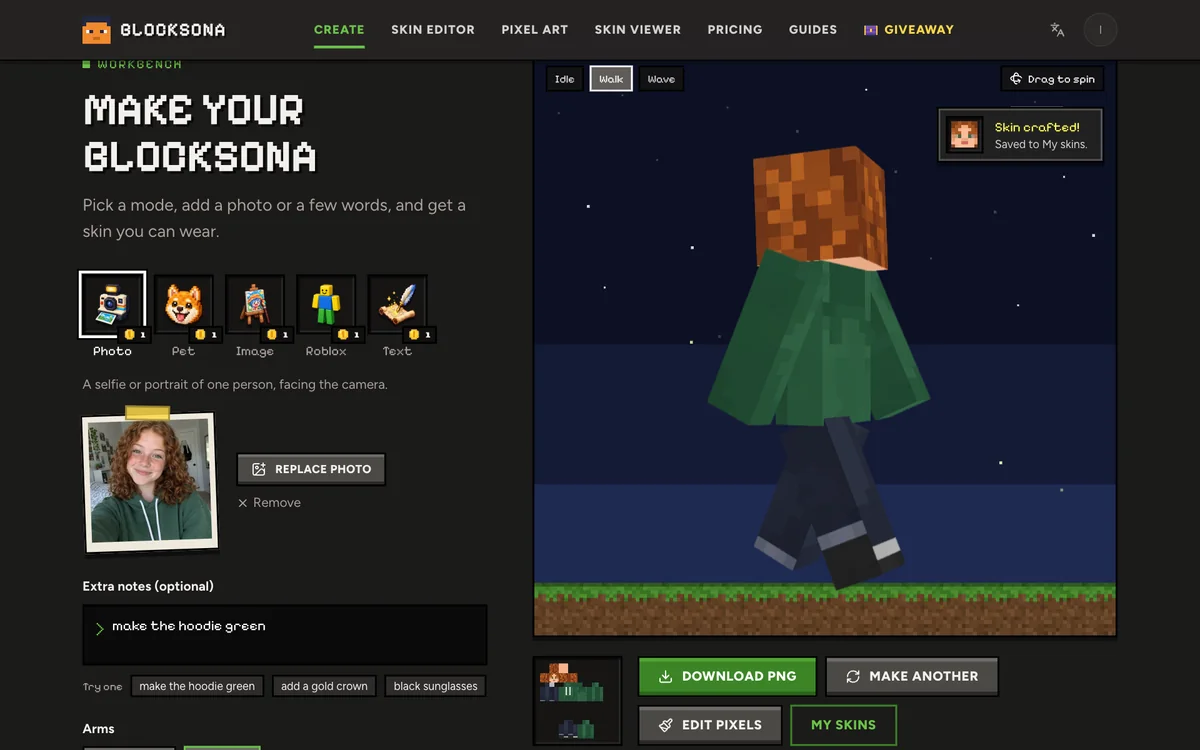
Photo to Minecraft skin examples
Five photos and the skins Blocksona made from them, with no edits. The people in the photos were made with AI, so nobody real is shown. Click a card to spin the skin in 3D.
Look at what each one kept. Dev's black glasses, stubble and the white stripe on his navy tee all made it. Kofi got his braids and the yellow raincoat open over a red shirt. Grandpa Joe kept his grey flat cap and brown cardigan. Ivy's selfie stops at her shoulders, so her dark pants were guessed. Mei's mirror selfie shows her whole outfit, but her face is small and half behind the phone, so her round glasses are only a hint.
What carries over from a photo (and what does not)
A Minecraft head is 8×8 pixels on each side, and the chest is 8×12. That is plenty for colors and big shapes, and too small for fine detail.
| In your photo | On the skin | How well |
|---|---|---|
| Hair color and style | Painted on the top, sides and back of the head. Curls, braids and fringes become blocky shapes. | Very well |
| Skin tone | Matched on the face, neck and hands, and on arms or legs when they are bare. | Well, in daylight |
| Glasses | Dark pixels framing the eyes, like Dev's. | Well, if your face is big in the photo |
| Beard, stubble, freckles | A few darker pixels on the jaw or cheeks. Fine freckles can be smoothed away, so name them in Extra notes. | Sometimes |
| Outfit colors | Hoodies, tees, coats and cardigans keep their colors, front and back. | Very well |
| Prints and stripes | Bold stripes and big shapes stay, like the stripe on Dev's tee. Small logos shrink to a dot or two. | Bold ones only |
| Caps and hats | Painted onto the head, like Grandpa Joe's flat cap. Brims and pom-poms cannot stick out. | Mostly |
| Text, jewelry, earrings | Too small for the grid, so usually left out. | No |
| Anything out of frame | Pants and shoes you did not photograph are guessed to match your top. | Guessed |
The player model is a fixed set of boxes, so a ponytail does not hang down. It is painted onto the back of the head instead.
What makes a good photo for a Minecraft skin
The photo matters more than anything else you do. These are the short rules. The best photo for a Minecraft skin guide explains each one.
Works well
- One person in the frame. Crop out friends, even half a shoulder.
- Face the camera with the phone at eye level.
- Daylight from a window, or outdoors in the shade.
- Waist-up or full body, so your top and pants are both in the shot.
- Glasses on and hair the way you usually wear it, if you want them on the skin.
Avoid
- Group photos: the AI cannot tell whose hair goes where.
- Side profiles, or looking down at the phone.
- Hard flash, dark rooms or colored party lights.
- Beauty filters, face stickers and heavy edits.
- A tiny face in a far-away shot.
Fix details with Extra notes and the skin editor
Photos do not always get colors right. Warm indoor light can turn red hair brown, and a navy hoodie can come out black. Write the fix in Extra notes before you generate, in plain words: "hair is dark red, not brown", "freckles on both cheeks", "blue jeans and white sneakers". Notes can add things too, like "a gold crown", and they cost nothing extra.
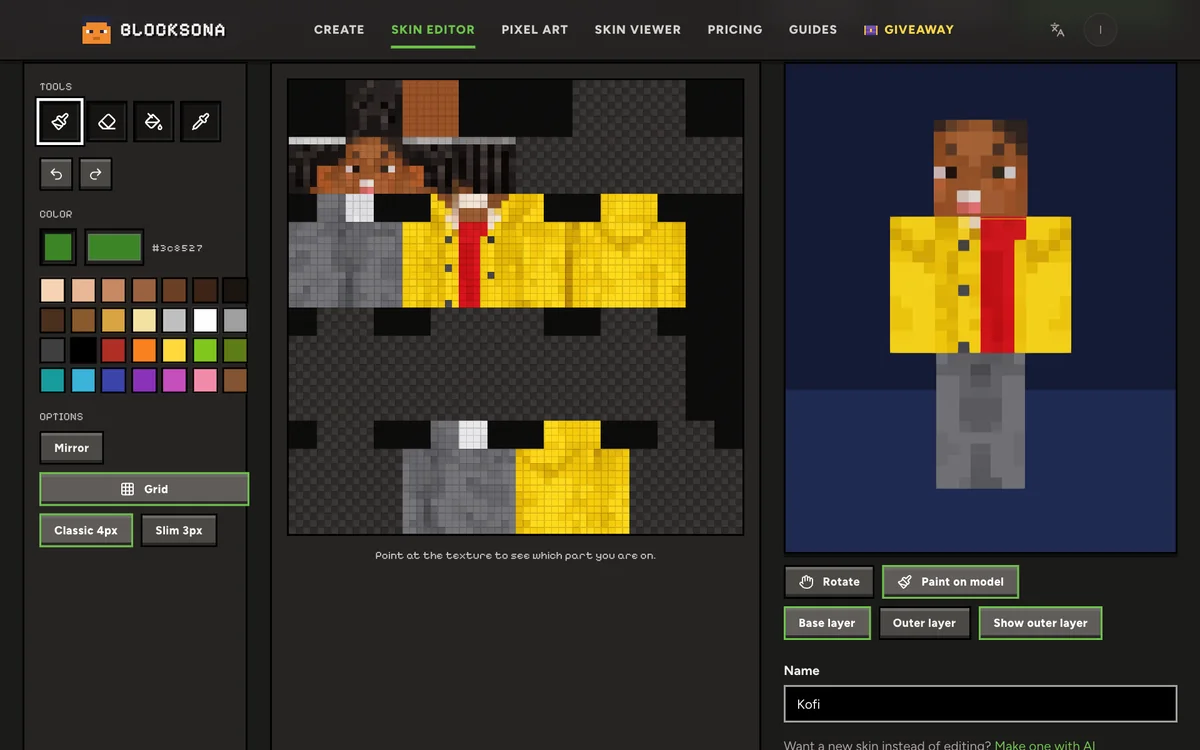
Small fixes after the skin is made are faster by hand. Click Edit pixels on the result and your skin opens in the free Minecraft skin editor, with no credit used. The skin editor guide walks through every tool. These four matter most for a face:
- Paint on model lets you click right on the 3D face, so you do not have to hunt for the eye pixels on the flat texture.
- Mirror (M) paints the left and right side together, handy for glasses or matching sleeves.
- Pick color (I) grabs your exact hair or hoodie color from another pixel.
- The Outer layer holds hats, hoods and jacket details. The base layer under it is always solid in game.
Classic or slim arms for a skin of yourself
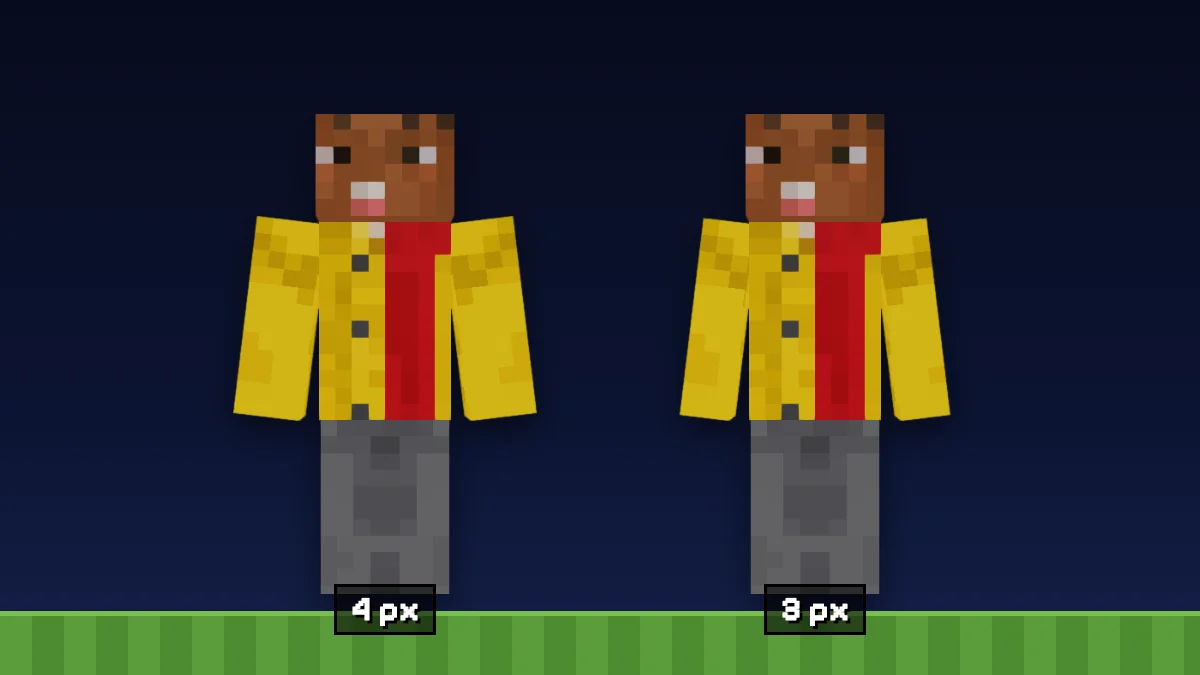
Minecraft has two player models. Classic arms are 4 pixels wide (the "Steve" model) and Slim arms are 3 pixels wide (the "Alex" model). Everything else is the same. It is a style choice, not a boy or girl setting, so pick whichever looks more like you.
In the examples above, Ivy and Mei use Slim, while Kofi, Grandpa Joe and Dev use Classic. Choose before you click Generate skin, then pick the same model when you load the skin in Minecraft, or the arms show a gap or a stretched stripe. Have a skin already and not sure which it is? Open it in the 3D skin viewer and switch arms. The classic vs slim arms guide has more side-by-side pictures.
What happens to your photo
Your photo is used for that one generation and deleted automatically within 24 hours. It is never used to train AI models. The finished skin stays in your private My skins library until you delete it.
You need to sign in to generate, which is how your 3 free credits and your library work. Players under 13 need a parent or guardian to set up the account. Only upload photos of yourself, or of people who said yes. The privacy policy has the full details.
Wear your skin in Minecraft Java and Bedrock
Your skin is a standard 64×64 PNG, so it works in both editions. Download the file that matches where you play.
| Where you play | Download | Then |
|---|---|---|
| Java Edition (PC, Mac) | Download PNG | Minecraft Launcher → Skins → New skin → pick Classic or Slim → Browse → Save & Use. Press F5 in game to see yourself. Full steps: install a skin on Java. |
| Bedrock on Windows | Download .mcpack | Double-click it and Minecraft imports it. Find it in Dressing Room → Classic Skins, in the pack "Blocksona: your skin name". |
| iPhone, iPad, Android | Download .mcpack | Open the file with Minecraft, then pick the skin in the Dressing Room. You can also import the PNG by hand. Full steps: install a skin on Bedrock. |
| Xbox, PlayStation, Switch | Not possible | Consoles cannot import skin files. A skin you import on a phone or PC stays on that device. |
What a photo to Minecraft skin costs
1 credit makes 1 skin, and a failed generation refunds itself. Every option is on the pricing page.
3 free skins
New accounts get 3 free credits: enough to try a selfie, try again with a note, and still have one left.
One-time packs
Starter is $4.99 for 20 skins, Family $9.99 for 60, Mega $19.99 for 150. Credits last 365 days. No subscription needed.
Builder pass
$5.99 a month for 60 credits, or $59.99 a year for 720, for players who make new skins every week.
Always free
Extra notes, the automatic repaint, refunds on failures, the skin editor and the 3D skin viewer.
Other ways to make a Minecraft skin
Same Workbench, different starting point.
- Pet to skinTurn your dog, cat or parrot into a skin to go with yours: its face, its coat, and paws for hands.
- Image to skinStart from a drawing, an OC, a mascot or a game screenshot instead of a photo.
- Text to skinNo photo you like? Describe the character in one sentence, up to 400 characters.
- Roblox to skinType your Roblox username and bring that avatar into Minecraft.
- Pixel art makerTurn the same selfie into a block portrait to build in your world, with the exact block list. The photo never leaves your browser.
- 3D skin viewerDownload a 512×512 face avatar of your new skin to use as a profile picture.
FAQ
Questions people ask
Can I turn a picture of myself into a Minecraft skin for free?
Yes. New accounts get 3 free credits, and each credit makes one skin, so your first three photos cost nothing. After that, packs start at $4.99 for 20 skins. You need to sign in to generate.
How long does a photo to Minecraft skin take?
Usually 1 to 2 minutes. You can leave the page while it paints. The finished skin is saved to My skins.
Will the skin really look like me?
It will look like a Minecraft version of you. The face is only 8×8 pixels, so friends recognize you by your hair, skin tone, glasses and clothes more than by your features. A clear, front-facing photo plus a line or two of Extra notes gets you closest.
Can I use a photo with friends or my pet in it?
Crop it to one person first. A group photo mixes up hair and clothes between people, so make one skin per friend. For your dog or cat, use pet to Minecraft skin instead.
Is my photo saved or used to train AI?
No. The photo is used for that one skin and deleted automatically within 24 hours, and photos are never used to train models. Only the finished skin is kept, in your private library, until you delete it.
Does it work for Minecraft Java and Bedrock?
Yes. Use the PNG for Java Edition and the .mcpack for Bedrock on Windows, iPhone, iPad and Android. Xbox, PlayStation and Switch cannot import skin files. The Bedrock install guide has the steps for each device.
What if my skin comes out wrong?
If the first result does not fit the Minecraft layout, it is repainted automatically for free. If a generation fails, the credit is refunded. For a wrong color or a missing detail, generate again with an Extra note, or click Edit pixels and fix it yourself in the skin editor for free.
Should I pick classic or slim arms?
Pick the one you like. Classic arms are 4 pixels wide and Slim arms are 3. Nothing else changes. Use the same model when you load the skin in Minecraft.
Can I make a skin from a photo of someone else?
Only if they said yes, and for a child, a parent should agree too. Photos of family and friends work the same way as a selfie: one person, facing the camera.
I do not have a good photo. What else can I use?
Describe yourself on the text to Minecraft skin page ("a girl with curly red hair, freckles and a green hoodie"), or upload a drawing of yourself on the image to Minecraft skin page.
Guides
Read next
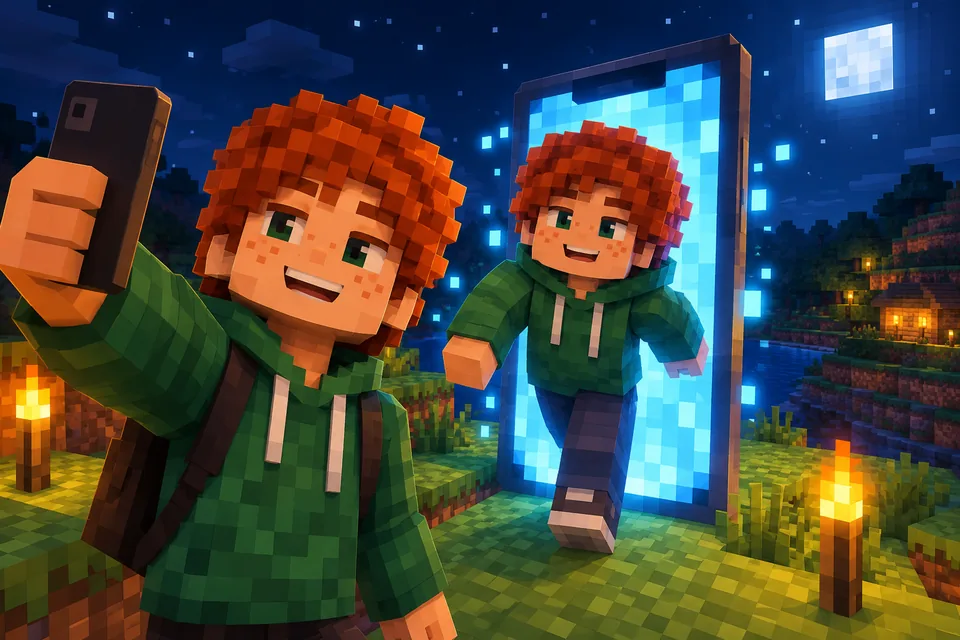 How to make a Minecraft skin of yourself (from a selfie or by hand)Turn yourself into a Minecraft skin from one selfie in about 2 minutes, or paint it pixel by pixel in a free editor. Steps, real examples, fixes and install.
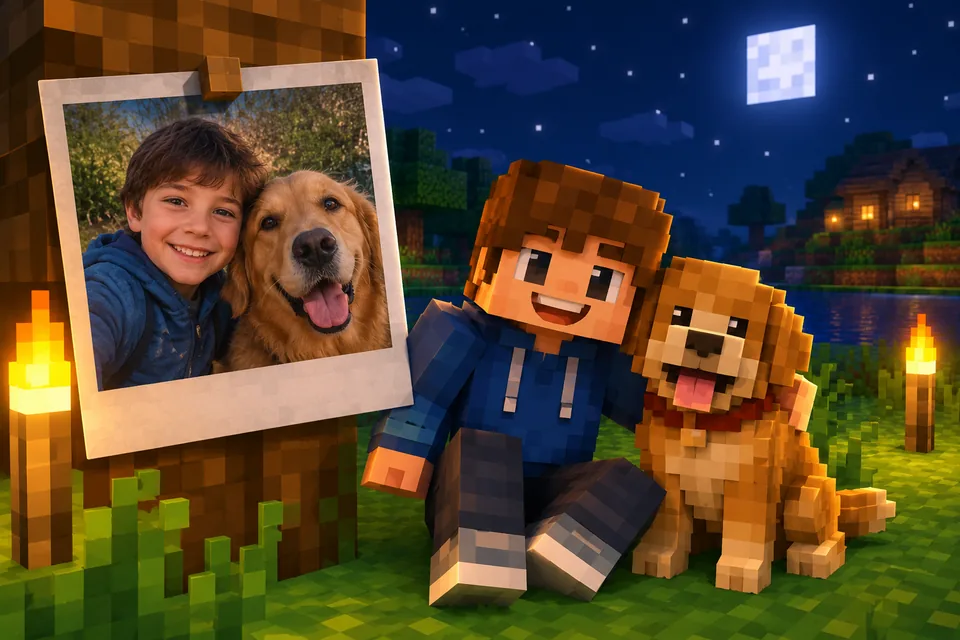 Best photo for an AI Minecraft skin: 5 rules with examplesA Minecraft face is 8×8 pixels, so the photo matters. Five rules, real before and after examples, tips for pets, drawings and Roblox, and a quick checklist.
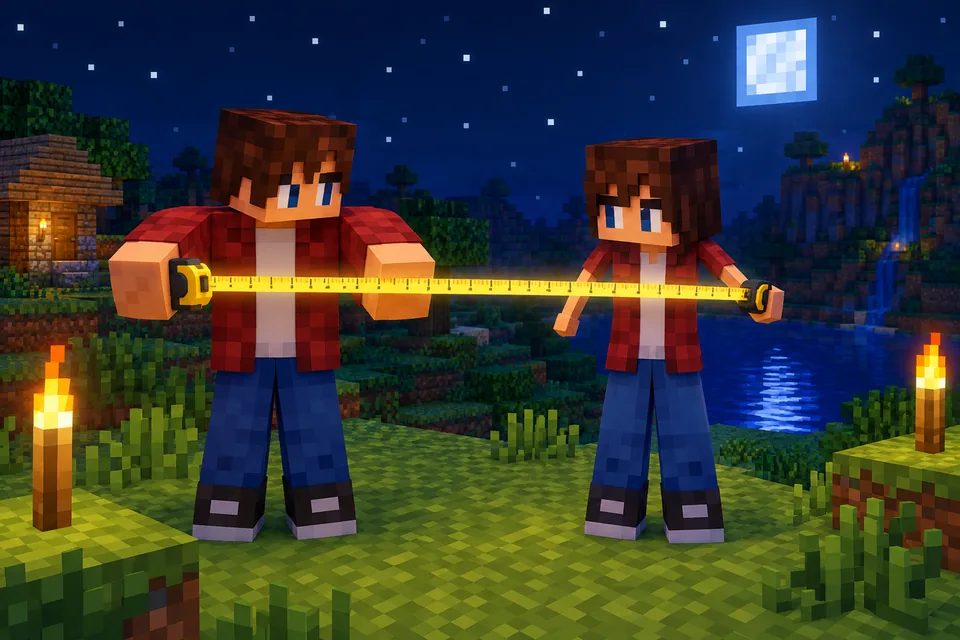 Minecraft skin classic vs slim arms: Steve or Alex, and how to pickClassic arms are 4 pixels wide, slim arms 3. See where each sits on the 64×64 skin, what goes wrong with the wrong model, and how to check and pick yours.
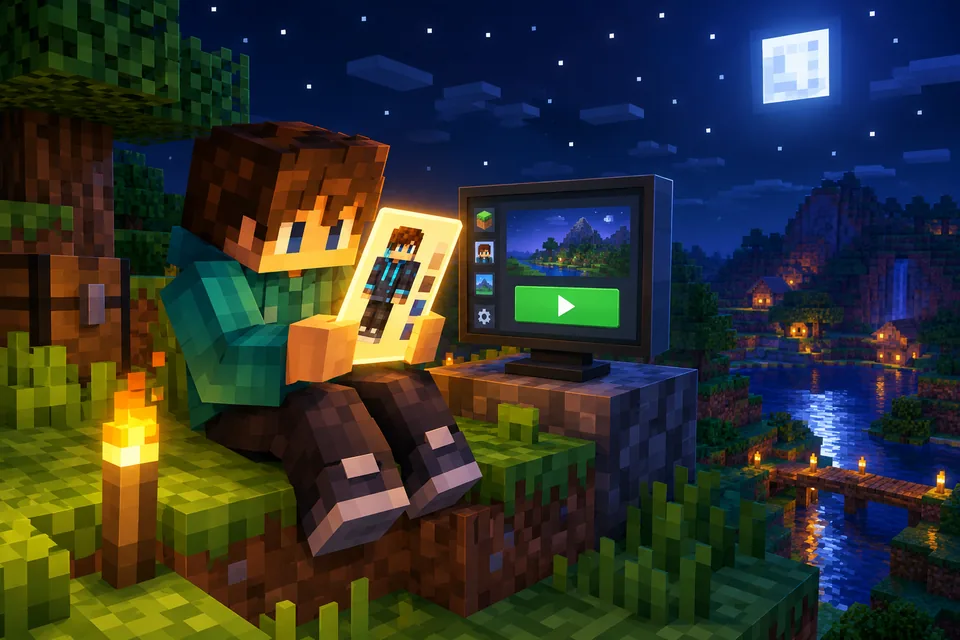 How to change or install a skin in Minecraft Java EditionChange your Minecraft Java skin in about a minute with the launcher or minecraft.net. Steps for Windows and Mac, classic vs slim arms and fixes that work.
Further reading
Outside sources, for the details behind this page.
- Minecraft Wiki: SkinHow the 64×64 texture is laid out, including the second (outer) layer.
- Minecraft Wiki: PlayerThe player model and the difference between the classic and slim arm models.
- minecraft.net: Change your Java skinThe official page for uploading a skin to your Java profile without the launcher.
By the Blocksona teamUpdated