
Workbench · 5 modes
Make a Minecraft Skin with AI
Turn a selfie, a pet photo, a drawing, a Roblox avatar or one sentence into a real 64×64 Minecraft skin. Pick a mode below and the AI paints every side of the skin, usually in 1 to 2 minutes. Each skin costs 1 credit, and new accounts get 3 free.
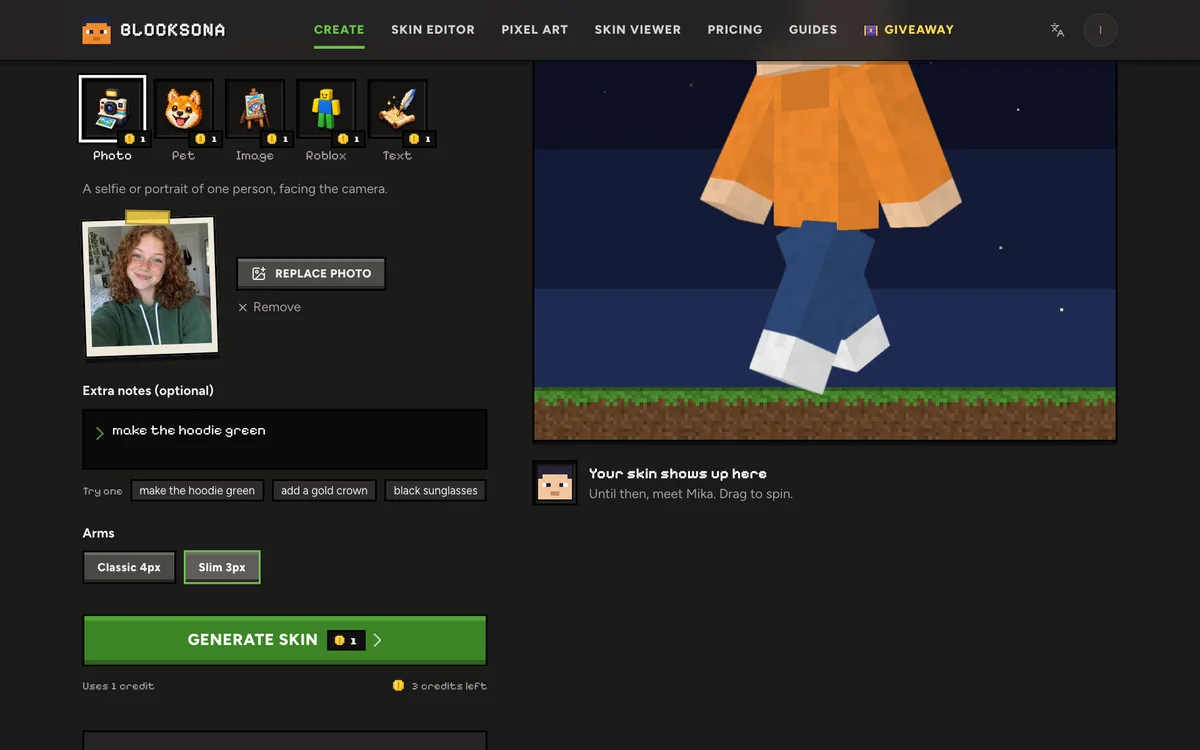
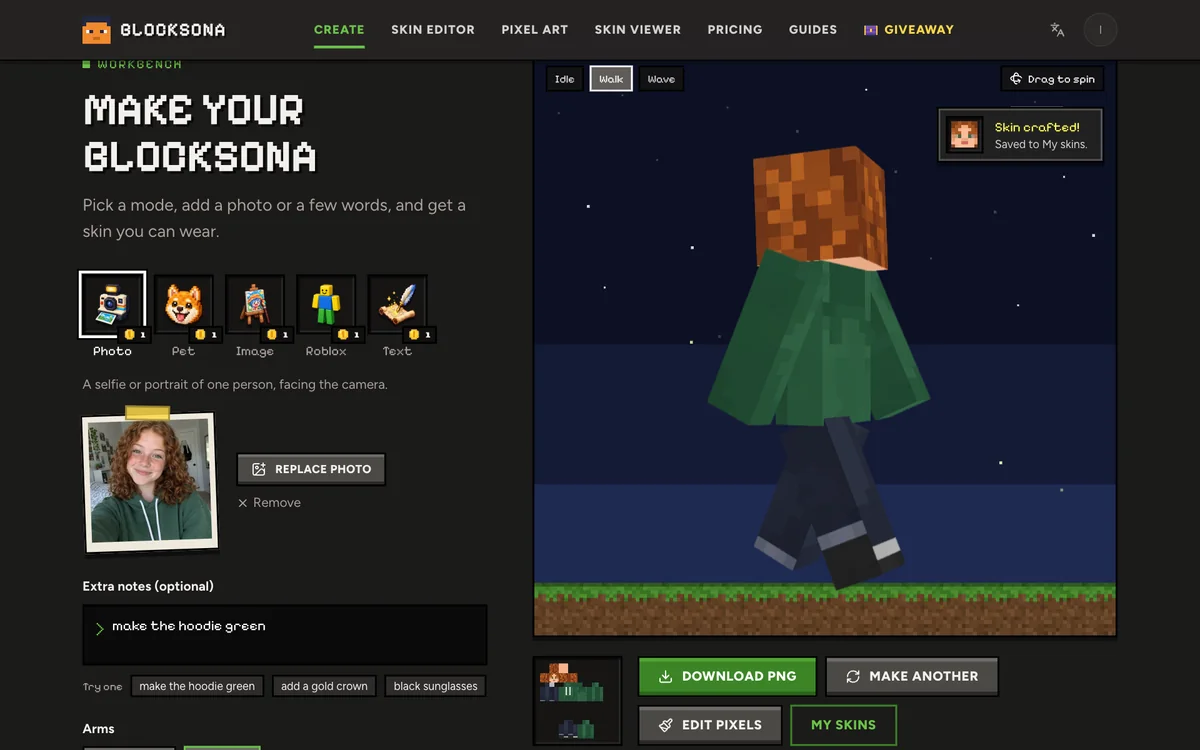
A selfie or portrait of one person, facing the camera.
Uses 1 creditNew accounts get 3 free credits.
Tips for a better skin
- Face the camera and fill most of the frame.
- Even daylight beats flash and filters.
- Use the notes to fix colors the photo gets wrong.
Your skin shows up here
Until then, meet Mika. Drag to spin.
Which mode should you use?
All five modes make the same kind of file: a 64×64 skin in the exact layout Minecraft reads. They differ only in what you start from.
| Mode | Best input | What carries over | Guide |
|---|---|---|---|
| Photo | A selfie or portrait of one person facing the camera, in even light | Hair color and style, skin tone, glasses, the top you are wearing | Photo to Minecraft skin |
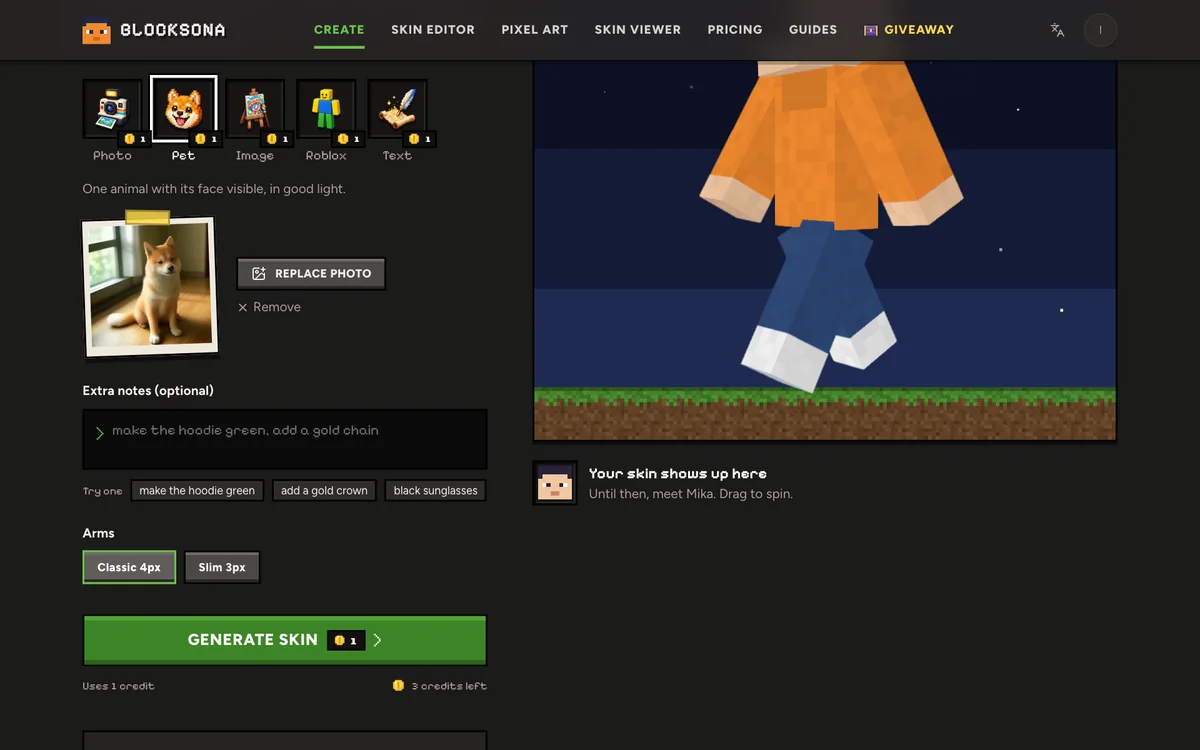
| Pet | One animal with its face clearly visible | Fur colors, markings and ears, on a character that stands up like a player | Pet to Minecraft skin |
| Image | A drawing, illustration, OC, mascot or game screenshot of one character | The outfit, colors and hair; big props get painted flat or left out | Image to Minecraft skin |
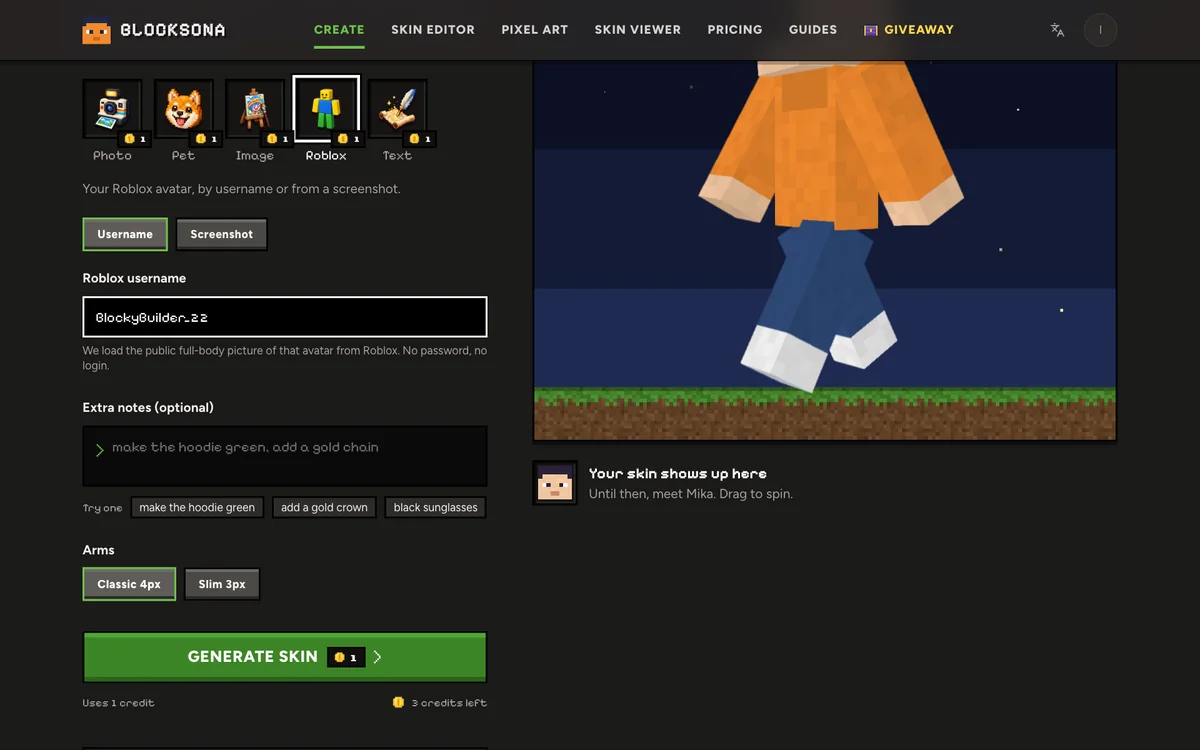
| Roblox | A Roblox username, or a screenshot of the avatar | The avatar's clothes, colors and hat, redrawn on the Minecraft body | Roblox to Minecraft skin |
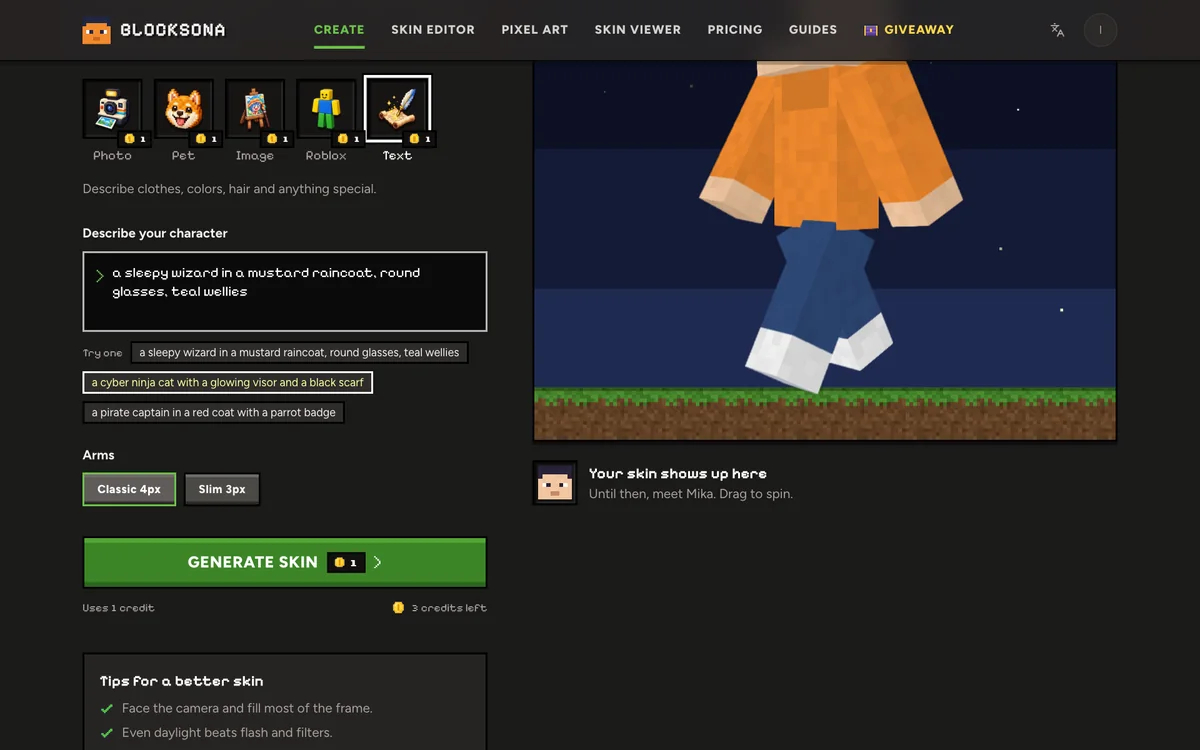
| Text | Up to 400 characters describing one character; no photo needed | Whatever you name: clothes, colors, hair and accessories | Text to Minecraft skin |
Every mode costs 1 credit. Not sure which to pick? Start with whatever you already have on your phone.
How to make a Minecraft skin with AI
The Workbench above keeps everything on one screen. Here is what each part does.
- Step 1
Pick a mode
Click one of the five slots: Photo, Pet, Image, Roblox or Text. Hover a slot to see what input it wants. The coin on each slot is its cost: 1 credit.
- Step 2
Add a photo, a username or a description
Drop a JPG, PNG or WebP, or click to choose one; your browser shrinks it to 1024 px before upload. In Roblox mode, type a username or switch to Screenshot. In Text mode, write up to 400 characters, or tap one of the Try one examples.
- Step 3
Add extra notes (optional)
The Extra notes box takes up to 400 characters and costs nothing extra. Use it to fix what the photo gets wrong: "make the hoodie green", "add a gold crown", "black sunglasses".
- Step 4
Choose classic or slim arms
Pick Classic 4px for Steve-style arms or Slim 3px for the thinner Alex style. The AI paints the skin for the model you choose.
- Step 5
Generate and wait 1 to 2 minutes
Press Generate skin. You sign in first, which is how your 3 free credits reach you. A furnace bar counts the time, and you can leave the page: the skin lands in My skins when it is done.
- Step 6
Check it and download
Spin the 3D preview and try Idle, Walk and Wave. Then press Download PNG, or Download .mcpack for Bedrock in the Wear it in Minecraft panel. Edit pixels opens it in the skin editor, and Make another starts over.
Real skins from every mode
Unedited generator results, at least one from each mode. The inputs were made with AI, so there are no real people or real Roblox accounts here. Click a card to spin the skin in 3D.
Ivy, Yuki and Nova use slim arms; the others use classic.
Credits, automatic retries and refunds
Every skin costs 1 credit, whatever the mode, and the button shows the cost before you press it. New accounts get 3 free credits, enough to try three modes. Extra notes are free.
Now and then the first model paints something that does not fit the skin layout. When that happens, the Workbench paints it again by itself and tells you: "First try did not fit, painting it again (no extra cost)". If a generation still fails, your credit comes back automatically. A Roblox username that does not exist, or Roblox not answering, costs nothing either.
When you run out, packs start at $4.99 for 20 credits, valid for 365 days. The pricing page compares the packs and the Builder pass.
What you get with every skin
The real skin file
A 64×64 PNG in the layout Minecraft reads: front, back, sides, top and the soles of the feet. The outer layer is left empty, so you can add a hat or jacket in the skin editor.
One-tap Bedrock import
A .mcpack that Minecraft opens and adds to Dressing Room → Classic Skins as Blocksona: name, on Windows, iPhone, iPad and Android.
A 3D preview
Drag to spin it, and switch between Idle, Walk and Wave to see the skin move before you wear it.
Free pixel editing
Edit pixels opens the skin in the skin editor, where you can fix an eye color or add a detail.
A private library
Every skin is saved to My skins, where only you can see it, until you delete it.
Install steps for your device
The Wear it in Minecraft panel under the result shows the steps for Java, Bedrock, phones and consoles.
A reveal video
Turn the skin into a short reveal video and enter the creator challenge for a chance at a gift card.
Tips for a better skin on the first try
The AI works from what it can see or read, so a clear input gives a clear skin. More photo advice is in the best photo for a Minecraft skin.
Works well
- One person, pet or character per picture, filling most of the frame.
- Face the camera in daylight. Flash and filters change the colors.
- Use Extra notes for colors the photo gets wrong, like "the hoodie is dark green".
- In Text mode, name colors and items: "mustard raincoat, round glasses, teal wellies".
- Choose the arms before you generate; the skin is painted for that model.
Avoid
- Group photos: the AI has to guess who you mean.
- Side profiles, or faces behind sunglasses, masks or hands.
- Very busy drawings with several characters or lots of tiny details.
- Text, small logos or thin necklaces: a 64×64 grid has no room for them.
- Capes, wings or a sword that sticks out: a skin cannot add shapes to the body.
What happens to your photo
Your photo is used for that one generation and deleted automatically within 24 hours. It is never used to train models. The finished skin stays in your private library until you delete it.
Roblox mode reads only the public full-body picture of the avatar. It never asks for a password or a Roblox login. You do need to sign in to Blocksona to generate, because your free credits and your private library are tied to your account.
After you generate: wear it, fix it, show it off
For Java Edition, download the PNG and add it in the Minecraft Launcher under Skins; the Java install guide has every click. For Bedrock on Windows, phones and tablets, the .mcpack does it in one tap, as the Bedrock install guide shows. Consoles cannot import skin files.
To check an older skin or one from a friend, open it in the 3D skin viewer. Want the same photo as a build? The pixel art maker turns it into blocks, free and without uploading it.
Guides for each mode and free tools
- Photo to skinWhich selfies work best, what carries over, and real photo-to-skin results.
- Pet to skinDogs, cats and parrots as playable pet-sona skins, with tips for pet photos.
- Image to skinDrawings, OCs, mascots and screenshots turned into skins.
- Roblox to skinLoad an avatar by username or screenshot, no password needed.
- Text to skinDescribe a character in one sentence, with examples and prompt tips.
- Skin editorFix pixels on the flat texture or the 3D model, for free.
- PricingCredit packs from $4.99 and the Builder pass, with the price per skin.
FAQ
Questions people ask
How long does it take to make a skin?
Usually 1 to 2 minutes. You can leave the page while it paints; the skin is saved to My skins when it is ready.
How much does it cost?
Every skin uses 1 credit, whichever mode you pick. A new account starts with 3 free credits; after that, the Starter pack is $4.99 for 20.
Do I need an account?
Yes, to generate. Signing in gives you the free credits and keeps your skins in a private library. The skin editor, pixel art maker and 3D skin viewer work without one.
What if I do not like the result?
Small things are quickest to fix, for free, in the skin editor with Edit pixels. For bigger changes, press Make another and add a line in Extra notes; a new generation uses 1 credit.
Should I choose classic or slim arms?
Classic (4 px) is the Steve shape and suits most skins; slim (3 px) is the thinner Alex shape. Pick before you generate, and choose the same one when you install the skin.
Can I make a skin of a friend?
Only with their permission. Upload photos of yourself, your pets, or people who agreed to it.
Does the skin work on Java, Bedrock and consoles?
It works on Java, and on Bedrock for Windows, iPhone, iPad and Android. Consoles (Xbox, PlayStation, Switch) have no way to import a skin file.
Can I use my skin in videos or on my server?
Yes. You can wear it in Minecraft and use it in your own videos, streams and servers.
Which photo files can I upload?
JPG, PNG or WebP. Your browser shrinks the picture to 1024 pixels on its longest side before it is sent.
Can it make HD skins or capes?
No. Every skin is a standard 64×64 file, which is what Java and Bedrock load. Capes are not part of a skin file.
Is this an official Minecraft skin generator?
No. Blocksona is an independent tool and is not affiliated with Mojang, Microsoft or Roblox.
Guides
Read next
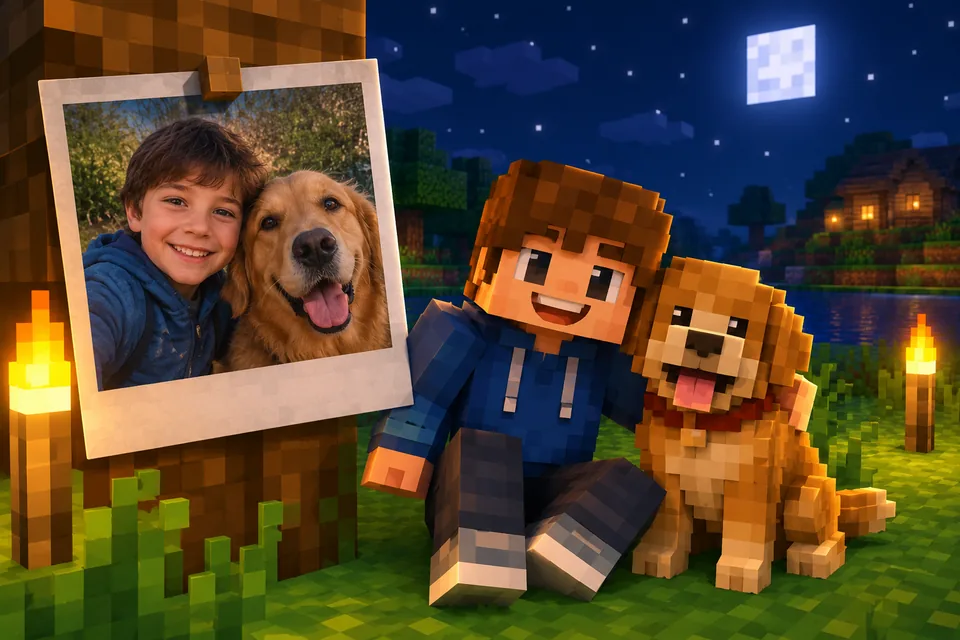 Best photo for an AI Minecraft skin: 5 rules with examplesA Minecraft face is 8×8 pixels, so the photo matters. Five rules, real before and after examples, tips for pets, drawings and Roblox, and a quick checklist.
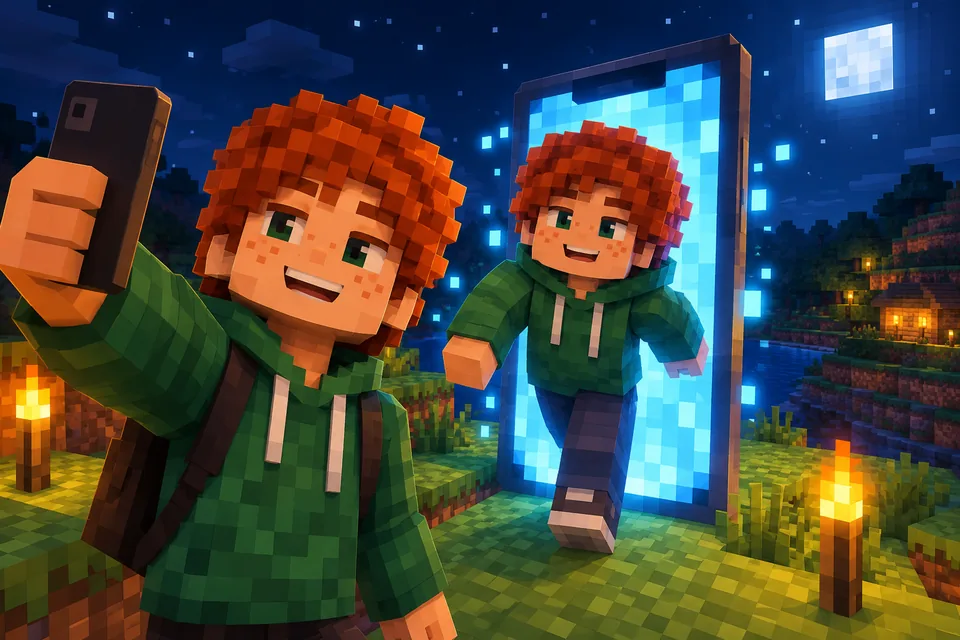 How to make a Minecraft skin of yourself (from a selfie or by hand)Turn yourself into a Minecraft skin from one selfie in about 2 minutes, or paint it pixel by pixel in a free editor. Steps, real examples, fixes and install.
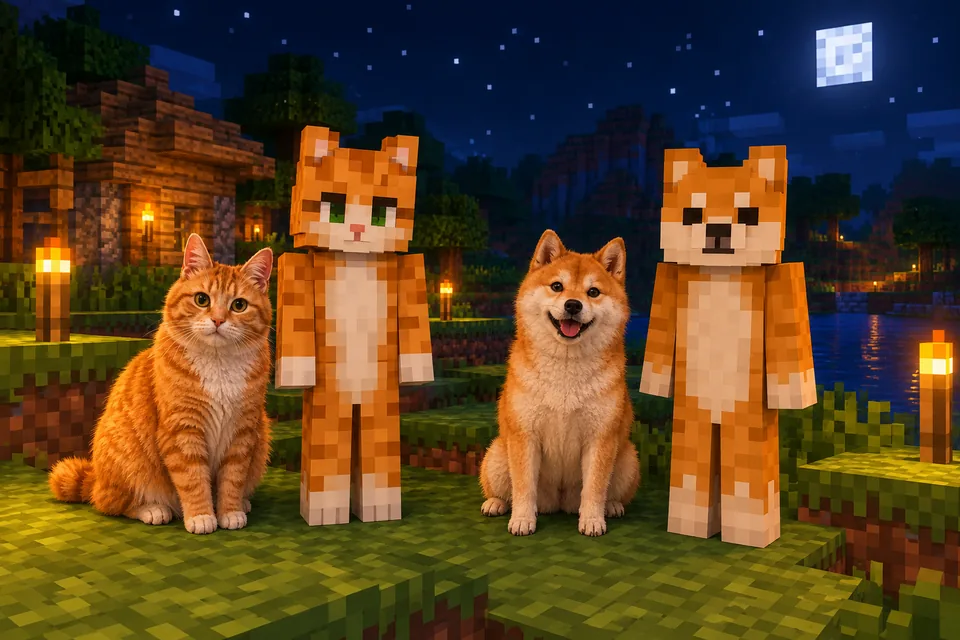 How to make a Minecraft skin of your pet (dog, cat, bird and more)Turn your dog, cat or parrot into a Minecraft skin you can wear. Photo tips, Pet mode steps, real examples, coat and breed tips, and a matching owner skin.
 30 Minecraft skin ideas with prompts you can copy and pasteCool Minecraft skin ideas as ready-to-paste prompts: fantasy, jobs, animals, sci-fi, seasonal and matching skins for friends, plus a formula for your own.
 Minecraft skin classic vs slim arms: Steve or Alex, and how to pickClassic arms are 4 pixels wide, slim arms 3. See where each sits on the 64×64 skin, what goes wrong with the wrong model, and how to check and pick yours.
Further reading
Outside sources, for the details behind this page.
- Minecraft Wiki: SkinWhat the 64×64 file the AI paints contains, face by face, and how the two layers work.
- Roblox Creator Hub: AvatarHow Roblox avatars are put together from body parts, clothing and accessories, which explains what Roblox mode can carry over.
- Microsoft Learn: Packaging a Skin PackWhat is inside the .mcpack file you download for Bedrock.
By the Blocksona teamUpdated