Free tool
Minecraft skin editor
Fix a pixel or paint a whole skin. Draw on the flat texture or straight onto the 3D model; mirror mode paints both sides at once.
Point at the texture to see which part you are on.
Want a new skin instead of editing? Make one with AI
Wear it in Minecraft
Arms: Slim (Alex)- 1Download the skin file.
- 2Open the Minecraft Launcher, pick Minecraft: Java Edition on the left and open the Skins tab.
- 3Click New skin, choose Slim (Alex) as the player model, then click Browse and pick the file.
- 4Click Save & Use, join a world and press F5 to see your front.
Full step-by-step guide with fixes for common problems: how to install a skin.
How to edit a Minecraft skin online
This free online Minecraft skin editor works on the real 64×64 skin file. Paint on the flat texture or straight onto the 3D model, then download a PNG or a .mcpack for Java and Bedrock. You need no account unless you want to save to My skins. The full walk-through is in how to use a Minecraft skin editor.
- Step 1
Open a skin
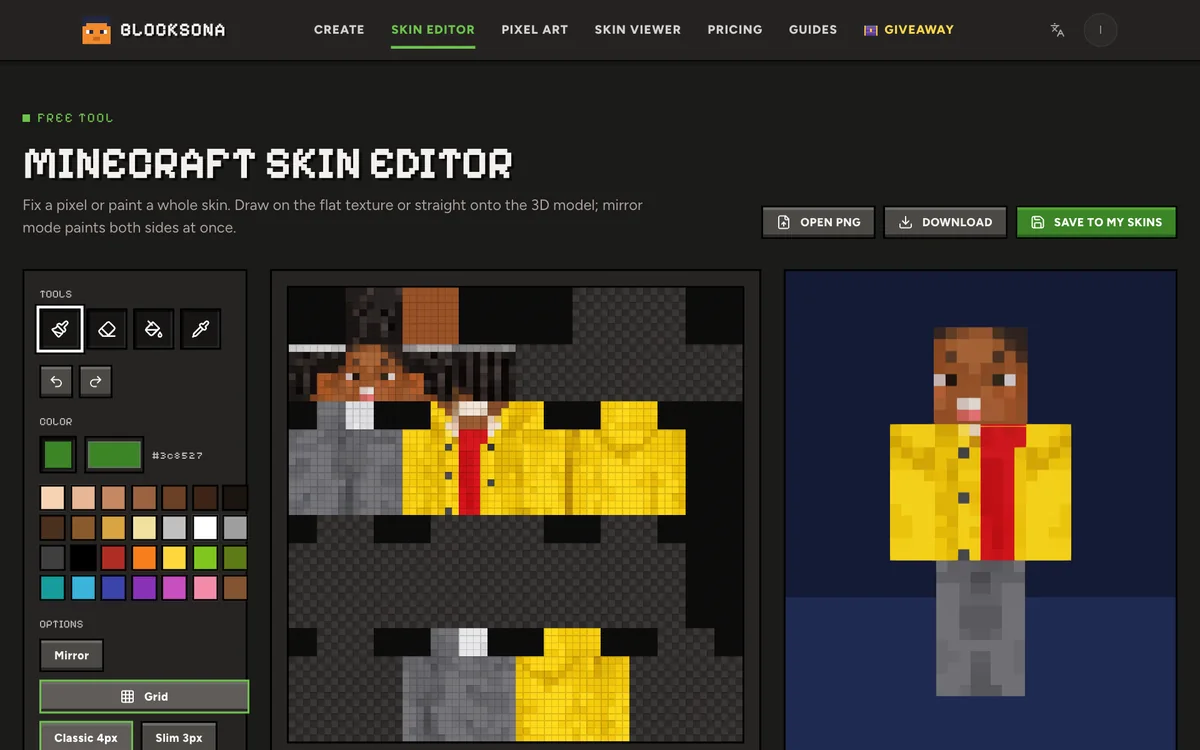
The editor opens with Ivy, one of our example skins. Click Open PNG to load your own 64×64 or old 64×32 skin. Blocksona skins open from Edit pixels on the result screen or from My skins.
- Step 2
Pick a tool and a color
Choose Pencil, Eraser, Fill or Pick color (B, E, G, I). Click a palette swatch or open the color picker; your last 8 colors appear under Recent.
- Step 3
Paint on the texture or on the model
Click or drag on the flat texture, or press Paint on model and draw on the 3D body. Rotate lets you turn it again.
- Step 4
Check the outer layer
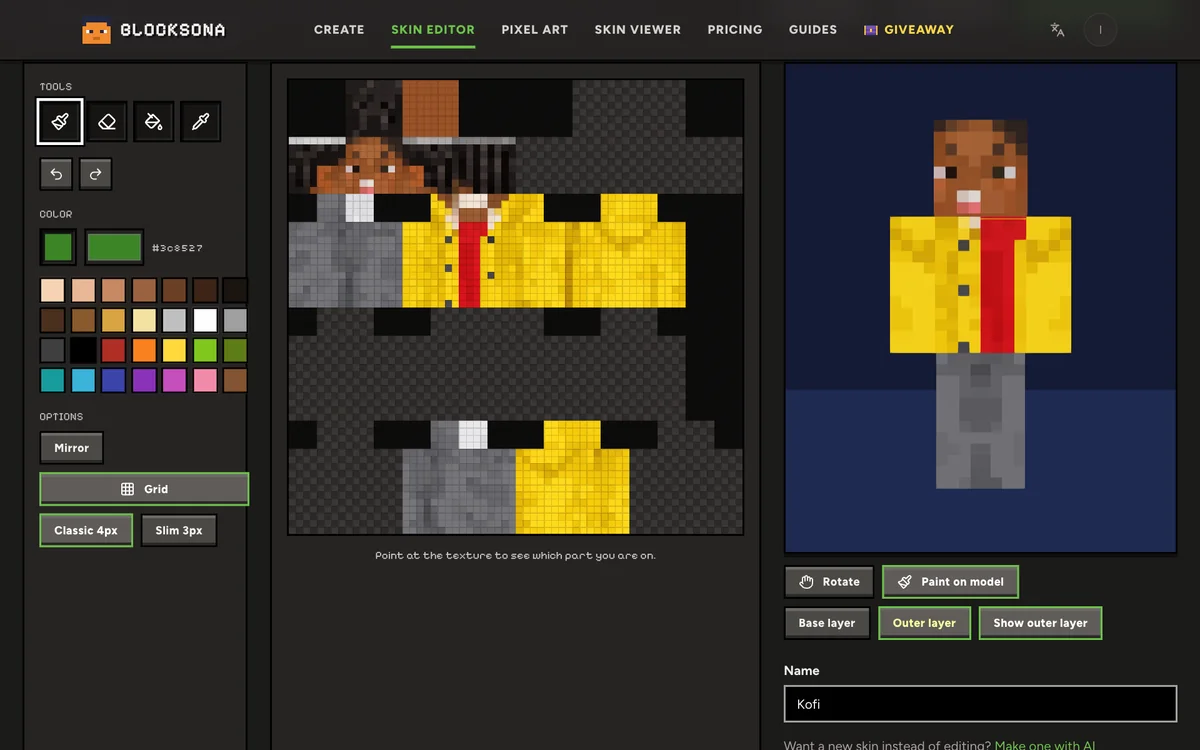
Pick Base layer or Outer layer under the model, and switch Show outer layer off to see the body under the hat and jacket.
- Step 5
Name it, download it, wear it
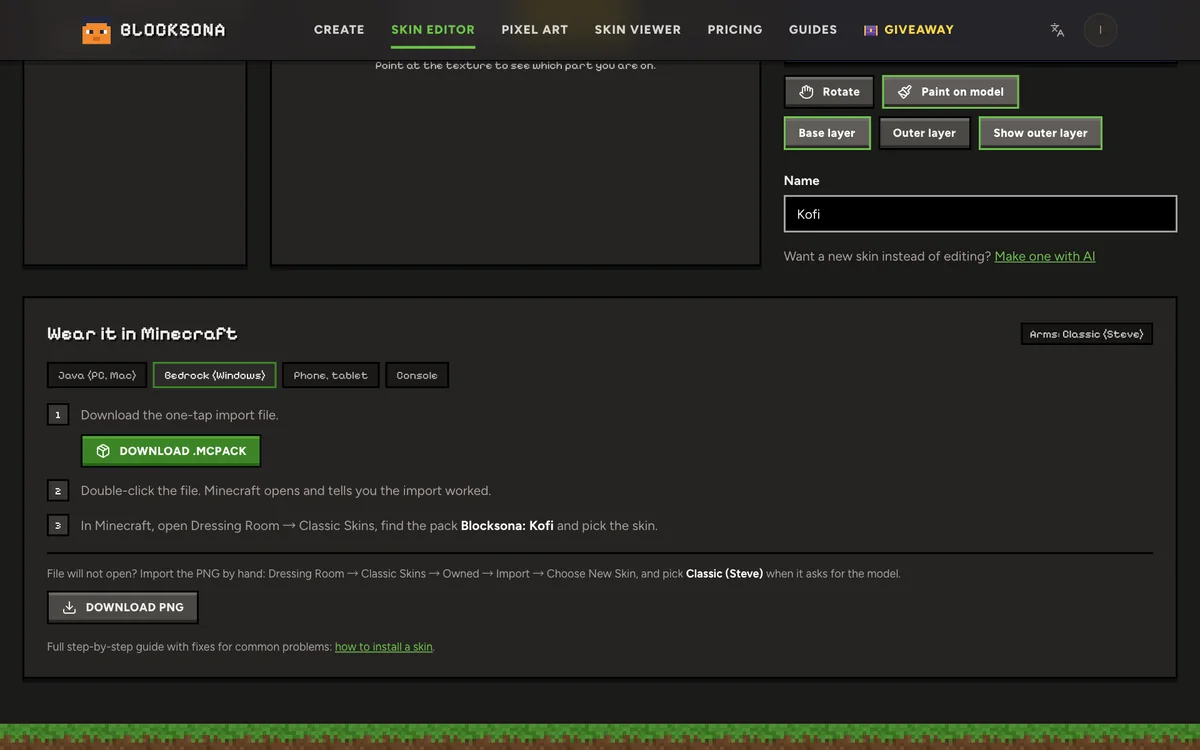
Type a name and click Download for the PNG. The Wear it in Minecraft panel below has the steps for each platform and a Download .mcpack button for Bedrock.
Every skin editor tool and shortcut
Hover a tool to see its name, its key and a hint. Shortcuts work everywhere except while you type in the Name box.
| Tool | Shortcut | What it does |
|---|---|---|
| Pencil | B | Paints one pixel; drag for a line with no gaps. |
| Eraser | E | Clears outer-layer pixels to see-through. Does nothing on the base layer. |
| Fill | G | Recolors touching pixels of the same color inside one face only, so it never spills onto the next body part. |
| Pick color | I | Copies a color from the skin, then switches back to Pencil. |
| Mirror | M | Paints the matching pixel on the other side too; the mirrored face is outlined in green. |
| Undo / Redo | Ctrl+Z / Shift+Ctrl+Z (Cmd on a Mac) | Up to 60 steps back or forward. |
| Grid | — | Lines between the pixels, for counting. |
| Rotate / Paint on model | — | Turns the 3D model, or paints on it. |
| Base layer / Outer layer | — | Picks which layer the brush hits on the model. |
| Show outer layer | — | Hides or shows the outer layer on the model. |
| Classic 4px / Slim 3px | — | Sets the arm width. |
Painting on the 2D texture vs on the 3D model
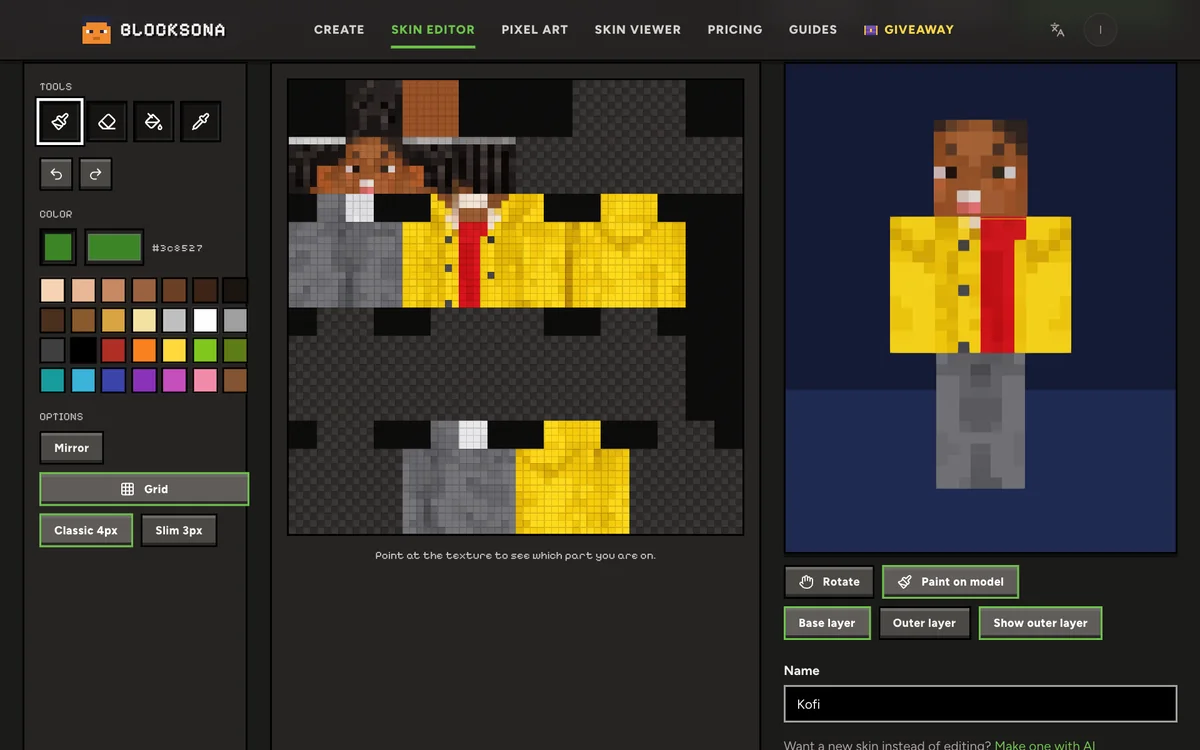
The flat texture is the skin file drawn 8 times bigger: one square is one pixel. Point at a square and the line below tells you where you are, like Head · front · Base layer (12, 10), while the face under the cursor gets a white outline.
This 3D Minecraft skin editor also paints on the model. Press Paint on model and click or drag on the body; the pixel under the cursor changes on the texture too. In Rotate mode, drag to turn the model and scroll to zoom.
Use the texture for exact work, like a 2-pixel mouth or a belt that lines up all the way around. Use the model for seams: the top of an arm and the front of the body sit far apart on the flat map but touch on the model, so shoulder pads and hood edges are easier there.
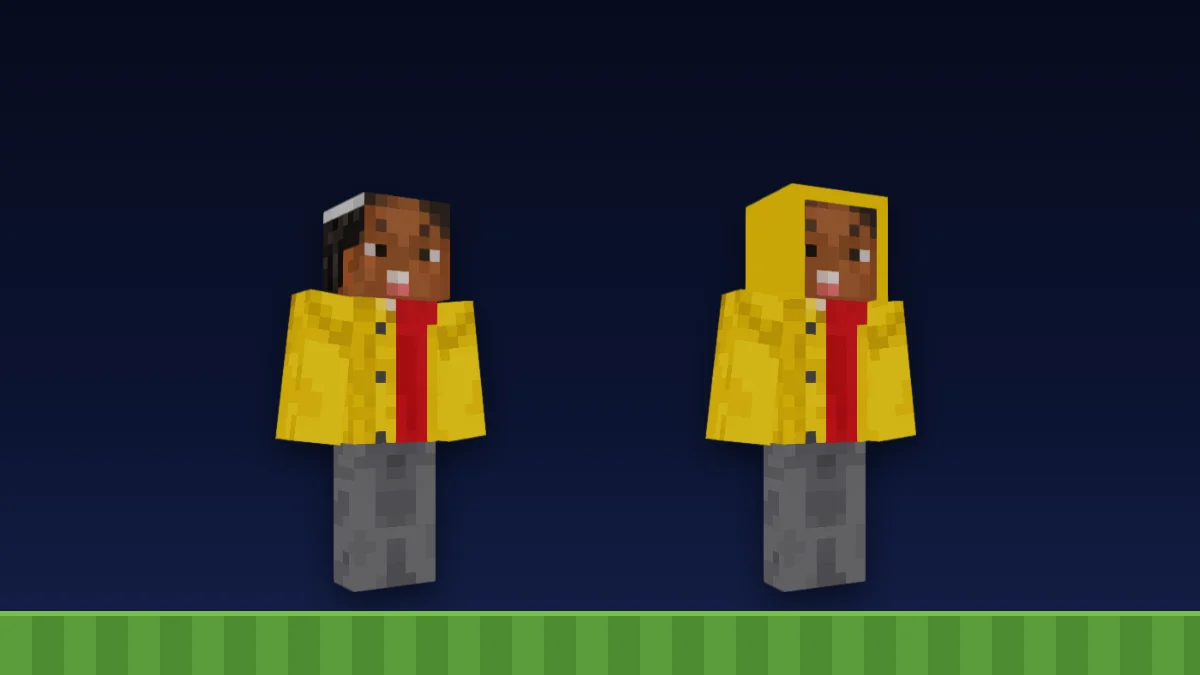
Base layer and outer layer
Every skin has two layers. The base layer is the body, and in the game it is always solid: a see-through pixel there shows as a solid color, often black, which is why the Eraser leaves it alone. The outer layer sits just above it and holds hair that sticks out, hoods, glasses, jackets, sleeves and pants. Its pixels can be see-through.
On the texture, the hat is the right half of the top 16 rows; rows 32 to 47 hold the jacket, right sleeve and right pants; the left sleeve and pants sit in the bottom corners. On the model, pick Base layer to paint through the jacket onto the body, or Outer layer with Show outer layer on, since the brush only hits what you can see.
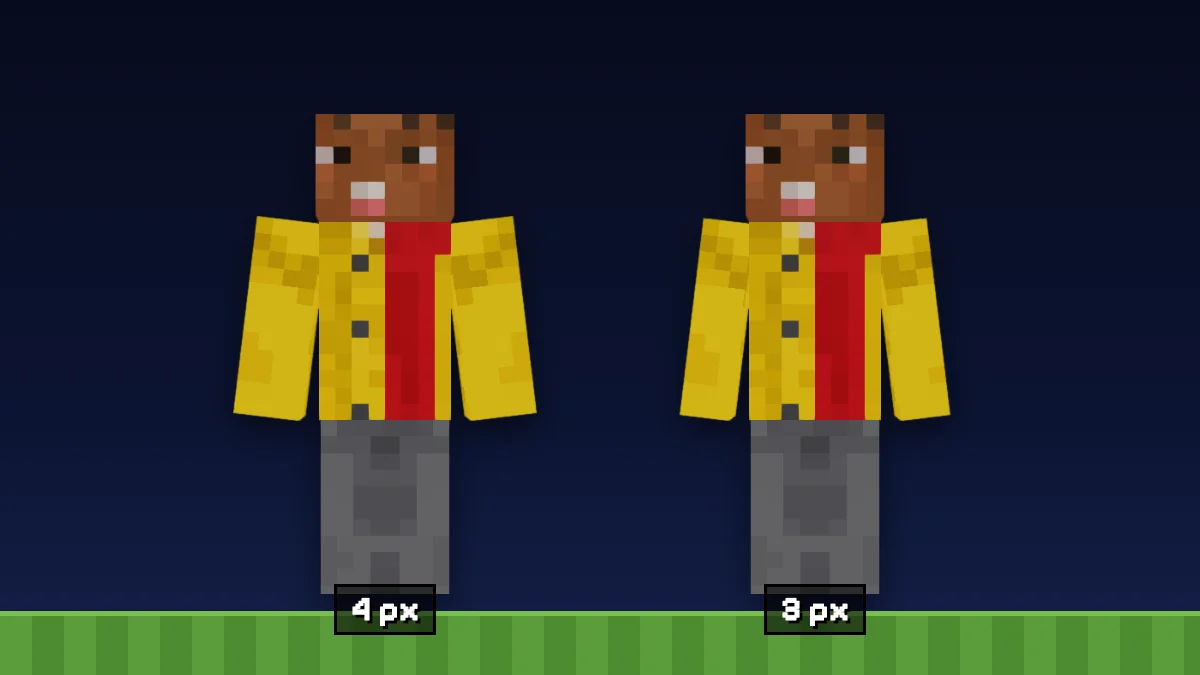
Classic or slim arms
Classic arms are 4 pixels wide (Steve) and Slim arms are 3 pixels wide (Alex); nothing else on the body changes. The arm faces sit in different places on the texture, so a classic skin shown as slim loses a column and its sides slip out of line.
The editor does not read the arm model from the file, so set Classic 4px or Slim 3px after you open a skin. On Slim the unused column turns dark, but switching never deletes pixels. Pick the same model when you install the skin; downloaded files end in -classic or -slim. More in classic vs slim arms.
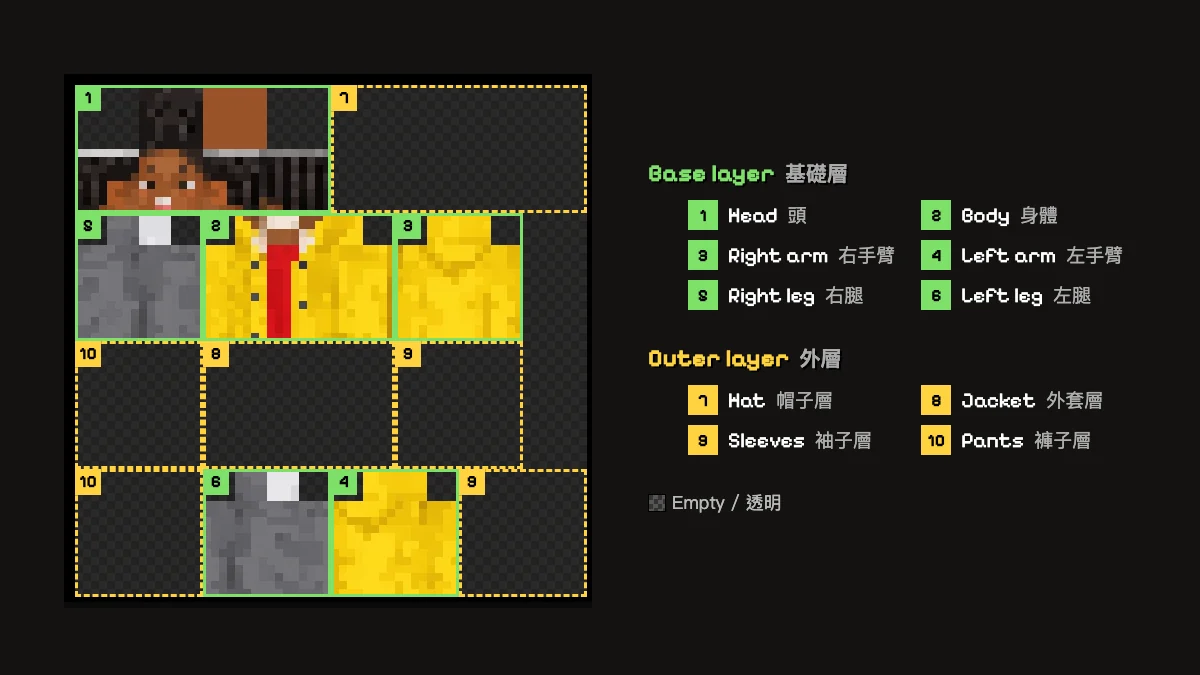
The 64×64 Minecraft skin layout
A skin is a 64×64 PNG, 4,096 pixels, holding six faces for every body part. The head is 8×8×8, the body 8×12×4, each leg and arm 4×12×4 (arms are 3×12×4 when slim). Each box unfolds like a paper craft: top and bottom first, then the right side, front, left side and back. "Right" means the character's right, so its right arm is on your left as you face it.
- Rows 0 to 15: the head on the left half, the hat layer on the right. The face is x 8 to 15, y 8 to 15.
- Rows 16 to 31: right leg, body and right arm.
- Rows 32 to 47: their outer layer: right pants, jacket and right sleeve.
- Rows 48 to 63: left leg and left arm, with their pants and sleeve on the outer edges.
- Dark areas: unused. The game never shows them, so you cannot paint there.
Opening an old 64×32 skin
Skins from before Java Edition 1.8 are 64×32: one arm and one leg that the game copies to both sides, and no outer layer except the hat. Open PNG converts them to 64×64 the way the game does, mirroring the right arm and leg onto the left. Then you can paint each side on its own, add a jacket or sleeves, and download a modern skin.
Other sizes, such as 128×128 HD skins, do not open; you will see That file is not a Minecraft skin.
Fixing a skin made with AI
Blocksona's AI paints the whole skin in one go, and now and then a detail is off: an eye color, a smudged logo, a stray pixel on the back. Click Edit pixels on the result screen and fix it here. That works for a selfie skin, a pet skin, a drawing or OC, a Roblox avatar or a character described in one sentence.
For a bigger change, like a new hairstyle, a fresh generation with a line in Extra notes on the Workbench is quicker. Save to my skins stores your edit as a new skin, so the original stays too.
- Eye color: Pick color on a shade you like, turn on Mirror, paint one eye.
- Shirt color: Fill each flat patch, face by face; on a shaded shirt, click every shade.
- A hat or hood with some depth: paint it on the outer layer; skins from the Workbench leave that layer empty.
Download your skin and wear it in Minecraft
Name the skin first (up to 60 characters). It becomes the file name, like blocksona-ivy-slim.png, and the Bedrock pack name, Blocksona: Ivy. You can spin the PNG in the 3D skin viewer before you install it.
- Java (PC, Mac): click Download, then in the Minecraft Launcher go to Skins → New skin, pick Classic or Slim, browse to the file and press Save & Use. Every click is in the guide to installing a skin on Java.
- Bedrock (Windows, iPhone, iPad, Android): press Download .mcpack in the Wear it in Minecraft panel and open the file, then pick the pack in Dressing Room → Classic Skins. The PNG route is in the Bedrock install guide.
- Consoles: Xbox, PlayStation and Switch cannot import skin files.
More free tools and ways to make a skin
- WorkbenchLet the AI paint all 64×64 pixels from a photo, pet, drawing, Roblox avatar or sentence, then fine-tune here.
- 3D skin viewerSpin any skin PNG in 3D and save its face as a 512×512 avatar.
- Pixel art makerTurn a picture into wool, concrete and terracotta, with the block list.
- Photo to skinYour selfie, turned into a skin you can then fix up here.
- Creator challengePost a reveal video of your skin and win a gift card or credits.
FAQ
Questions people ask
Is this Minecraft skin editor free?
Yes. Painting and downloading need no account; you only sign in to use Save to my skins.
Can I use it on a phone or tablet?
Yes. Tap or drag with a finger on the texture or the model. Shortcuts need a keyboard, and single pixels are easier on a bigger screen or with a stylus.
Why will the eraser not delete pixels on the body?
The base layer is always solid in Minecraft, so the Eraser only clears the outer layer, the one part of a skin that can be see-through. To change a base pixel, paint over it. Painted colors are always fully solid.
Can I make a 128×128 HD skin?
No. The editor works on standard 64×64 skins and opens old 64×32 ones; HD files do not open.
Does Mirror work on the head and body?
Yes. Arms and legs mirror onto the opposite limb, and the head and body onto their own other half. Press M to toggle it.
Does saving replace the skin I opened?
No. Save to my skins always adds a new skin, so the original stays as it was.
How many steps can I undo?
Up to 60. Opening another file clears the history, so download or save first.
The editor opened my skin with the wrong arms. What do I do?
Click Classic 4px or Slim 3px under Options. The editor does not read the arm model from the file; Blocksona file names end in -classic or -slim.
Will the skin work in Java and Bedrock?
Yes, both read the same 64×64 PNG. On Bedrock the .mcpack is the quickest way in. Consoles cannot import skin files.
Is my skin uploaded while I edit?
No. Opening, painting and downloading happen in your browser. The file goes to Blocksona only when you press Save to my skins.
Guides
Read next
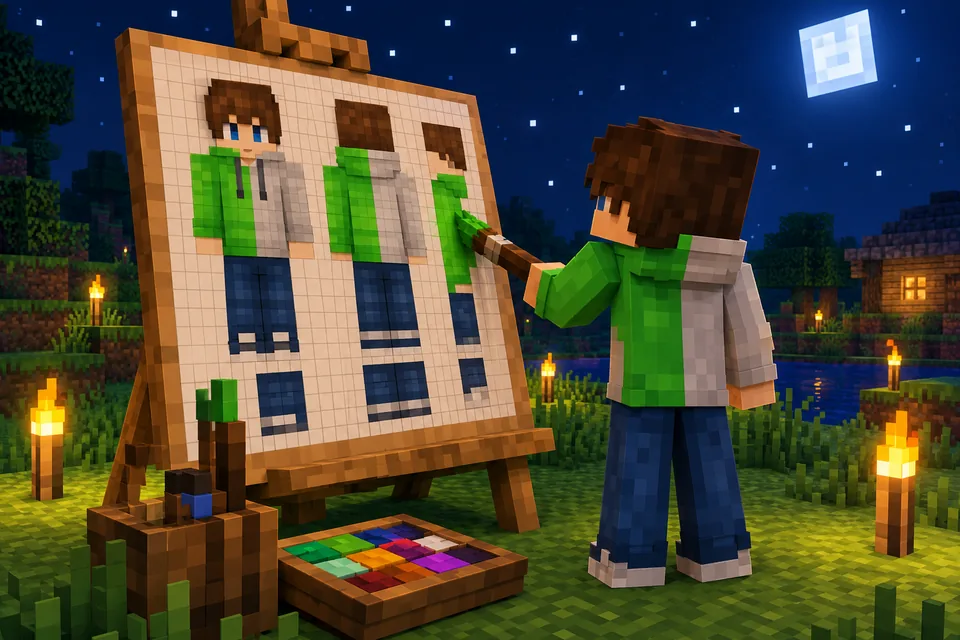 How to use a Minecraft skin editor: edit any skin pixel by pixelA step-by-step tutorial for the free Blocksona skin editor: open a skin, read the 64×64 map, use every tool and shortcut, shade it, and wear it in game.
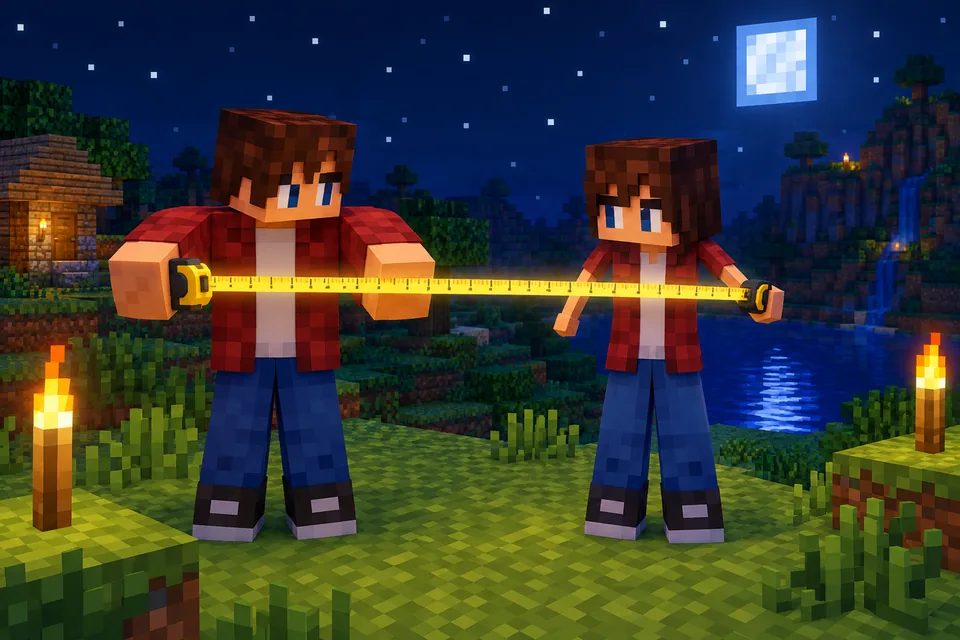 Minecraft skin classic vs slim arms: Steve or Alex, and how to pickClassic arms are 4 pixels wide, slim arms 3. See where each sits on the 64×64 skin, what goes wrong with the wrong model, and how to check and pick yours.
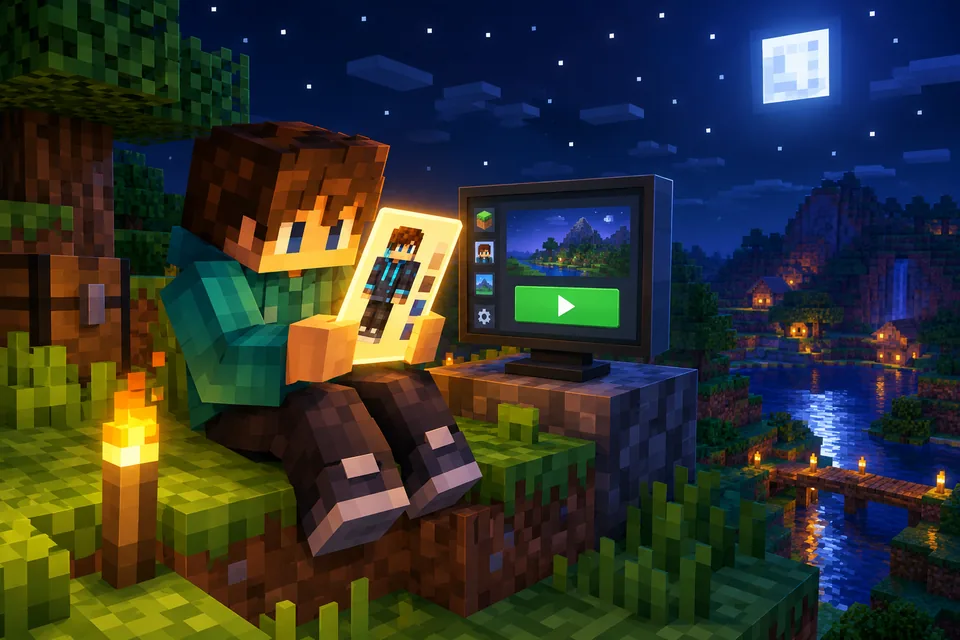 How to change or install a skin in Minecraft Java EditionChange your Minecraft Java skin in about a minute with the launcher or minecraft.net. Steps for Windows and Mac, classic vs slim arms and fixes that work.
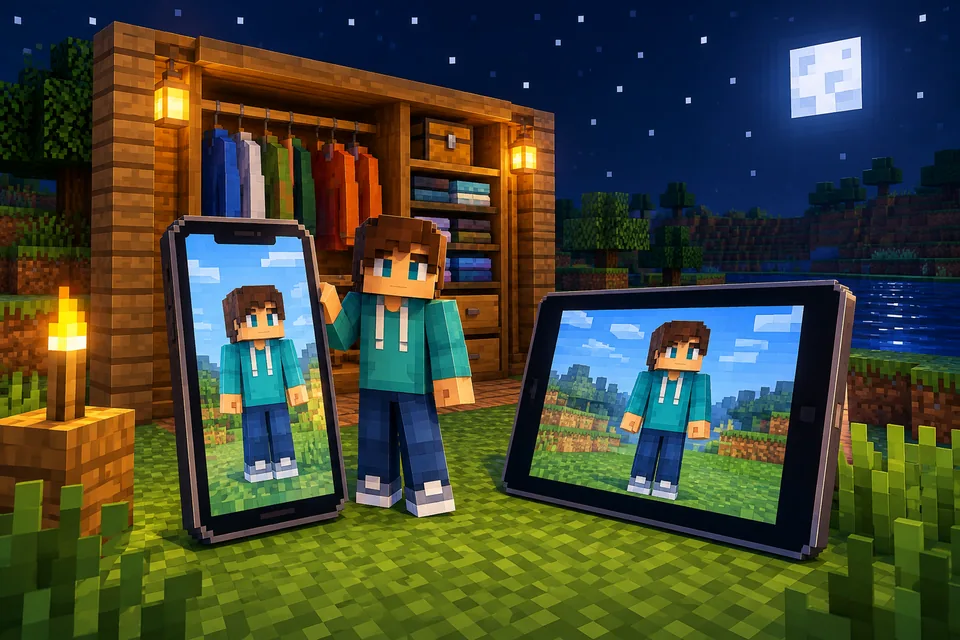 How to import a custom skin in Minecraft Bedrock (Windows, iPhone, Android)Import a custom skin in Minecraft Bedrock with a one-tap .mcpack or a PNG in the Dressing Room. Steps for Windows, iPhone, iPad and Android, plus consoles.
Further reading
Outside sources, for the details behind this page.
- Minecraft Wiki: SkinThe reference for the skin format: the 64×64 layout, the two layers and how old 64×32 skins differ.
- Minecraft Wiki: PlayerModel sizes for every body part and the difference between the classic and slim arm models.
- Microsoft Learn: Packaging a Skin PackMicrosoft's own docs on what goes inside a .mcpack skin pack and how Bedrock reads it.
By the Blocksona teamUpdated