Image → Skin
Image to Minecraft Skin: Turn Your Drawing or OC into a Skin
Upload a drawing, fan art, an OC, a mascot or a game screenshot of one character. Blocksona paints it as a real 64×64 Minecraft skin that keeps the hair, outfit colors and signature details, then adds a back and sides that match.
A drawing, illustration, avatar or game screenshot of one character.
Uses 1 creditNew accounts get 3 free credits.
Tips for a better skin
- Face the camera and fill most of the frame.
- Even daylight beats flash and filters.
- Use the notes to fix colors the photo gets wrong.
Your skin shows up here
Until then, meet Mika. Drag to spin.
Turn a picture into a Minecraft skin, not a picture of one
Image mode is Blocksona’s image to Minecraft skin converter for characters that were drawn, painted or rendered. You upload one picture and the AI paints all 64×64 pixels in the exact layout Minecraft reads: the face on the front of the head, the outfit wrapped around the body, and the top, back, sides and even the soles filled in.
What you download is the skin file itself, ready for Java and Bedrock, not an image of your character standing in a field. A skin usually takes 1 to 2 minutes and uses 1 credit. New accounts start with 3 free credits, and the packs are on the pricing page.
If your picture is a real photo of a person, use Photo to Minecraft skin instead, which is tuned to keep a face recognizable. A photo of your dog or cat belongs in Pet to Minecraft skin. Image mode is for everything someone drew or rendered.
Fan art, OCs and drawings turned into skins
Four unedited results from Image mode, made from AI-drawn characters. Click a card to spin the skin in 3D next to the picture it came from.
Rusty keeps his green hood, chest plate and brown boots, and the tip of his orange tail is painted low on the back of his cloak. His shield is gone: a skin only colors the body, so held items never make it. Yuki is a good test for an anime Minecraft skin. Her large eyes shrink to a few blue pixels, her silver hair covers the whole head, and her pleated skirt sits on top of her legs. Captain Comet began as a child’s crayon drawing, and his blue mask, the blue star on his yellow tee and his red cape all carried over. Pip, a robot mascot with no human body at all, keeps his teal head with glowing eyes, his orange body with a heart badge and his grey legs.
Which pictures make good Minecraft skins
Image mode needs one character you can see clearly, ideally from the front. Within that rule, almost any art style works.
Fan art and anime
Your drawing of a favorite character from a show, comic or game. Anime and manga styles convert especially well because they use flat colors and sharp hair shapes.
Original characters (OCs)
The front view of a reference sheet is ideal. The AI keeps what makes your OC yours: hair and eye color, face markings, outfit shapes and the one accessory everyone knows them by.
Mascots and creatures
School, club or team mascots, robots and monsters. Every Minecraft skin has a head, a body, two arms and two legs, so a non-human mascot gets that body in its own colors.
Kids’ drawings
Crayon, marker and pencil drawings work. Wobbly lines are cleaned into tidy pixel shapes and the colors your child picked stay the same. Photograph the paper in daylight, straight from above.
Game screenshots
A character from another game in a clear, front-facing moment. Hide the HUD if the game lets you, and crop until the character fills most of the frame.
AI art
Characters made with an image generator work like any illustration. Ask your generator for a full-body, front-facing pose on a plain background before you bring it here.
Pictures that work and pictures that don’t
A skin is 64×64 pixels, and the whole face is 8×8. Anything smaller than a few pixels will not survive, so choose pictures with big, clear shapes.
Works well
- One character, facing front or turned slightly, filling most of the picture
- Full body, or at least waist up, so the outfit can reach the legs
- Flat colors and clear outlines, as in cartoon, anime and comic art
- A plain or simple background
- If you have a turnaround sheet, the front view on its own
Avoid
- Crowds, group shots and team posters: the AI cannot tell whose hair goes where
- Logos, emblems or lettering with no character: there is no face or body to map
- Tiny details such as lace, small writing, chains or busy patterns, which blur into a few pixels
- Poses where the arms or legs are hidden behind the body or cut off
- Very small, dark or watermarked screenshots
How a drawing is mapped onto a blocky body
Every Minecraft skin wraps the same model: an 8×8×8 head, a body, two arms and two legs. Your character has to fit that shape, so the AI follows a few rules about where each part of a design goes.
- Face: eyes, eyebrows, mouth and face markings go on the 8×8 front of the head.
- Hair, hoods and hats: painted on the top, sides and back of the head. Everything is painted on the base layer; to give hair or a hood some depth, add it on the outer layer in the skin editor.
- Armor and jackets: on the body and both arms, with plates, trims and buttons as flat shapes. Shiny metal becomes two or three shades of grey.
- Skirts, dresses and shorts: on the lower body and the top of both legs. Minecraft has no separate skirt shape, so the skirt is painted onto the legs, as on Yuki.
- Capes, tails and wings: painted flat on the back. A skin cannot add new shapes to the model, and Minecraft’s own capes are separate from skins, so nothing sticks out.
- The back you never drew: when the picture only shows the front, the AI invents a matching back, sides and shoes in the same style.
AI skin vs pixelating a picture
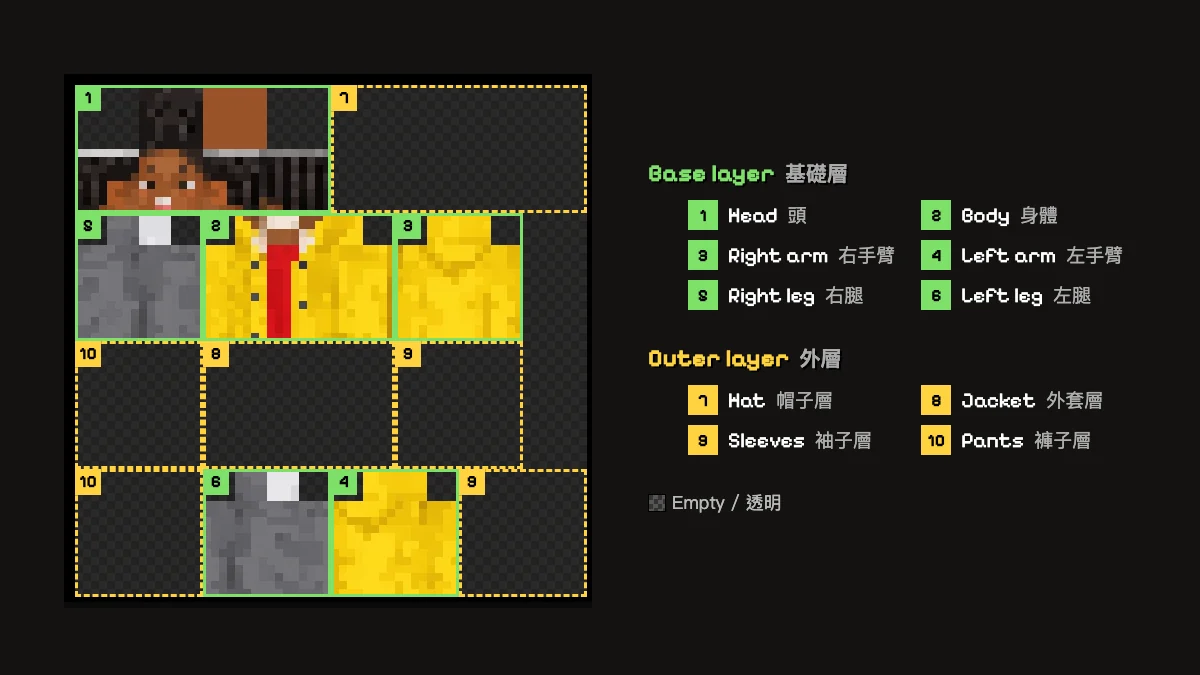
Shrinking a drawing to 64×64 pixels does not give you a skin. A skin is a 3D body unfolded flat, like a cardboard box opened out, and a pixelated picture ignores that map completely.
| Pixelating the picture | Image mode | |
|---|---|---|
| What you get | A tiny copy of the whole picture, background included | A 64×64 skin texture in the layout Minecraft reads |
| Where the face goes | Wherever its pixels happen to fall, often split across several body parts | On the 8×8 front of the head |
| Back, sides, top and soles | Scraps of the picture, or nothing | Painted to match the front |
| Arms and legs | Cut by the grid, not by the body | Sleeves, hands, trousers and shoes in the right boxes |
| In Minecraft | Loads, but the model looks scrambled | Wearable on Java and Bedrock |
| Good for | Building the picture as a wall of blocks | Playing as the character |
Want the picture itself in your world? The free Minecraft pixel art maker turns it into wool, concrete or terracotta blocks and gives you the block list to build it.
Image mode vs Photo mode
Both modes start from an upload, but they aim at different things. Photo mode keeps a real person recognizable: skin tone, hairstyle, glasses, facial hair and the clothes in the photo. Image mode keeps a design: the shapes, colors and accessories an artist chose, simplified into clean pixel shapes, with no attempt at realism.
Choose by what the picture is, not by who it shows. A selfie goes in Photo mode. A cartoon of yourself, a game avatar or a drawing of your family goes in Image mode. A photo of your real cat goes in Pet mode; a cartoon cat mascot goes in Image mode. Roblox avatars have their own mode with a username lookup, explained on Roblox to Minecraft skin. And if the character only lives in your head, describe it in one sentence instead.
How to turn a drawing into a Minecraft skin
You need a free account to generate. That is where your 3 free credits and your private skin library live.
- Step 1
Upload one character
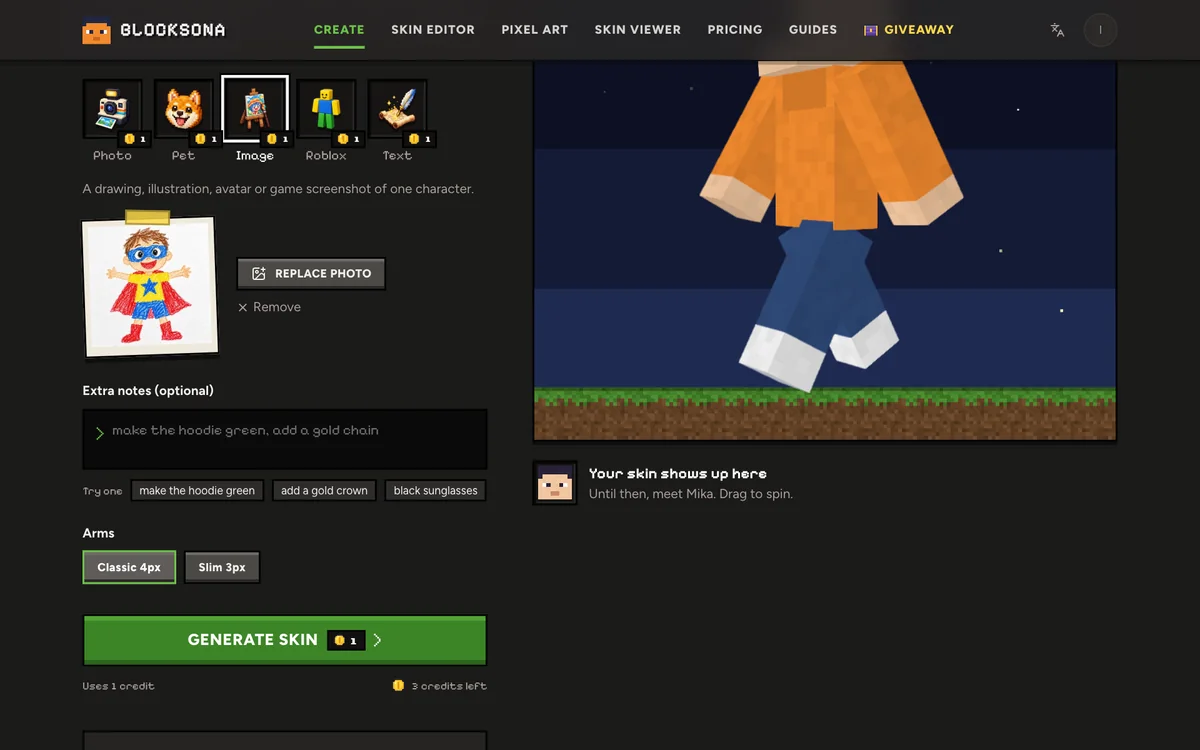
Use the Workbench at the top of this page, set to Image, or open the full Workbench. Drop in a JPG, PNG or WebP. Your browser shrinks it to 1024 px before upload, so a large scan is fine. Crop away any other characters first.
- Step 2
Add notes for what the picture cannot show
Type into Extra notes (optional), up to 400 characters. Good notes name a hidden detail or a fix: “the back of the cloak has a silver moon”, “eyes are gold, not brown”, “paint the ponytail down the back”. Notes cost nothing extra.
- Step 3
Choose classic or slim arms
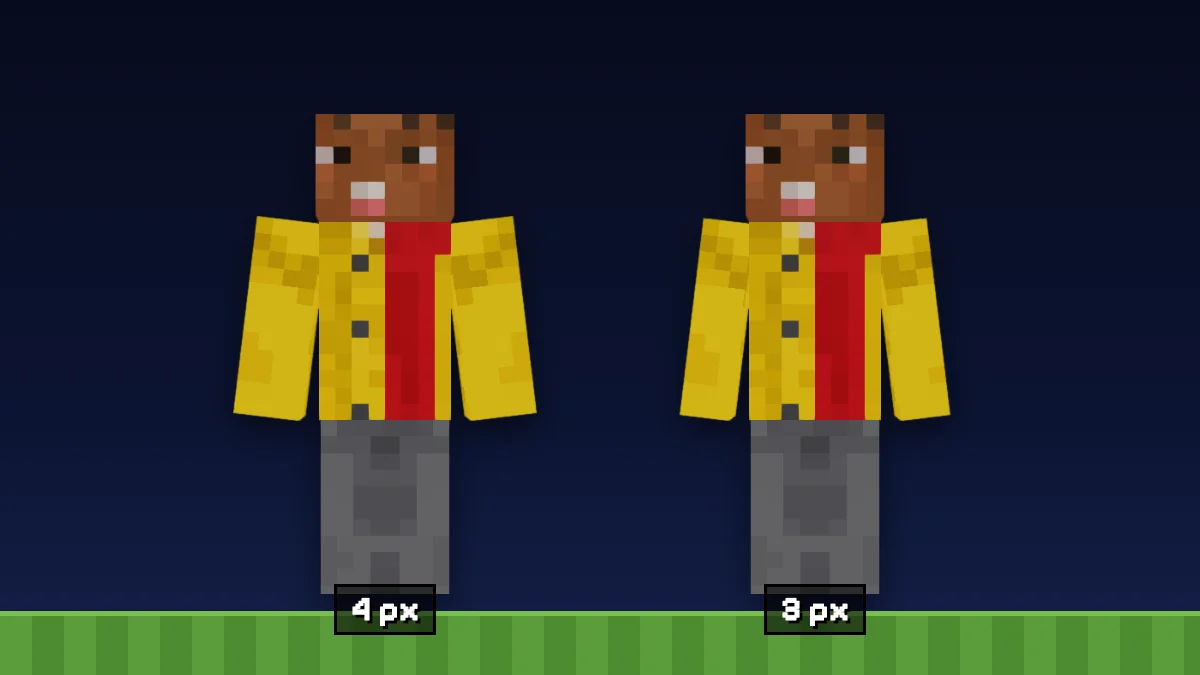
Classic 4px suits most characters. Slim 3px suits slender designs like Yuki. The arm width decides how sleeves and hands are painted, so set it before you generate. Not sure? Compare them in the classic vs slim arms guide.
- Step 4
Generate and check every side
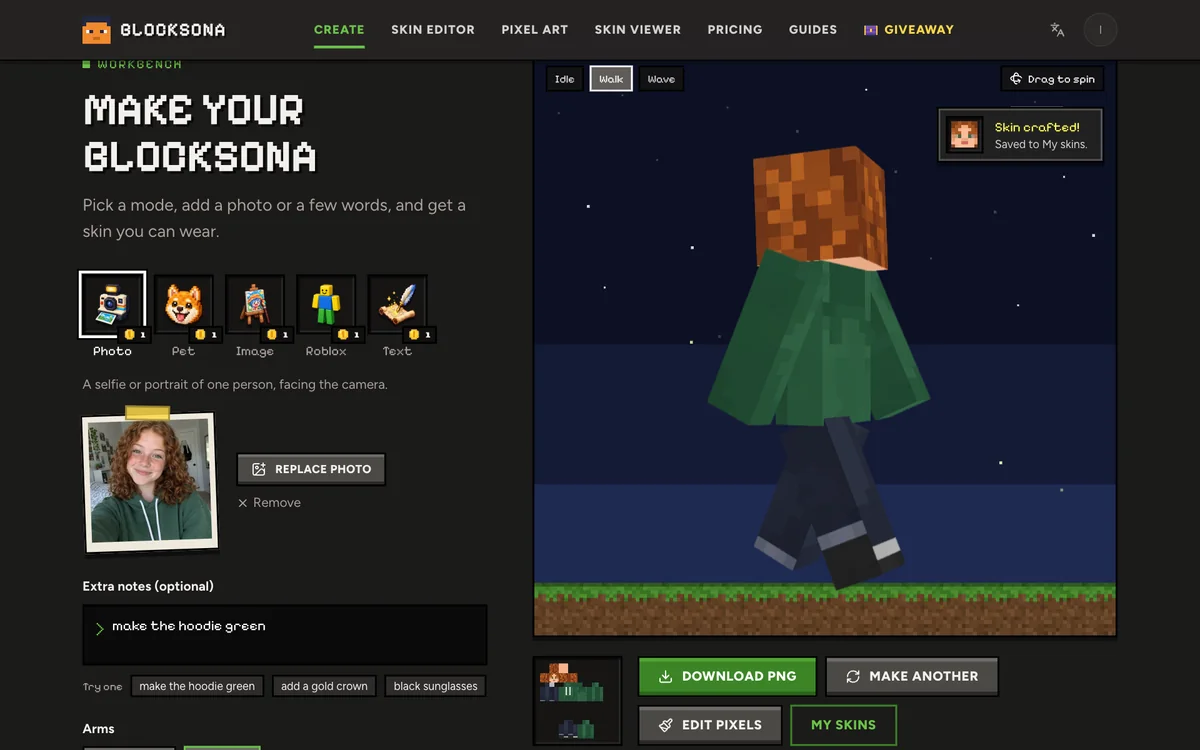
Press Generate skin. It takes 1 to 2 minutes and you can leave the page. When it is done, drag the 3D preview around, play Walk to watch the legs move, and look at the back. If the first model’s result does not fit, it is painted again for free; if it fails, your credit comes back.
- Step 5
Download and wear it
Use Download PNG for Java Edition, or Download .mcpack for one-tap import on Bedrock for Windows, iPhone, iPad and Android. Step by step: install a skin on Java or install a skin on Bedrock.
Fix the last few pixels in the skin editor
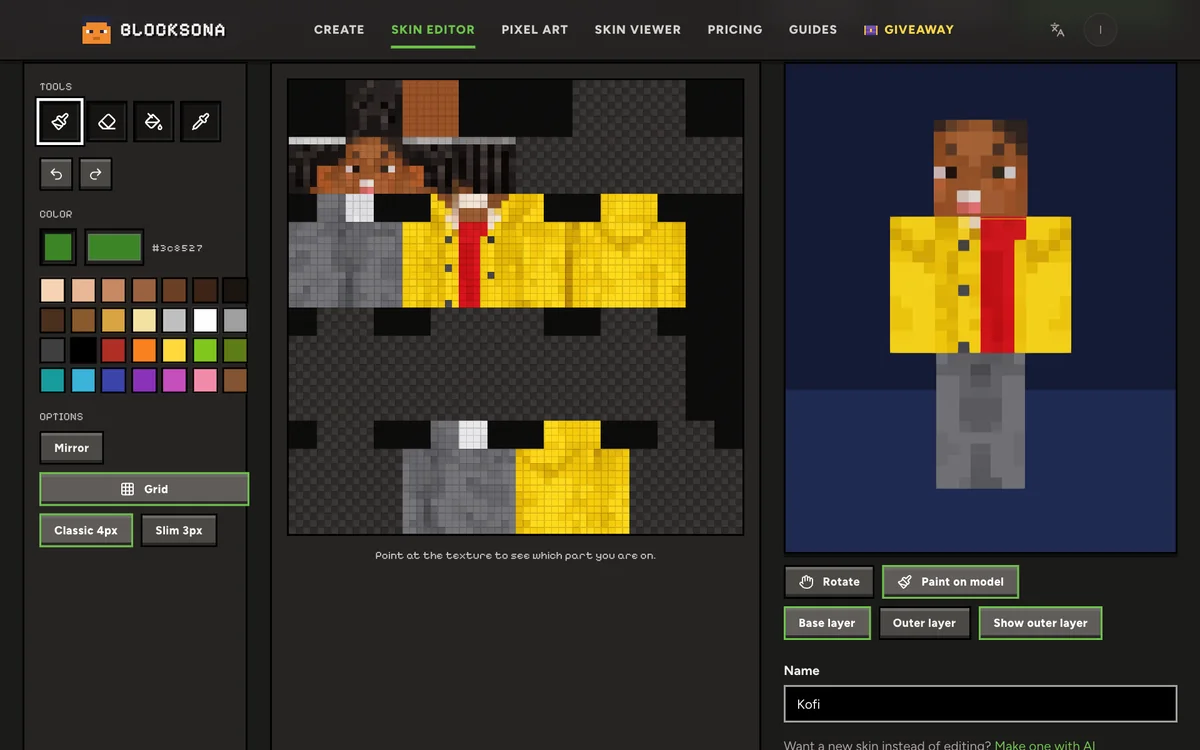
The AI gets the big shapes right, but a tiny emblem or an eye color can be one shade off. Press Edit pixels on the result and the skin opens in the free Minecraft skin editor, with no extra credit.
Switch on Paint on model to paint straight onto the 3D character, and Mirror so both arms or both legs change together. Pick color grabs a shade that is already on the skin, so your fix blends in. A chest emblem or a scar takes about a minute. The skin editor guide covers layers and every tool.
Other ways to make a skin
- Photo to skinUse a real photo when you want the skin to look like you.
- Pet to skinA photo of your dog, cat or parrot becomes a pet-sona skin.
- Roblox to skinLoad your Roblox avatar by username or from a screenshot.
- Text to skinNo picture yet? Describe the character in up to 400 characters.
- Pixel art makerBuild the drawing itself in your world as block pixel art.
- 3D skin viewerOpen any skin PNG in 3D and save its face as a profile picture.
FAQ
Questions people ask
Can I turn my fan art or OC into a Minecraft skin?
Yes. Photograph or scan the drawing, crop it to the one character and upload it in Image mode. Pencil, crayon, marker and digital art all work. Clear outlines and solid colors give the cleanest result.
Does it work for anime characters?
Yes. Anime art converts well because it uses flat colors and clear shapes. Large eyes are simplified to a few pixels on the 8×8 face, and long hair is painted around the head. If you want a ponytail to continue down the back, ask for it in Extra notes.
Will the skin look exactly like my picture?
It keeps the design, not every line. With an 8×8 face, fine details get simplified and tiny accessories can be dropped. Put the details you care about most in Extra notes, then fix the rest by hand in the skin editor.
What happens to capes, tails, wings and held items?
Capes, tails and wings are painted flat on the back of the body. Things the character holds, like Rusty’s shield or a sword, are left out, because a skin only colors the body. In the game you can hold a real shield or sword.
Can I use a screenshot from another game?
Yes, if one character is clearly visible. Hide the HUD, pick a front-facing moment and crop the rest away. For a Roblox avatar, Roblox mode can load it by username instead.
What image files can I upload?
JPG, PNG or WebP. Your browser shrinks the picture to 1024 px before it uploads, so you do not need to resize it yourself.
How much does it cost?
1 credit per skin. New accounts get 3 free credits, and packs start at $4.99 for 20 credits (see pricing). Extra notes are free, and a failed generation refunds its credit automatically.
Is my drawing kept or used to train AI?
No. The picture is used for that one generation and deleted automatically within 24 hours, and it is never used to train models. The finished skin stays in your private My skins library until you delete it.
Can I wear the skin on Xbox, PlayStation or Switch?
No, consoles cannot import skin files. You can wear it on Java Edition on PC and Mac, and on Bedrock for Windows, iPhone, iPad and Android.
Guides
Read next
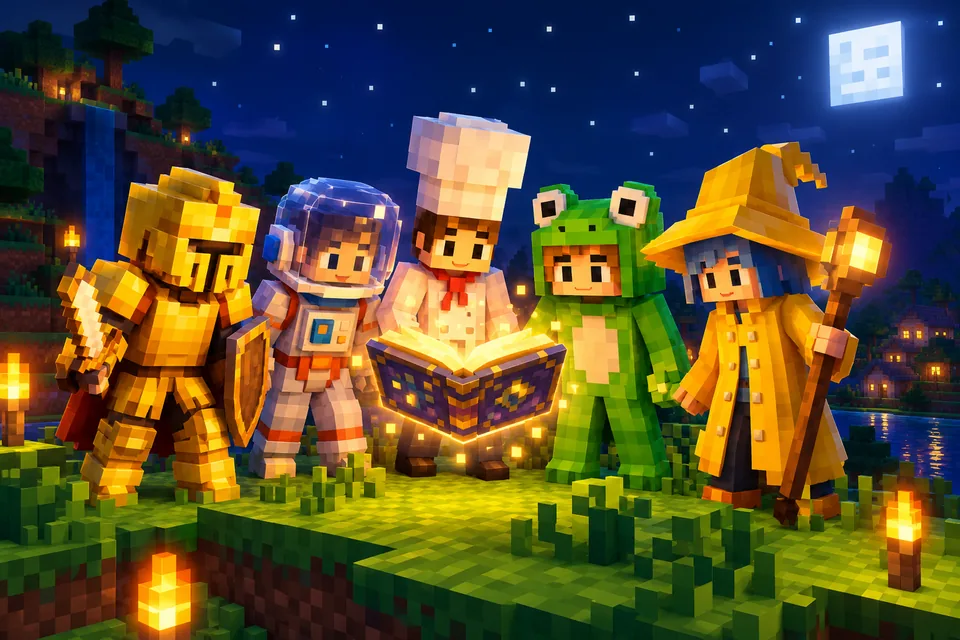 30 Minecraft skin ideas with prompts you can copy and pasteCool Minecraft skin ideas as ready-to-paste prompts: fantasy, jobs, animals, sci-fi, seasonal and matching skins for friends, plus a formula for your own.
 How to use a Minecraft skin editor: edit any skin pixel by pixelA step-by-step tutorial for the free Blocksona skin editor: open a skin, read the 64×64 map, use every tool and shortcut, shade it, and wear it in game.
 How to change or install a skin in Minecraft Java EditionChange your Minecraft Java skin in about a minute with the launcher or minecraft.net. Steps for Windows and Mac, classic vs slim arms and fixes that work.
 How to import a custom skin in Minecraft Bedrock (Windows, iPhone, Android)Import a custom skin in Minecraft Bedrock with a one-tap .mcpack or a PNG in the Dressing Room. Steps for Windows, iPhone, iPad and Android, plus consoles.
Further reading
Outside sources, for the details behind this page.
- Minecraft Wiki: SkinHow the 64×64 skin file is laid out, including the outer layer that holds hoods, hats and hair.
- Minecraft Wiki: PlayerThe size of every body part on the player model, which is why nothing can stick out of a skin.
- Wikipedia: Pixel artBackground on drawing inside a tiny pixel grid, the same limit every skin works within.
By the Blocksona teamUpdated