
Free tool
3D skin viewer
Open any 64×64 skin PNG and turn it around. The file never leaves your browser.
Showing: Ivy
Want one that looks like you?
Blocksona paints a skin from your selfie, your pet or a sentence.
Make my Blocksona
How to preview a Minecraft skin in 3D
This free 3D Minecraft skin viewer puts any skin PNG on a moving player model, so you can check it before you upload it to the game. It runs in your browser, works without an account, and also turns a skin into a face avatar for your profile picture.
- Step 1
Open a skin PNG
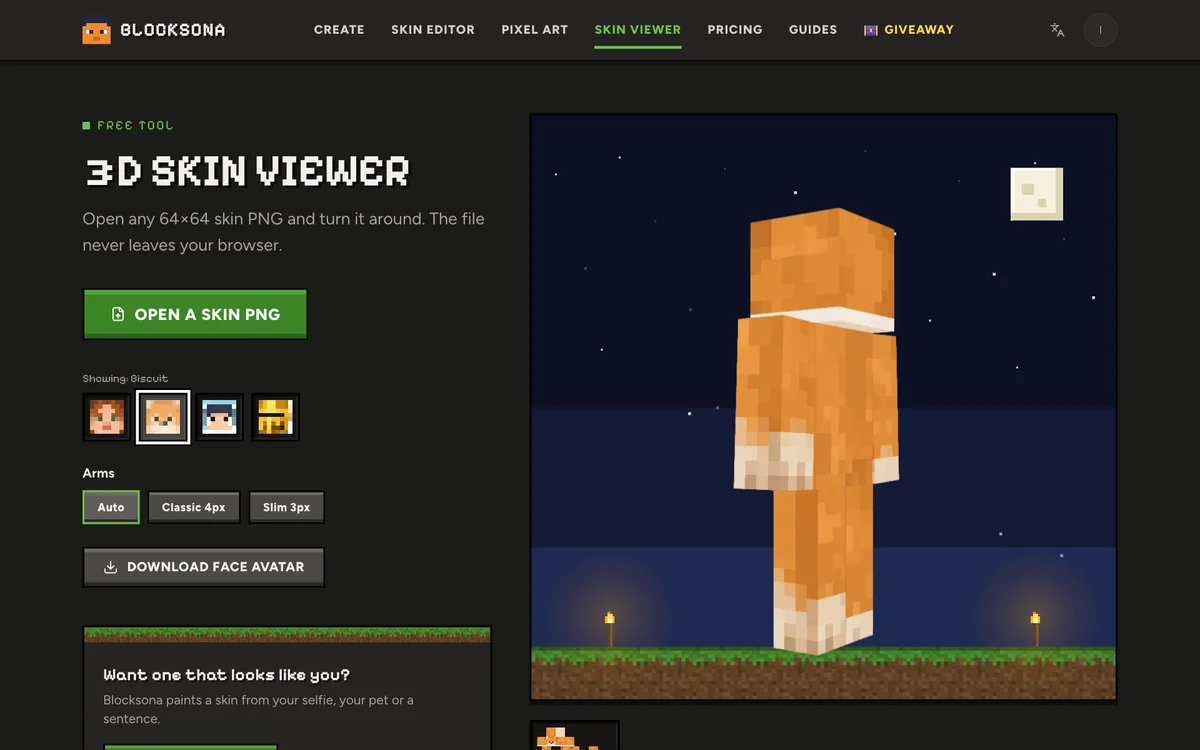
Click Open a skin PNG and pick a 64×64 skin, or an old 64×32 one. To look around first, click one of the sample heads: Ivy, Biscuit, Nova or Sir Goldie, all made with Blocksona.
- Step 2
Turn it around
Drag the model to spin it and look at the front, the back and both sides. The flat texture is shown under the model, so you can compare the two.
- Step 3
Set the arms
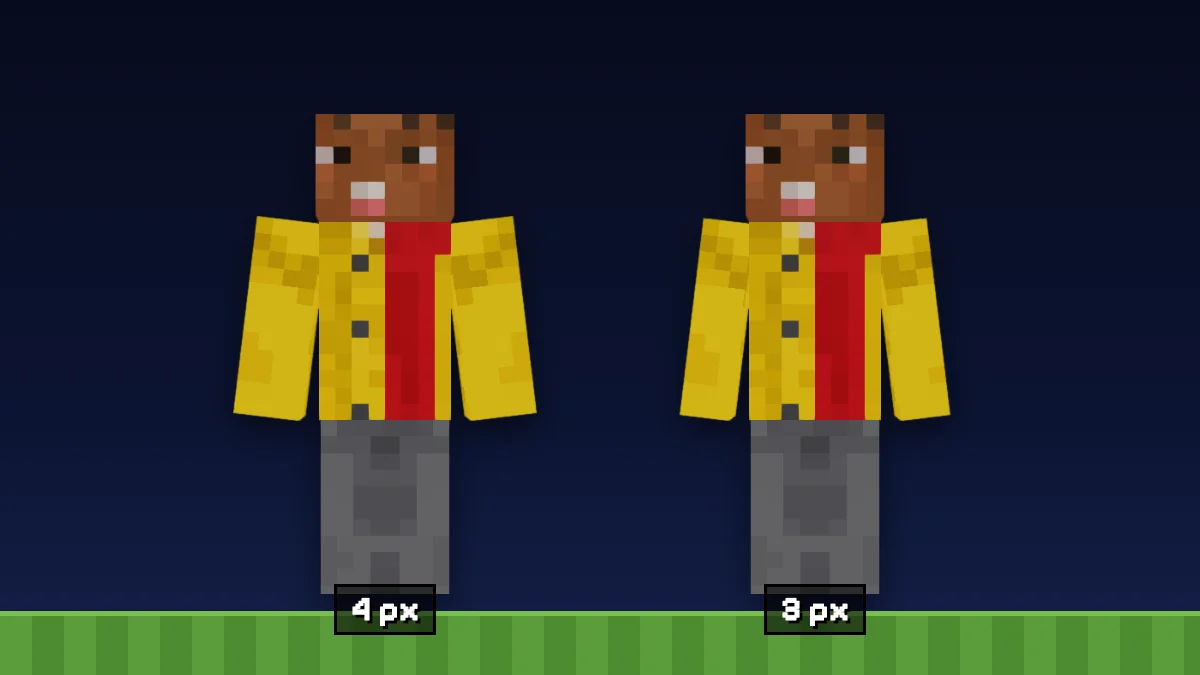
Under Arms, leave Auto on, or force Classic 4px or Slim 3px if the arms look wrong.
- Step 4
Save a face avatar
Click Download face avatar for a 512×512 PNG of the face, with the hat layer on top.
What to check before you upload a skin
A minute in the viewer saves trips back to the launcher. Look for these five things.
The arms
A stripe of the wrong color down the side of an arm, or a pattern that seems to slide off the edge, means the arm model does not match. Try the other one and note which looks right: you pick the same one in Minecraft.
Holes in the base layer
A see-through pixel in the base layer cannot stay see-through in the game; it shows as a solid color, often black. The viewer draws it the same way, so dark specks on the face or a black patch on the body mean the file has a gap. Paint it in with the skin editor.
The outer layer
Hair, hoods, glasses and jackets live on the outer layer. Check that they sit where they should and that no stray pixels float around the head.
The back and the top
Other players see your back more often than your face. Spin the model and check the back of the head, the top and the back of the body.
The face from far away
Lean back from the screen. In the game your head is small, so the eyes and mouth should still read at a distance.
Auto, Classic or Slim: which arm setting to use
The arm setting only changes how the viewer shows the skin. It never changes the file.
| Setting | What it does | Use it when |
|---|---|---|
| Auto | Looks at the arm area of the texture. If the extra column a classic arm would use is empty, it shows slim arms; otherwise classic. | You open a skin for the first time. |
| Classic 4px | Shows 4-pixel arms, the Steve model. | The skin was made for classic arms, or Auto guessed wrong. |
| Slim 3px | Shows 3-pixel arms, the Alex model. | The skin was made for slim arms, or the arms show a dark stripe on Classic. |
Whatever looks right here is the model to pick in the Minecraft Launcher or the Bedrock Dressing Room. Files made on Blocksona end in -classic or -slim. The classic vs slim arms guide shows how to tell them apart.
Make a Minecraft head avatar from a skin
Download face avatar turns the skin into a profile picture. It takes the 8×8 front of the head, puts the hat layer on top, and scales it to 512×512 with sharp pixels, so each skin pixel becomes a 64×64 square. The file is named after the skin, so steve.png gives you steve-face.png.
Use it on Discord, a YouTube channel, a server forum or a group chat. Apps with round avatars cut off the corners, which rarely matters because the eyes sit in the middle rows. It is the flat face, not a 3D render of the head, so glasses and hair from the hat layer show only where they cover the front.
Why a skin can look different in game
If the skin looked right here but not in Minecraft, it is usually one of the reasons below.
Step-by-step fixes are in the Java install guide and the Bedrock install guide.
- The wrong arm model at import. The Java launcher and the Bedrock Dressing Room both ask for Classic or Slim. Pick the one that looked right in the viewer.
- Outer layer turned off. In Java, Options → Skin Customization can hide the hat, jacket, sleeves and pants. Turn them back on to see the whole skin.
- Game lighting. Minecraft shades each side of the model and follows the light in the world, so colors look darker in caves and at night than on this sky background.
- Servers that hide custom skins. Some featured servers on Bedrock show only Marketplace skins.
- Consoles. Xbox, PlayStation and Switch cannot import skin files at all.
Your skin file stays on your device
The viewer opens your PNG inside the browser. The file is not uploaded, there is no account, and nothing is kept after you close the tab. The sample heads are Blocksona showcase skins loaded from this site.
That makes it a handy first stop for a skin you found online or got from a friend: open it, check it, and only then import it into the game.
Fix it or make a new one
Found a problem? Open the same PNG in the free Minecraft skin editor to paint over holes, add a missing outer layer or switch the arm model, then come back to check it.
Want a skin that is all yours? On the Workbench, the AI paints one from a selfie, a pet photo, a Roblox avatar or a few words, with the same kind of 3D preview plus Idle, Walk and Wave animations.
Keep going
- Skin editorPaint on the texture or the 3D model, fix holes, and download PNG or .mcpack.
- WorkbenchGenerate a new skin from a photo, a pet, a drawing, a Roblox avatar or text.
- Image to skinTurn your drawing or OC into a skin, then preview it here.
- Pixel art makerBuild a picture in wool, concrete and terracotta, with the block list.
- Creator challengeShow off your skin in a reveal video and win a gift card or credits.
FAQ
Questions people ask
Is the 3D skin viewer free?
Yes, and you do not need an account. Open as many skins as you like.
Which files can I open?
PNG skins that are 64×64, or the old 64×32 size. Other sizes, HD skins and JPGs get the message That does not look like a Minecraft skin.
Can I look up a skin by username?
No. The viewer opens files only. Download the skin PNG first, then open it here.
How can I tell if a skin is classic or slim?
Leave the arms on Auto and look at the model, then switch between Classic 4px and Slim 3px. The one without a stripe or a gap on the arm is right. Blocksona files say it in the file name.
Why are some parts of my skin black?
Those are see-through pixels in the base layer. The game cannot show them as holes, so they turn solid, usually black. Paint over them in the skin editor.
Can I see the skin walk or wave?
The viewer shows the idle pose. Skins you generate on the Workbench get Idle, Walk and Wave buttons on the result screen.
Can I change the skin here?
No, the viewer only shows it. Use the skin editor to paint, then open the new PNG here to check it.
How do I turn a Minecraft skin into an avatar?
Open the skin and click Download face avatar. You get a 512×512 PNG of the face with the hat layer on top, ready to use as a profile picture.
Does the viewer show Java or Bedrock skins?
Both. Java and Bedrock use the same skin file, so what you see here is what both editions load.
Does it work on a phone?
Yes. Open a PNG from your files and drag with one finger to spin the model.
Guides
Read next
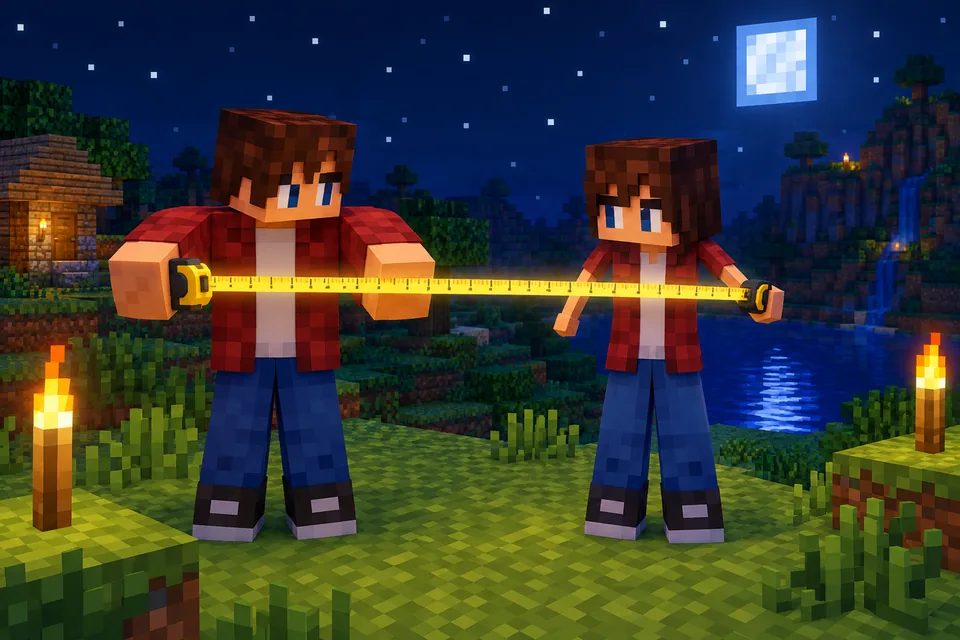 Minecraft skin classic vs slim arms: Steve or Alex, and how to pickClassic arms are 4 pixels wide, slim arms 3. See where each sits on the 64×64 skin, what goes wrong with the wrong model, and how to check and pick yours.
 How to change or install a skin in Minecraft Java EditionChange your Minecraft Java skin in about a minute with the launcher or minecraft.net. Steps for Windows and Mac, classic vs slim arms and fixes that work.
 How to import a custom skin in Minecraft Bedrock (Windows, iPhone, Android)Import a custom skin in Minecraft Bedrock with a one-tap .mcpack or a PNG in the Dressing Room. Steps for Windows, iPhone, iPad and Android, plus consoles.
 How to use a Minecraft skin editor: edit any skin pixel by pixelA step-by-step tutorial for the free Blocksona skin editor: open a skin, read the 64×64 map, use every tool and shortcut, shade it, and wear it in game.
Further reading
Outside sources, for the details behind this page.
- Minecraft Wiki: SkinHow the skin format works, what the two layers do, and how each edition applies a custom skin.
- Minecraft Wiki: PlayerExact model sizes for every body part, and how the classic and slim arms differ.
- minecraft.net: Change your Java skinThe official page for uploading a Java skin from the browser, without opening the launcher.
By the Blocksona teamUpdated