Minecraft skin classic vs slim arms: Steve or Alex, and how to pick
Classic arms are 4 pixels wide, slim arms 3. See where each sits on the 64×64 skin, what goes wrong with the wrong model, and how to check and pick yours.
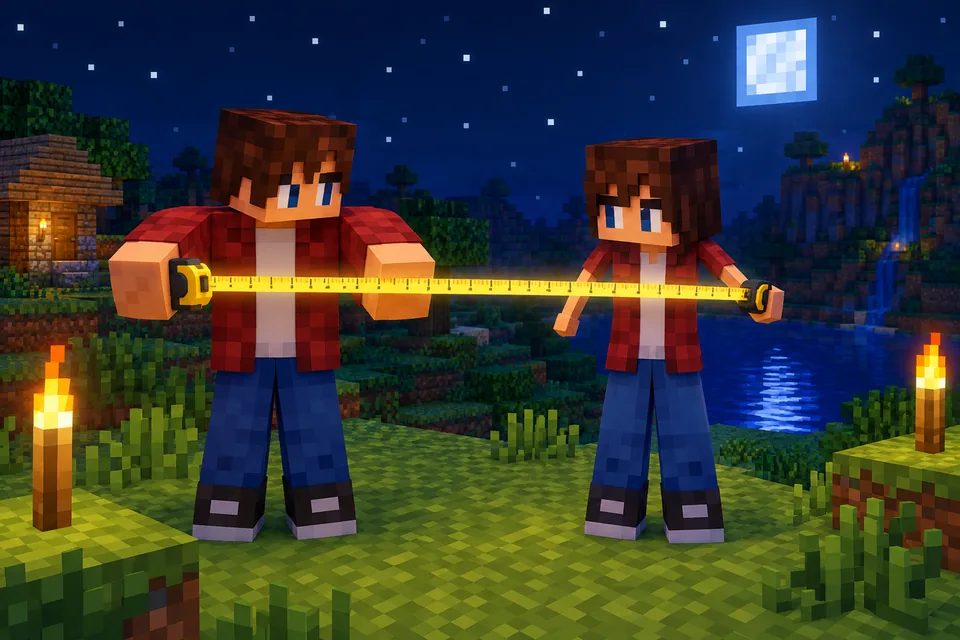
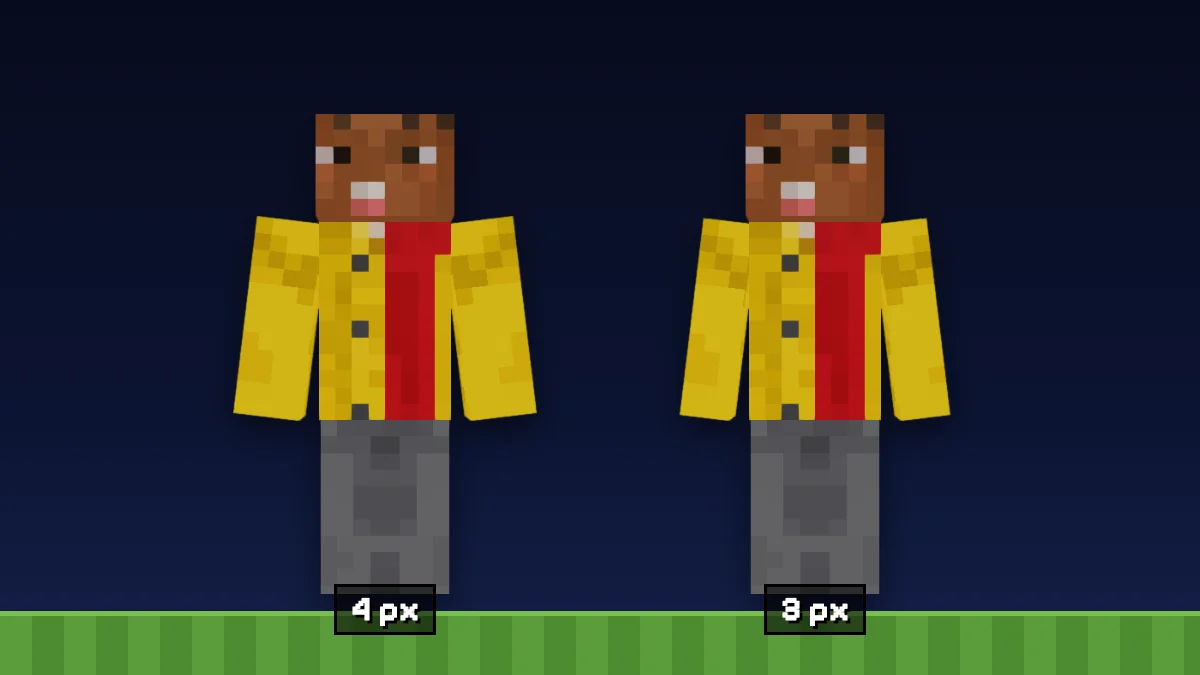
Every Minecraft skin is painted for one of two arm models. Classic arms are 4 pixels wide, the shape of Steve. Slim arms are 3 pixels wide, the shape of Alex. The head, body and legs are exactly the same in both. Pick the model that matches the file and the skin looks right; pick the other one and you get a gap or shifted stripes on the arms. This guide covers classic vs slim arms on the 3D model and on the flat 64×64 texture, what goes wrong with the wrong one, how to tell which one a skin uses, and where to set it on Blocksona, in Java Edition and in Bedrock.
Classic vs slim arms at a glance
| Classic | Slim | |
|---|---|---|
| Also called | Steve, wide | Alex |
| Arm size (width × height × depth) | 4 × 12 × 4 px | 3 × 12 × 4 px |
| Front and back of each arm | 4 px wide | 3 px wide |
| Sides of each arm | 4 px wide | 4 px wide |
| Texture columns per arm | 16 | 14 |
| Head, body and legs | Same | Same |
| Hitbox, reach, gameplay | Same | Same |
Slim arms lose one pixel only at the front and the back. Seen from the side, both arms are 4 pixels deep. Nothing about the game changes: the arm model is purely how you look.
The names Steve and Alex are just labels for the two shapes. Since Java Edition 1.19.3, the game has nine default characters (Steve, Alex, Ari, Efe, Kai, Makena, Noor, Sunny and Zuri), and each of them comes in both arm widths. The Minecraft Wiki page on the player describes the two models.
Where the arms sit on the 64×64 skin texture
A skin file is the 3D model unfolded flat. Each arm is a box opened into six faces: a small strip with the top and the bottom, and under it a row 12 pixels tall with the right side, front, left side and back.
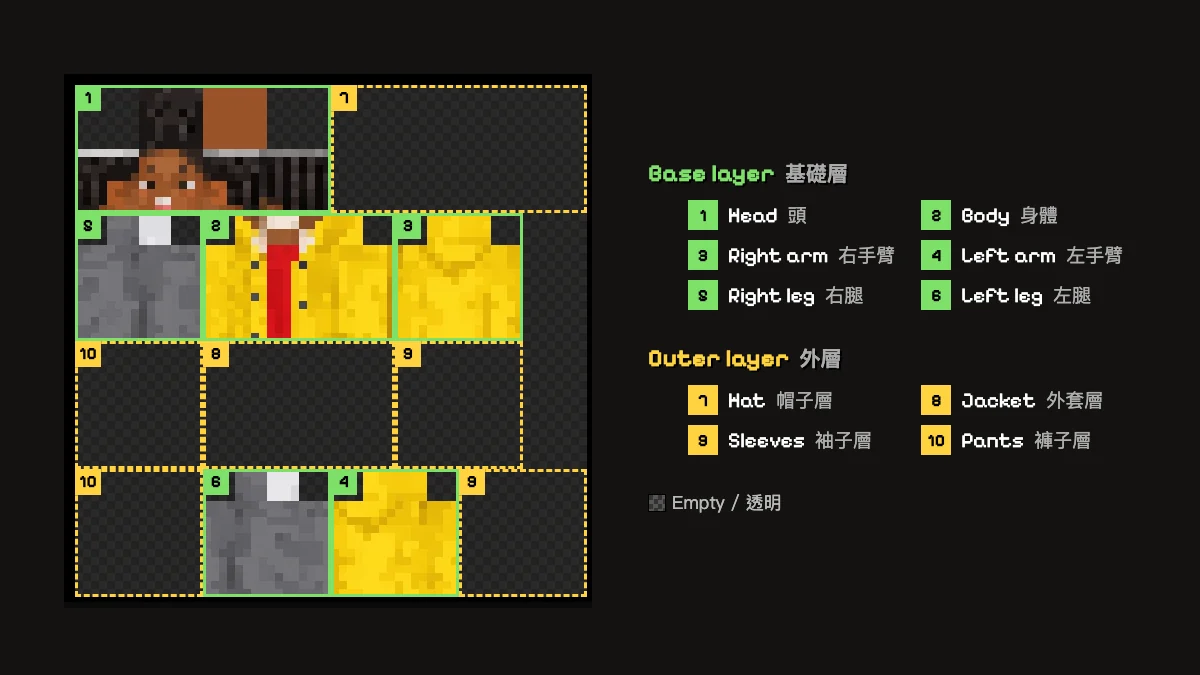
Counting pixels from the top-left corner, starting at 0:
| Part | Base layer | Outer layer (sleeve) |
|---|---|---|
| Right arm | x 40–55, y 16–31 | x 40–55, y 32–47 |
| Left arm | x 32–47, y 48–63 | x 48–63, y 48–63 |
"Right arm" means the character's right, which is on your left when the character faces you.
Inside the right arm's block, a classic skin uses columns 40–43 for the right side, 44–47 for the front, 48–51 for the left side and 52–55 for the back. A slim skin keeps the 4-pixel sides but gives the front and back only 3 columns: 40–43 for the right side, 44–46 for the front, 47–50 for the left side and 51–53 for the back. Every face after the front moves one pixel to the left, and a strip 2 pixels wide at the end of each arm block stays empty (columns 54–55, plus 50–51 in the top strip). The left arm and both sleeves work the same way.
Old 64×32 skins have only one arm, which the game mirrors, and they always use classic arms. Slim arms came with the 64×64 layout in Java Edition 1.8. The Minecraft Wiki page on skins has the full map.
What happens if you pick the wrong arm model
The game does not look at the pixels to guess. It reads the file the way the chosen model says, so a mismatch shifts everything on the arms.
A slim skin on the classic model. The game reads 4-pixel faces from a file painted with 3-pixel faces.
- The back of each arm takes in the empty 2-pixel strip, so a thin black or see-through stripe runs down it. The bottom of each hand gets the same hole.
- Each face picks up one column from its neighbor, so the front edge shows a line of the side color.
- The arms look too wide for the character.
A classic skin on the slim model. The game reads 3-pixel faces from a file painted with 4-pixel faces.
- The front of each arm loses its last column, so a centered stripe, a logo or a watch shifts off center or is cut in half.
- Each later face starts one column early: a line of the front color appears on the inner side, and a line of the side color appears on the back. Stripes look stretched or doubled at the edges.
- The shoulders look squeezed.
Neither breaks anything. Add the skin again with the other model and it looks right.
How to tell which arms a skin uses
- Open it in the 3D skin viewer. Open the PNG in the free 3D skin viewer with arms on Auto. Auto looks at the 2-pixel strips that a slim skin leaves empty and picks Slim if they are empty. Then click Classic and Slim yourself and look at the back of the arms: the right model has no stripe.
- Look at the flat texture. On a slim skin, the last two columns of each arm block are empty: x 54–55 for the right arm and x 46–47 for the left arm.
- Read the file name. Blocksona file names end in
-classicor-slim, for exampleblocksona-ivy-slim.png.
Auto is a good guess, not a promise. A classic skin with those edge columns painted fully black or white can look slim to it, so always check the back of the arms with your own eyes.
How to choose classic or slim arms on Blocksona
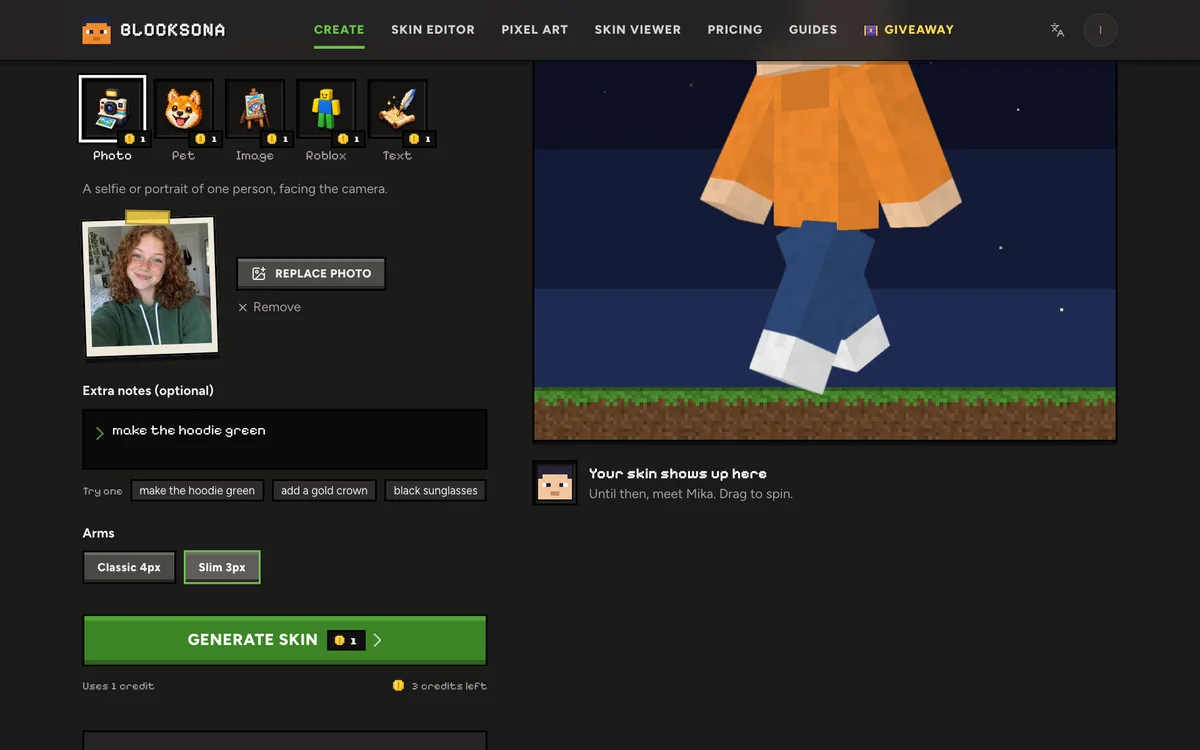
On the Workbench, the Arms option has two buttons: Classic 4px and Slim 3px. Pick one before you generate. Blocksona paints the arms for that width, so the finished skin fits the model with no gaps. It works the same in every mode, whether you turn a selfie into a skin, use a drawing or OC or describe a character in one sentence.
In the examples below, Ivy, Yuki and Nova were made with slim arms, and Kofi, Dev and Rusty with classic arms. Open them in 3D and compare the shoulders.
Your choice follows the skin everywhere. The result screen's Wear it in Minecraft panel shows it as "Arms: Slim (Alex)" or "Arms: Classic (Steve)", the PNG and .mcpack file names end with it, and the .mcpack tells Bedrock which model to use.
Changed your mind later? The skin editor has the same Classic 4px and Slim 3px switch. It changes the model you paint on, the file name and the .mcpack, but it does not move pixels. To turn a classic skin into a slim one you repaint the arms (drop one column from the front and back and slide the side and back faces over). Often it is quicker to make the skin again with the other option, which costs 1 credit. The skin editor guide covers the tools.
How to set the arm model in Java and Bedrock
- Java, Minecraft Launcher: Skins, then New skin, then pick Classic or Slim under the player model, Browse for the PNG and Save & Use.
- Java, minecraft.net: choose Classic or Slim on the skin page before you upload.
- Bedrock, .mcpack: nothing to pick. The pack already says which model the skin uses.
- Bedrock, manual PNG import: after Choose New Skin, pick the wide model for classic arms or the slim model for slim arms.
- Xbox, PlayStation, Switch: consoles cannot import skin files, so the question does not come up.
Step-by-step versions, with fixes for other problems, are in the guides to installing a skin on Java Edition and importing a skin on Bedrock.
Which one should you pick?
For a new skin it is a question of style, not of boy or girl.
- Slim suits fitted clothes, thin sleeves, anime characters and astronauts in slim suits, like Yuki and Nova.
- Classic suits bulky outfits, armor, robots, raincoats and anything blocky. All four pet-sona examples (Biscuit, Kiwi, Mango and Pepper) and the Roblox avatar example Bolt are classic.
- Not sure? Classic gives each arm face one more column for cuffs, logos and watches, so it is the safer default for detailed sleeves.
FAQ
Is the Alex model only for girls?
No. Since Java Edition 1.19.3, all nine default characters come in both arm widths. Pick whichever shape you like.
Do slim arms change anything in the game?
No. The hitbox, reach and everything else are the same. Only the look of the arms changes.
Can I switch a skin from classic to slim in the launcher?
You can pick either model, but the launcher does not repaint the arms. A classic file on the slim model will show shifted stripes. Repaint the arms in the skin editor or make the skin again with Slim arms.
Can one arm be slim and the other classic?
No. The arm model applies to the whole skin.
Why is there a black line down the back of my arms?
The skin was painted for slim arms and is set to Classic. Switch the model to Slim in the launcher or the Dressing Room.
Which arms do old 64×32 skins use?
Classic. The slim model needs the 64×64 layout.