
How to change or install a skin in Minecraft Java Edition
Change your Minecraft Java skin in about a minute with the launcher or minecraft.net. Steps for Windows and Mac, classic vs slim arms and fixes that work.
You have a skin file, maybe one you made on Blocksona from a selfie or a single sentence, and you want to wear it. Changing your skin in Minecraft Java Edition takes about a minute. The game reads a plain 64×64 PNG, and you can install it in two places: the Minecraft Launcher or your profile on minecraft.net. This guide covers both, what is different on Windows and Mac, how to pick classic or slim arms, and a table of fixes for when the skin looks wrong in game.
Before you start: the file, the arms and a quick 3D check
You need three things:
- A 64×64 PNG skin file. Old 64×32 skins still work. A JPG, a WebP or a screenshot of a skin will not.
- The arm model the skin was painted for. Classic arms are 4 pixels wide (the "Steve" model) and Slim arms are 3 pixels wide (the "Alex" model). Blocksona puts the answer in the file name, for example
blocksona-ivy-slim.png. - A Microsoft account that owns Minecraft: Java Edition. If you play Bedrock on Windows, a phone or a tablet, follow the Bedrock skin import guide instead.
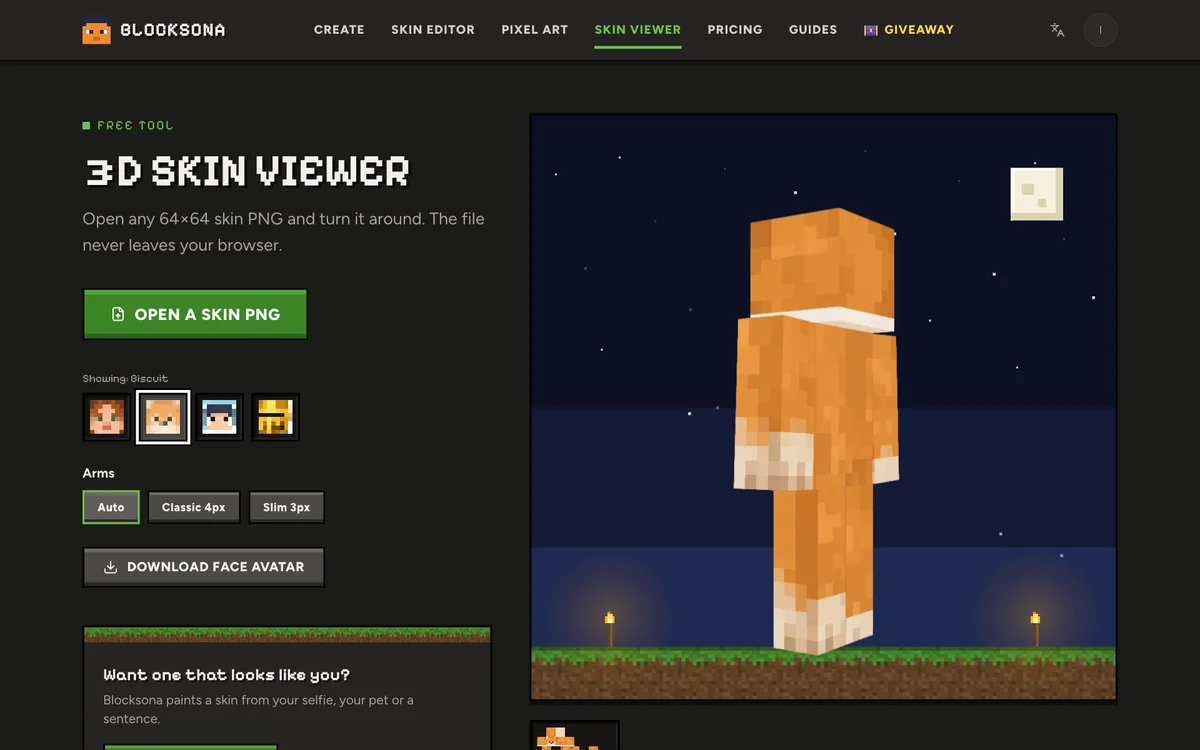
Before you install anything, open the file in the free 3D skin viewer. It runs in your browser and the file never leaves your device. Leave the arms on Auto, drag the model around and look at the back, the sides and the soles. If the arms show a dark stripe, switch between Classic and Slim. The one that looks clean is the model you will pick in the launcher.
How to change your skin in the Minecraft Launcher
This is the usual way, and the launcher looks the same on Windows and Mac.
- Open the Minecraft Launcher and sign in with your Microsoft account.
- Select Minecraft: Java Edition in the list on the left.
- Click the Skins tab at the top. You see your current skin and your skin library.
- Click New skin (the tile with a plus sign).
- Type a name you will recognize later, for example "Ivy slim".
- Under the player model, choose Classic or Slim to match the file.
- Click Browse and pick your PNG.
- Click Save & Use.
Start the game and join any world or server. Press F5 twice: the first press shows your back, the second shows your front, and a third press takes you back to first person.
The skin is saved to your account, not to the computer, so it follows you to any PC or Mac where you sign in. The launcher also keeps every skin you added in its library, so you can switch back to an older one from the same tab later.
How to change your skin on minecraft.net
No launcher handy, or using a shared computer? You can change the skin on the website instead.
- Open the Java skin page on minecraft.net and sign in with the same Microsoft account.
- Choose the player model, Classic or Slim.
- Select your PNG file and upload it.
- If the game was open, close it and start it again.
Both ways save to the same account, so whichever you used last is the skin everyone sees.
Windows and Mac notes
The steps are the same on both systems. These are the small things that trip people up:
| Topic | Windows | Mac |
|---|---|---|
| Getting the game | The Minecraft Launcher comes from the official download page or the Microsoft Store. Both are the same launcher. | Download the launcher from the same official page and drag it into Applications. |
| Finding the file | Browsers save it in Downloads. File Explorer often hides the .png ending, so the file may show as blocksona-ivy-slim. | Browsers save it in Downloads. In the Browse window, pick Downloads in the Finder sidebar. |
| Third-person view | F5. On some laptops you hold Fn and press F5. | fn + F5, because the top row controls brightness and sound by default. |
| Downloaded twice | The browser adds a number, such as (1), to the name. Either copy works. | Same: the extra number does not change the skin. |
Classic or slim: match the arm model
Minecraft has two player models that differ only in the arms. Classic arms are 4 pixels wide and slim arms are 3. A skin file is painted for one of them, and the launcher cannot tell which, so you choose.
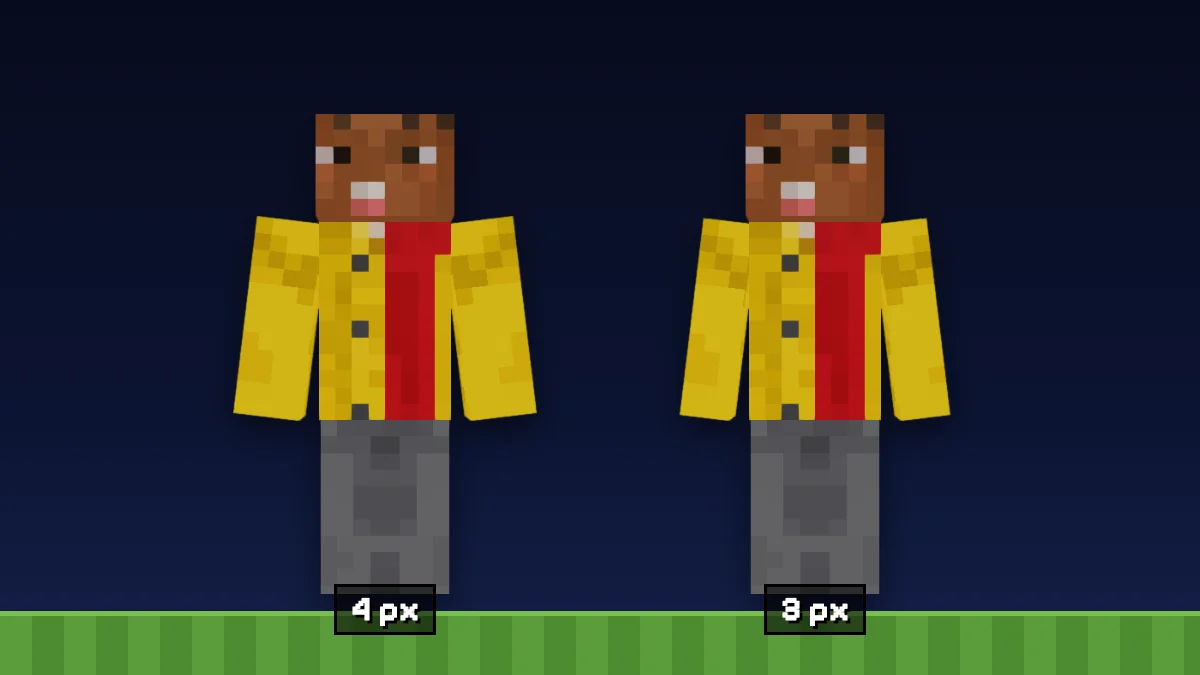
- A slim skin set to Classic gets a thin black or see-through stripe down the back of each arm, because the game reads a column the skin left empty.
- A classic skin set to Slim loses one column on each arm. Stripes, cuffs and watches shift off center, and a line of the wrong color runs down the side.
Blocksona asks for the arms before it paints, so the answer is the option you picked. The full explanation, with the texture map, is in our guide to classic vs slim arms.
Seeing your skin in game, on servers and in other launchers
- Hat or jacket missing. Java lets you hide parts of the outer layer. Open Options, then Skin Customization, and turn on Hat, Jacket, both sleeves and both pants legs.
- Servers and Realms. Online servers load your skin from your Minecraft account. Your game and other players' games keep a copy for a while, so right after a change some people may still see the old skin. Leave, wait a few minutes and rejoin.
- No internet. If the game cannot reach Minecraft's servers, it cannot download your skin and shows a default skin until you are back online.
- Offline-mode servers and unofficial launchers. These handle skins their own way and may not show the skin from your account at all. The steps in this guide are for the official launcher and minecraft.net; for anything else, check that launcher's or server's own help.
Troubleshooting: what you see, why, and the fix
| What you see | Why it happens | How to fix it |
|---|---|---|
| The launcher will not take the file | It is not a 64×64 or 64×32 PNG (often a JPG, a WebP or a screenshot) | Download the PNG again, then open it in the 3D skin viewer to check it is a skin |
| Thin black or see-through stripe on the arms | A slim skin is set to Classic | Add the skin again and choose Slim |
| Sleeves look squashed, stripes shift | A classic skin is set to Slim | Add the skin again and choose Classic |
| Black patches on the head or body | The base layer has empty pixels, and Java always draws the base layer solid | Fill them in the skin editor, or download the Blocksona file again |
| Hat, hood or jacket missing | Outer-layer parts are turned off | Options, Skin Customization, turn the parts on |
| You still see the old skin | The game was open during the change | Rejoin the world, or restart the game |
| Friends on a server see the old skin | Skins are cached for a short time | Wait a few minutes, then rejoin |
| You show up with a default skin | No internet, an offline-mode server or an unofficial launcher | Play online with the official launcher |
| One detail is wrong, like hair color | The skin itself | Fix the pixels in the skin editor and upload the new PNG |
For the last row, the free skin editor opens any 64×64 or 64×32 PNG, lets you paint on the flat texture or right on the 3D model, and downloads a fixed PNG. Our skin editor guide walks through the tools.
Need a skin first?
If you do not have a file yet, the Workbench can turn a selfie into a Minecraft skin, a pet photo into a pet-sona, a Roblox avatar into a Minecraft skin or one sentence into a character. It takes 1 to 2 minutes, and new accounts get 3 free credits. Choose Classic or Slim before you generate, then click Download PNG on the result screen. For a photo that comes out well, read what photo makes the best skin.
FAQ
Is changing your skin in Minecraft Java free?
Yes. Uploading a skin in the launcher or on minecraft.net costs nothing, and you can change it whenever you want.
Can I change my skin from inside the game?
No. Java Edition has no skin picker in game. Change it in the launcher or on minecraft.net, then rejoin your world.
Does my Java skin carry over to Bedrock?
No. Java and Bedrock keep separate skins, even if you own both in the same bundle. Import it again with the Bedrock guide. Every Blocksona skin also comes as a one-tap .mcpack for Bedrock.
Can I use an HD skin?
The official Java skin system takes 64×64 files and the old 64×32 ones. Blocksona makes 64×64 skins, the size every version of the game reads. The Minecraft Wiki page on skins explains the format in detail.
Will other players see my new skin?
On online servers and Realms, yes, because they load it from your account. Give it a few minutes after a change. Offline-mode servers and unofficial launchers may show a default skin instead.
How do I know if my skin is classic or slim?
Open it in the 3D skin viewer with arms on Auto. A Blocksona file name ending in -slim is slim, and one ending in -classic is classic.