
How to use a Minecraft skin editor: edit any skin pixel by pixel
A step-by-step tutorial for the free Blocksona skin editor: open a skin, read the 64×64 map, use every tool and shortcut, shade it, and wear it in game.
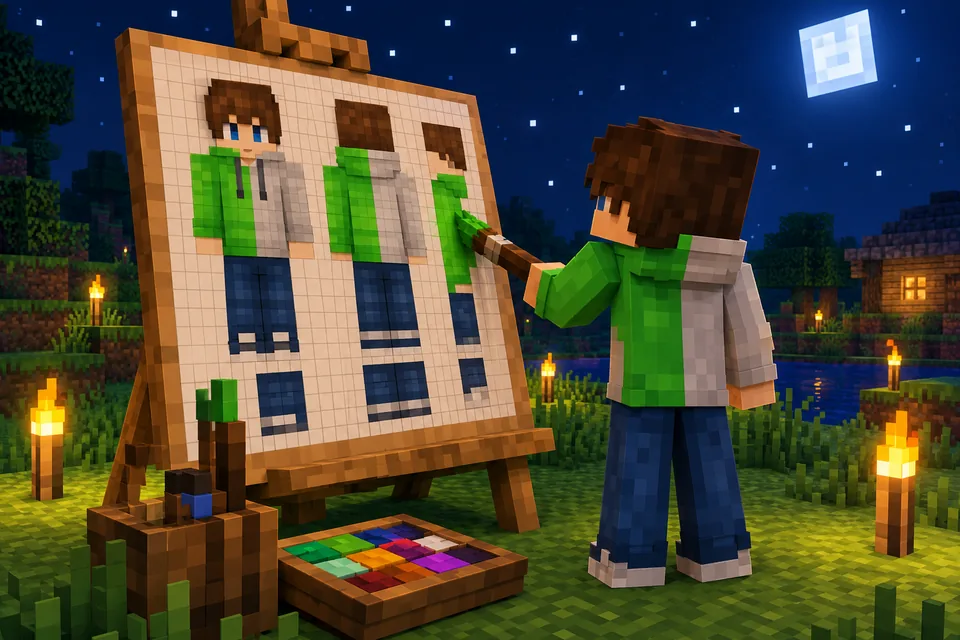
Learning how to use a Minecraft skin editor takes about ten minutes. After that you can fix any skin yourself: a wrong eye color, a missing logo, the glasses the AI forgot. This tutorial walks through the free Blocksona skin editor one button at a time. It runs in your browser, the skins work in Java and Bedrock, and you only need an account to save a skin to your library.
Open a skin to edit
Open the Minecraft skin editor. A sample skin, Ivy (slim arms), is already loaded, so you can try every tool before you touch your own file. Nothing is kept until you download or save. There are three more ways to get a skin in:
- Your own PNG. Click Open PNG and pick a 64×64 skin. Old 64×32 skins (the format from before Java Edition 1.8) open too: the editor copies the right arm and leg to the left side, the way the game does.
- My skins. Signed in, open My skins and press Edit (the brush icon) on any skin you made.
- Edit pixels. When a new skin finishes on the Workbench, the result screen has an Edit pixels button that opens it here.
A skin opened from My skins or Edit pixels starts on Classic 4px arms. If yours has slim arms, click Slim 3px under Options before you paint, or the arm edges land in the wrong columns.
Read the 64×64 skin map
The flat square in the middle is the skin texture. Every Minecraft skin uses the same 64×64 grid, and each body part is a box cut open and laid flat: the top and bottom sit in the first row, with the right side, front, left side and back next to each other below them.
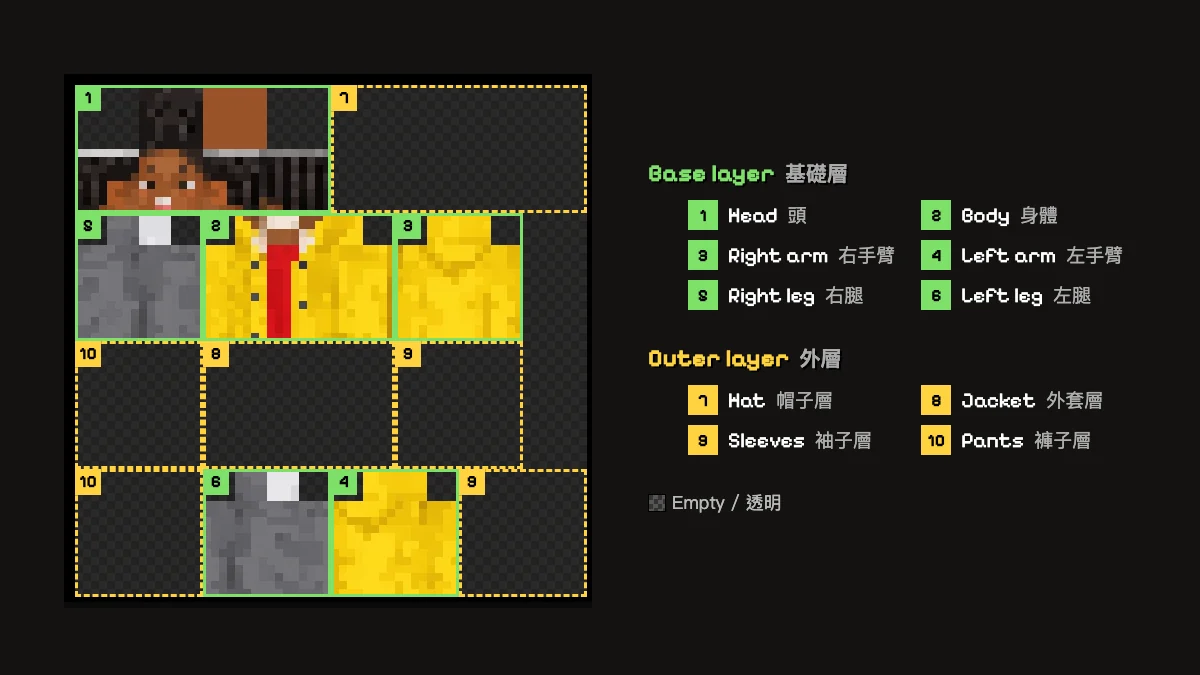
Read it in four bands, top to bottom:
- Rows 0 to 15: the head on the left half, the hat layer on the right half. The face is the 8×8 square at x 8 to 15, y 8 to 15.
- Rows 16 to 31: right leg, body and right arm (base layer).
- Rows 32 to 47: their outer layer: right pants leg, jacket and right sleeve.
- Rows 48 to 63: left pants leg, left leg, left arm and left sleeve.
"Right" means the character's right: facing the model, its right arm is on your left. The readout under the canvas settles any doubt. Point at a pixel and it names the part, face and layer, for example Right arm · front · Base layer (44, 20). The dark gaps never show in game, and the editor will not paint there. The Minecraft Wiki page on skins explains the format in full.
Tools and keyboard shortcuts
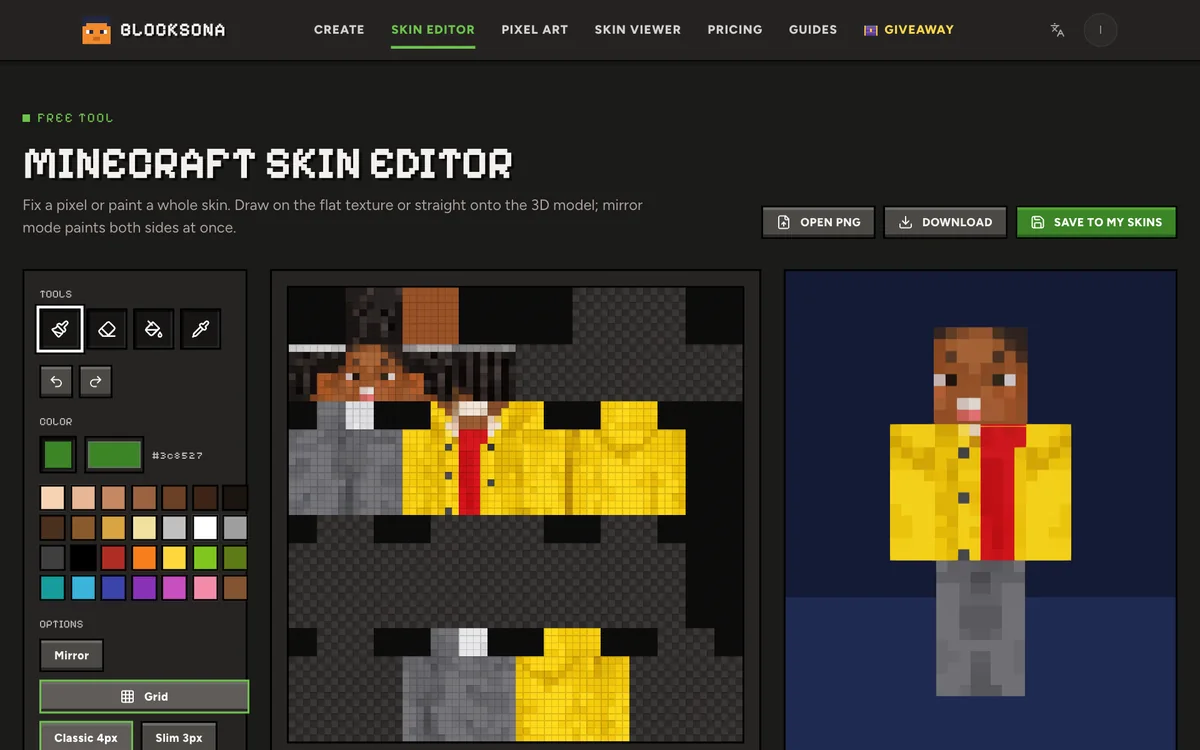
Hover a tool slot to see its name and key.
| Tool | Key | What it does | Use it for |
|---|---|---|---|
| Pencil | B | Paints one pixel at a time; drag to draw a line | Eyes, mouths, small details |
| Eraser | E | Clears outer-layer pixels only | Taking off a hat or glasses |
| Fill | G | Fills same-colored pixels inside one face | Recoloring a shirt front or a sleeve |
| Pick color | I | Copies a color from the skin, then back to Pencil | Matching shades already on the skin |
| Mirror | M | Paints the left and right side together | Both eyes, both arms, symmetric outfits |
| Undo | Ctrl+Z (Cmd+Z on a Mac) | Steps back, up to 60 steps | Any slip |
| Redo | Shift+Ctrl+Z (Shift+Cmd+Z) | Puts an undone step back | Changing your mind |
| Grid | Button | Shows or hides the pixel lines | Counting pixels |
Two tools need a closer look:
- Fill stops at the edge of the face you click, so a fill on the body front never leaks into the arm beside it on the texture. It only replaces the exact color you clicked, so a hoodie shaded in three tones needs three clicks per face.
- Mirror copies each stroke to the matching pixel on the other side: right arm to left arm, right leg to left leg, and the head and body to their own other half. A green outline shows where the copy will land. Turn it off for letters and one-sided logos, which would come out reversed.
The Color box has a full color picker with the hex code, 28 swatches (skin tones from pale to deep, hair colors, greys and bright wool-style colors) and a Recent row with your last 8 colors.
Paint straight on the 3D model
Beside the texture is the live model, with two modes: Rotate (drag to spin, scroll to zoom) and Paint on model (your tool works on the model). You cannot spin and paint at once, so turn the model to the angle you need, click Paint on model, paint, then click Rotate again.
Two more controls decide what the brush touches. Base layer and Outer layer pick which layer your strokes land on; with Base layer picked, the brush reaches through the jacket to the body underneath. Show outer layer hides or shows the hat, jacket, sleeves and pants overlay, so you can see the base while you work on it.
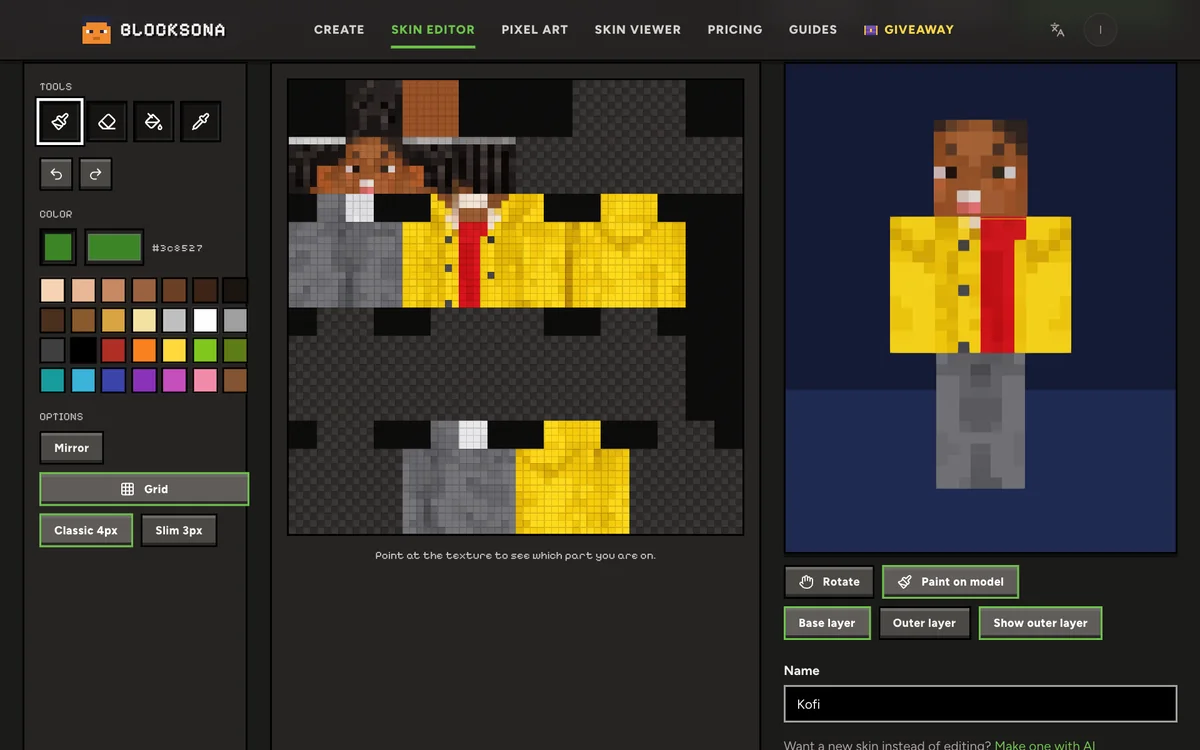
The model is the easy way to reach spots that are hard to find on the flat map: the seam where the front meets the side, the tops of the shoulders, the parting in the hair and the soles of the feet.
Base layer vs outer layer
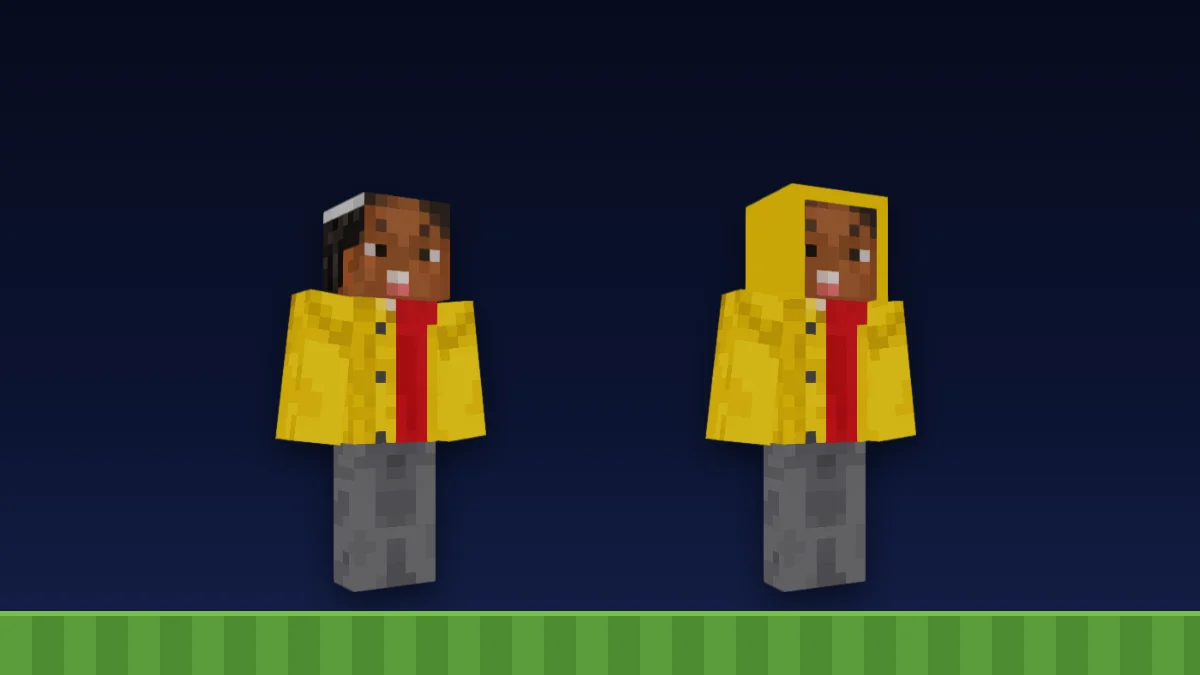
The base layer is the body itself, and in game it is always solid. The outer layer floats slightly off the body and can be fully or partly see-through. Minecraft uses it for hats, hair tufts, hoods, jackets and cuffs, and because it stands out from the body it adds depth.
That explains the eraser. A Minecraft body has no holes, so on the base layer the eraser does nothing (the editor tells you why); paint over a base pixel to change it. On the outer layer, erasing makes a pixel clear so the base shows through. Two habits help:
- Keep the eyes and mouth on the base layer. Java players can switch outer-layer parts off in Options → Skin Customization, and the face should still read.
- Put things you might remove later on the outer layer: glasses, a hat, a scarf. One pass with the Eraser takes them off and leaves the face untouched.
Not sure which arm width your skin uses? The classic vs slim arms guide shows the difference.
Shading tips for pixel skins
One flat color per area looks like a paper doll. At 8 pixels per face, a little shading is all you need:
- Light from the top. Make the top of the head, the shoulders and the top rows of each face a bit lighter, and the bottom rows (under the chin, a shirt hem, the ankles) a bit darker.
- Two or three tones per color. A main tone, one shadow, maybe one highlight. More turns into noise at this size.
- Shift the hue, not only the brightness. Shadows look better a little cooler, highlights a little warmer. Tones that are only greyed down look muddy.
- Avoid pure black outlines. They make the character look like a sticker. Use a darker version of the neighboring color and save near-black for pupils and very dark hair.
- Skip pillow shading. Dark edges with a light middle on every face make parts look puffy.
- Start from the colors already there. On a skin from photo to Minecraft skin, pick the cheek or hair color, then darken it one step. Your fix will match.
Small fixes people make to AI skins
Skins made from a photo, a drawing or a sentence get most details right. The generator can paint glasses and logos itself, as these unedited results show; when it misses one, fix it by hand.
Change the eye color
- Point at the face until the readout says Head · front · Base layer.
- Press I and click an eye. The editor copies its color and switches to the Pencil.
- Choose the new eye color in the color picker.
- Press M for Mirror and paint one eye; the other follows. If the eyes are not exactly symmetric, leave Mirror off.
Add a logo to a shirt
- Find the body front: 8 pixels wide and 12 tall, at x 20 to 27, y 20 to 31.
- Turn Mirror off, unless the logo is symmetric like a star or a heart.
- Keep it 4 to 6 pixels wide on the upper rows. Letters rarely fit; one bold shape reads better from across a world.
- Paint on the base layer for a printed look, or on the jacket (outer layer) for a raised patch.
Add or remove glasses
- Under the model, click Outer layer and Paint on model, then turn the face toward you.
- Pick a dark frame color and turn Mirror on.
- Paint the frame on the eye row and the row above it, leaving one pixel between the eyes for the bridge.
- Change your mind? Press E and erase them. The eyes on the base layer are still there.
Glasses on the base layer cannot be erased; pick the skin tone with I and paint over the frame.
For bigger changes, like a new outfit, it is often quicker to make a fresh skin on the Workbench with a line in Extra notes, such as "make the hoodie green". Notes cost nothing extra; each new skin costs one credit (see pricing).
Save your skin and wear it
- Type a name in the Name box. It goes into the file name and the Bedrock skin pack.
- Click Download at the top for the PNG. The file name ends with the arm type, like blocksona-ivy-slim.png, so you know which player model to pick.
- Signed in? Click Save to my skins. It saves a new copy and the original stays in your library. Signed out, the button reads Sign in to save.
- Scroll to Wear it in Minecraft and pick a tab: Java (PC, Mac), Bedrock (Windows), Phone, tablet or Console. Bedrock and phones get Download .mcpack, which Minecraft imports by itself; Java gets Download PNG.
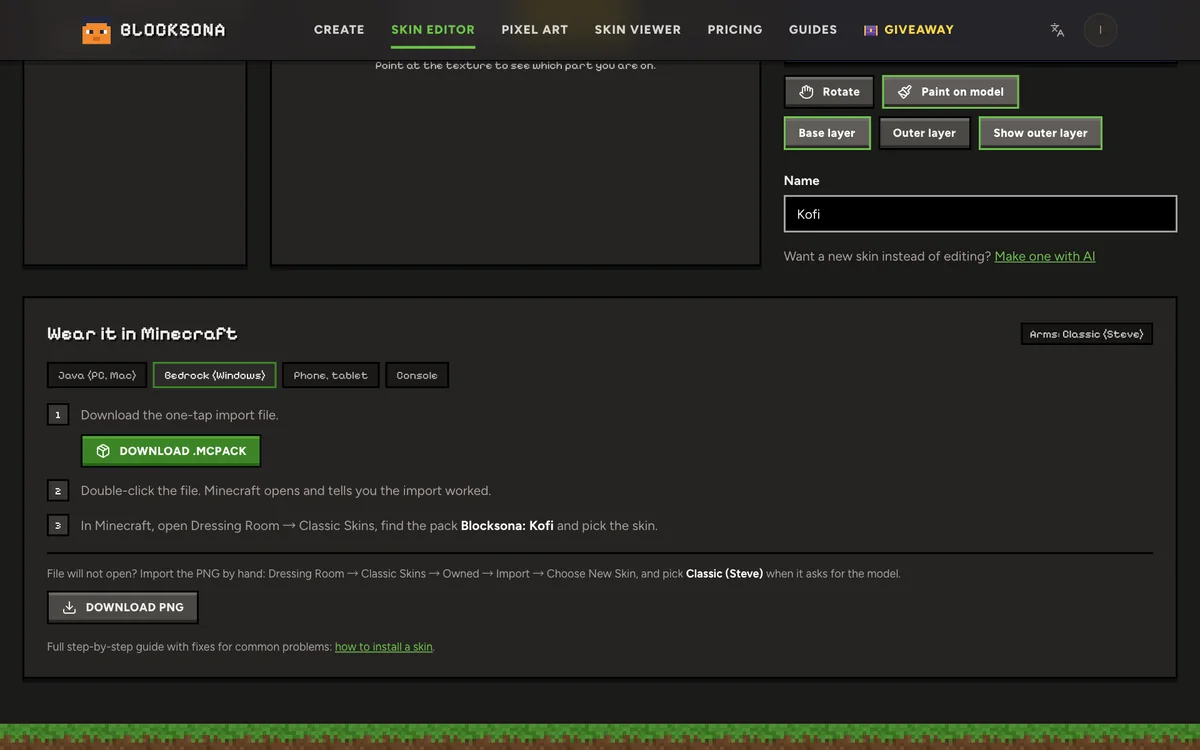
Full steps: install a skin on Java Edition or import a skin on Bedrock. Xbox, PlayStation and Switch cannot import skin files. A turn in the 3D skin viewer makes a quick last check.
FAQ
Is the skin editor free?
Yes. Painting and downloading the PNG or .mcpack need no account. You only sign in to save a skin to My skins.
Why will the eraser not remove a pixel?
The pixel is on the base layer, which is always solid in game. Paint it a new color instead; the eraser only clears the outer layer.
Can I make an HD skin or add a cape?
No. The editor works on standard 64×64 skins, the size every edition of Minecraft reads, and it does not make capes.
Does it work on a phone or tablet?
You can paint with a finger, but pixels are tiny on a phone. A tablet or computer is easier, and the shortcuts need a keyboard.
How do I start a skin from scratch instead?
Make a base on the Workbench from a selfie, a pet, a drawing or a sentence, then fine-tune it here with Edit pixels. How to make a Minecraft skin of yourself covers the first part.