
How to import a custom skin in Minecraft Bedrock (Windows, iPhone, Android)
Import a custom skin in Minecraft Bedrock with a one-tap .mcpack or a PNG in the Dressing Room. Steps for Windows, iPhone, iPad and Android, plus consoles.
Minecraft Bedrock Edition can import a custom skin on Windows, iPhone, iPad and Android. There are two ways to do it. The quick one: open a .mcpack file and Minecraft imports the skin by itself. The manual one: import a PNG in the Dressing Room. Both are free and take about a minute. Xbox, PlayStation and Switch cannot import skin files at all; that part is covered below, so you do not spend an evening looking for a button that is not there.
Get the skin file first
Every skin made on Blocksona has two buttons on the result screen and in your private My skins library: Download PNG and Download .mcpack. Anything you paint in the free skin editor gets the same two buttons. For Bedrock, take the .mcpack. Keep the PNG as a backup, because it also works for the manual import and for Java Edition.
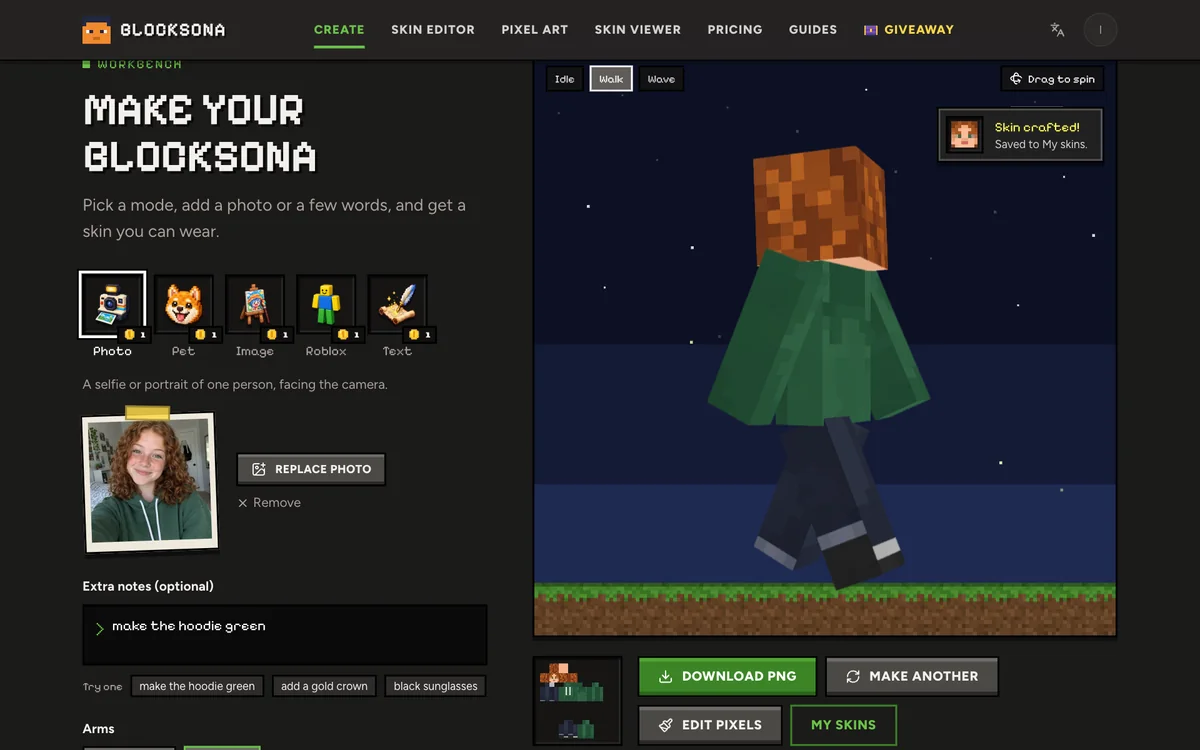
Under the buttons sits the Wear it in Minecraft panel. Pick where you play, Bedrock (Windows) or Phone, tablet, and it shows the steps for that device. It also tells you whether the skin has classic or slim arms.
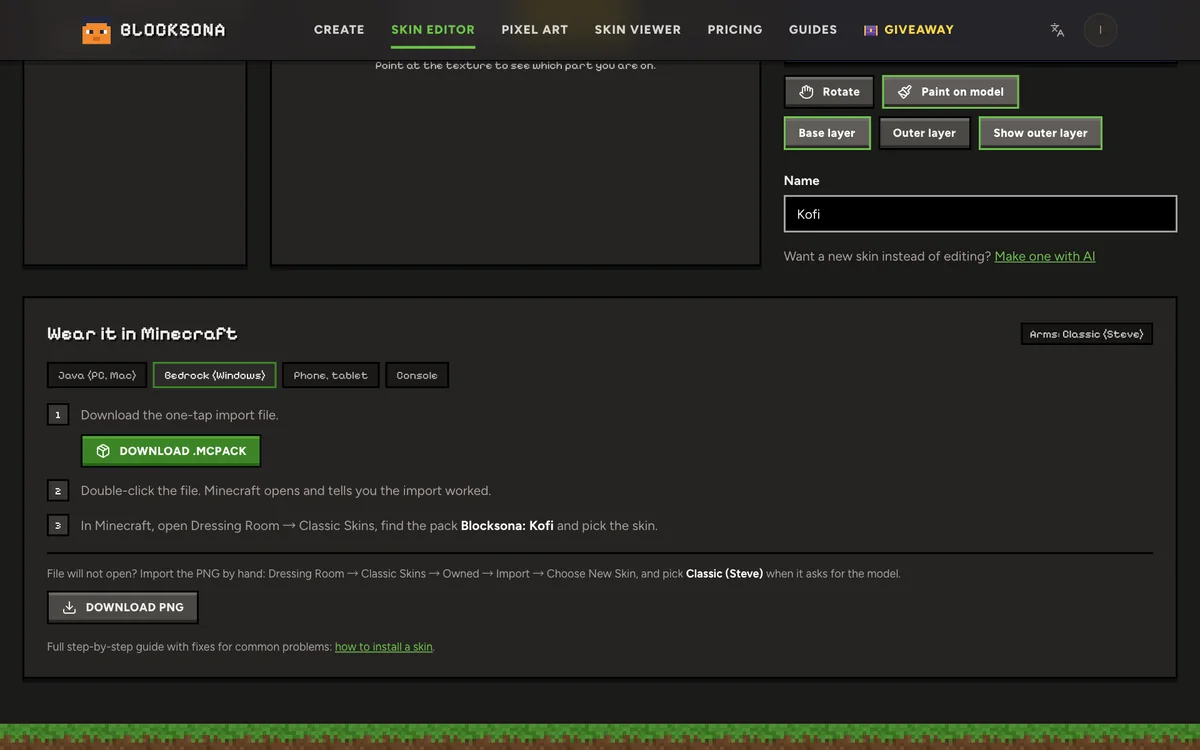
The quick way: one-tap .mcpack import
Windows
- Click Download .mcpack. The file is named like
blocksona-ivy-slim.mcpack. - Open your Downloads folder and double-click the file. If Windows asks which app to use, choose Minecraft.
- Minecraft opens, says the import started, then says it worked.
iPhone and iPad
- Tap Download .mcpack in Safari. The file goes to the Files app, usually in Downloads.
- Open Files, go to Downloads and tap the file.
- Tap Share and choose Minecraft. If it is not in the row of apps, swipe to the end and tap More.
- Minecraft opens and imports the pack.
Android
- Tap Download .mcpack in your browser.
- Tap the finished download in the notification, or find the file in your Files app under Downloads.
- When Android asks how to open it, choose Minecraft.
Then wear it
Open Dressing Room, go to Classic Skins and scroll to the pack named Blocksona: (your skin's name). Tap the skin to put it on. You do not pick the arm model here: the pack already says whether the skin is classic or slim.
If the file will not open on your device, the PNG method below always works wherever importing is allowed.
Import a skin PNG in the Dressing Room
- Save the PNG to the device. On a phone, save it to both Files and Photos, because depending on the device the file picker opens one or the other.
- Open Minecraft and tap Dressing Room on the main screen.
- Open the Classic Skins tab (the hanger icon).
- Under Owned Skins, select the blank skin tile, then tap Import.
- Tap Choose New Skin and pick your PNG.
- Choose the arm model: the wide model for classic (4 px) arms or the slim model for slim (3 px) arms. A Blocksona file name ends in
-classicor-slim, so you never have to guess. - Tap Confirm. The skin is now on your character in the Dressing Room and in game.
Not sure about the arms for a file you got somewhere else? Open it in the free 3D skin viewer with arms on Auto before you import. Our guide to classic vs slim arms explains what goes wrong when the model does not match. The Minecraft Wiki page on the Character Creator covers the rest of the Dressing Room, including the Character Creator outfits that sit next to classic skins.
Xbox, PlayStation and Switch
Consoles cannot import skin files. There is no Import button, and you cannot open a .mcpack or a PNG on them. On a console you can use the Character Creator and skins from the Marketplace.
A skin you import on a phone, tablet or Windows PC also stays on that device. It does not sync to your other devices, so if you play on a tablet and a laptop, import it on each one.
What is a .mcpack file?
A .mcpack is a zip file with a different ending. A skin pack holds four small things: a manifest.json with the pack's name and ID, a skins.json that lists the skin and its arm model, the 64×64 PNG itself, and a text file with the name you see in the Dressing Room. Minecraft is set up to open .mcpack files, so opening one hands it straight to the game. Microsoft explains the format in Packaging a Skin Pack on Microsoft Learn.
Blocksona builds the pack in your browser, from your PNG. Its ID comes from the skin's pixels, so downloading the same skin twice gives the same pack, and Minecraft will not add a second copy. If you change the skin in the editor and import it again, you get a new pack. Give the new version its own name in the editor so you can tell the two apart in the Dressing Room.
Troubleshooting: what you see, why, and the fix
| What you see | Why it happens | How to fix it |
|---|---|---|
| Tapping the .mcpack shows a preview or an error | The device does not know which app opens it | iPhone: Share, then Minecraft. Android: open with Minecraft. Or import the PNG |
| Nothing happens on Windows | Bedrock is not installed, or another app opens .mcpack files | Install or update Minecraft, then right-click the file, Open with, Minecraft |
| The import fails | The download stopped early, or Minecraft is out of date | Update Minecraft and download the file again |
| Minecraft says the pack is already there | You imported this exact skin before | Look in Classic Skins for the Blocksona pack |
| Imported, but you cannot find it | Imported packs are listed by pack name | Scroll Classic Skins to "Blocksona: (name)" |
| No Import button | An old version of Minecraft, or a console | Update Minecraft; consoles cannot import |
| Stripe or gap on the arms | The wrong model was picked in a PNG import | Import again and pick the other model |
| Black or see-through body parts | The file is not a valid skin layout | Download it from Blocksona again, or fix it in the skin editor |
| Other players see a default skin | Some servers only allow Marketplace or Character Creator skins | Wear it in your own worlds and Realms |
| The skin is gone after a reinstall | Imported skins are stored on the device | Import it again |
Need a skin to import?
The Workbench makes a real 64×64 skin in 1 to 2 minutes from a selfie or portrait, a photo of your dog, cat or parrot, a drawing or fan art, a Roblox avatar or one sentence. New accounts get 3 free credits, and credit packs start at $4.99 for 20 skins. Every result comes with the .mcpack, ready for the steps above.
FAQ
Is importing a custom skin in Bedrock free?
Yes. Importing a PNG or a .mcpack in the Dressing Room costs nothing. Minecoins are only for skins you buy in the Marketplace.
Can I import a skin on Xbox, PlayStation or Switch?
No. Consoles have no Import option for skin files. Use the Character Creator or the Marketplace there.
Do I pick classic or slim arms with a .mcpack?
No. The pack already says which model the skin uses, so you only pick it in the manual PNG import.
Does a Bedrock skin work in Java Edition?
The two editions keep separate skins. Use the same PNG and follow the Java skin guide, choosing Classic or Slim in the launcher.
Can friends see my custom skin?
In your own worlds and Realms, yes. Some servers only allow Marketplace or Character Creator skins and show everyone else with a default skin. That is a server rule, not a problem with your file.
Will the skin show up on my other devices?
No. Imported skins stay on the phone, tablet or PC you imported them on. Open the same .mcpack on each device.