
How to make a Minecraft skin of yourself (from a selfie or by hand)
Turn yourself into a Minecraft skin from one selfie in about 2 minutes, or paint it pixel by pixel in a free editor. Steps, real examples, fixes and install.
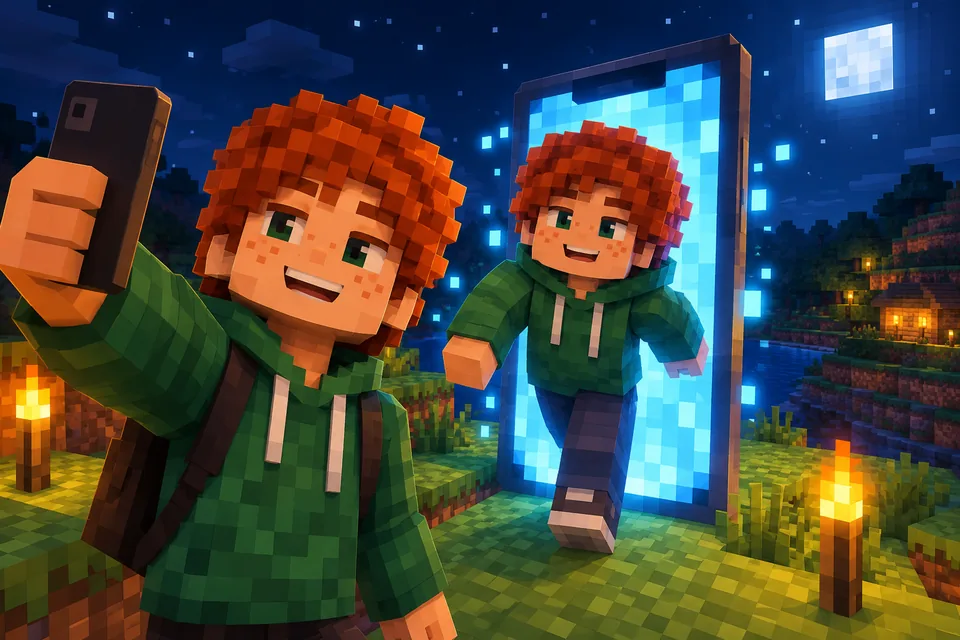
There are two ways to make a Minecraft skin of yourself. The quick way is to upload a selfie and let AI paint the whole 64×64 skin in 1 to 2 minutes. The slow way is to plan your face, hair and outfit pixel by pixel in a free skin editor. This guide covers both, shows five real selfie-to-skin results, compares the two routes, and ends with the small fixes that make the skin look more like you and how to wear it in Java or Bedrock.
Short answer: open Photo to Minecraft skin, upload one clear selfie where you face the camera, choose Classic or Slim arms, press Generate skin, then download the PNG or .mcpack.
How much of you fits in a Minecraft skin
A skin is a 64×64 PNG wrapped around a blocky body. Your face gets the front of the head: 8×8 pixels, 64 in total. Your top gets the front of the body, 8×12. Each arm is 4 pixels wide (3 with slim arms) and each leg is 4. Count every side of every part and the base layer holds 1,632 pixels with classic arms. A second outer layer of the same size sits on top, for hair volume, hoods, jackets and glasses. The Minecraft Wiki skin page has the full texture map if you want exact coordinates.
At that size, people recognize you by a short list: hair color and shape, skin tone, eye color, glasses or facial hair, and the colors of your clothes. Freckles, earrings and small logos get one or two pixels at most. Plan around the big things and the skin will read as you.
Route 1: turn a selfie into a Minecraft skin with AI
This is the fastest way to turn yourself into a Minecraft skin, and it also paints the parts a photo cannot show, like your back and the soles of your shoes.
- Pick one photo of just you. Face the camera, in daylight, waist-up or full length. The photo checklist explains why each of these matters.
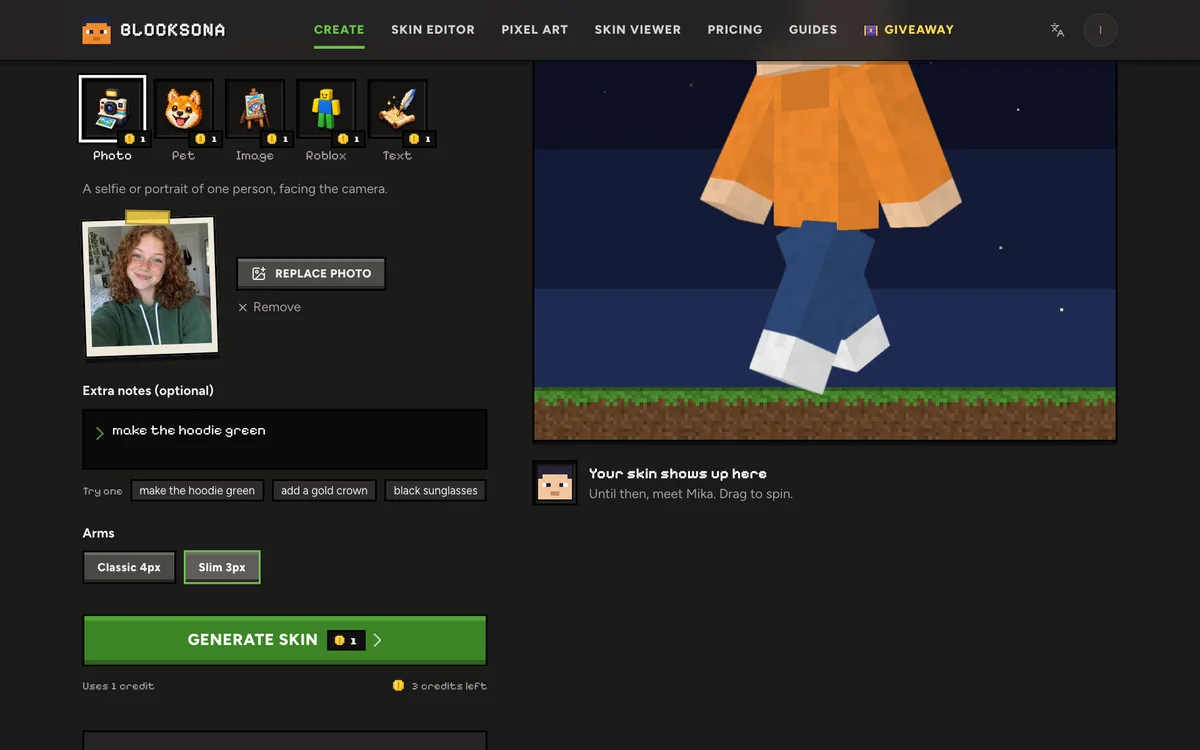
- Open Photo mode. Go to Photo to Minecraft skin, or open the Workbench and pick Photo. Drop in a JPG, PNG or WebP. Your browser shrinks it to 1024 px before it uploads.
- Add Extra notes (optional). Up to 400 characters for anything the photo gets wrong or leaves out: "black leggings and white high-tops", "my glasses are red", "blue headphones around the neck". Notes cost nothing extra.
- Choose your arms. Classic 4px or Slim 3px, whichever you use in game. The classic vs slim arms guide shows the difference side by side.
- Press Generate skin. It uses 1 credit, and new accounts get 3 free. It usually takes 1 to 2 minutes and you can leave the page. If the first try does not fit the layout, it is painted again at no extra cost. If it fails, the credit comes back by itself.
- Check it from every side. The result shows a 3D preview you can drag to spin, with idle, walk and wave animations, next to the flat 64×64 texture. The skin is also saved to My skins.
What five selfies turned into
These are unedited results from five photos (the people in them were made with AI, they are not real). Open any card to spin the skin in 3D next to its photo.
What carried over, and what did not:
- Ivy: the curly red hair, green eyes and the green hoodie with its white drawstrings and front pocket all made it. Her freckles mostly did not. Her photo stops at the chest, so the AI picked dark jeans and sneakers for her legs.
- Mei: a full-length mirror selfie, so her black shorts and white sneakers come from the photo, not a guess. Her round glasses became thin grey frames, the small heart on her tee became one light pixel, and the phone in her hand was left out.
- Kofi: the yellow raincoat over a red shirt is the first thing you notice, buttons included as three dark pixels. His braids show on the sides and back of the head.
- Grandpa Joe: the flat cap became a grey band across the top of the head, with white hair at the sides, a brown cardigan and a blue shirt.
- Dev: dark frames around the eyes for his glasses, stubble as darker pixels along the jaw, and the white stripe across his navy tee.
The pattern: big shapes and strong colors survive, tiny details fade. The fixes further down handle the rest.
Route 2: make a Minecraft skin of yourself by hand
If you would rather place every pixel yourself, the free Minecraft skin editor works without an account (you only sign in to save to My skins). The trick is to plan before you paint.
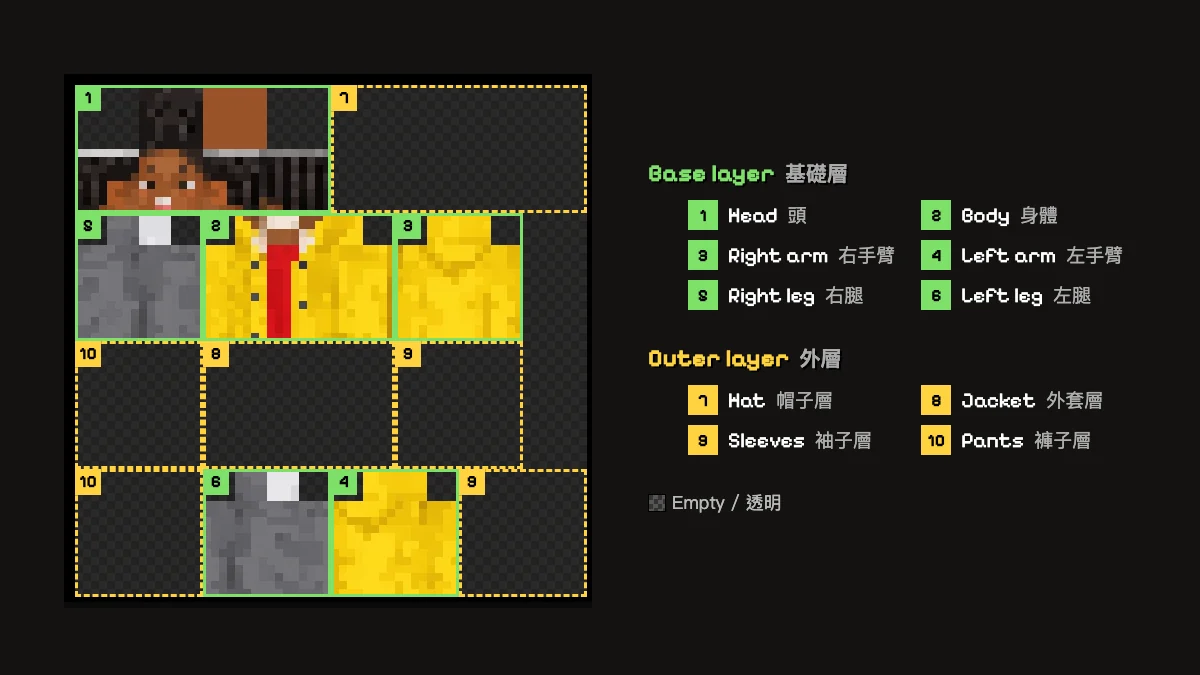
Your face (8×8). Work row by row from the top:
| Row | What to paint |
|---|---|
| 1–2 | Hair, or the top of a cap |
| 3 | Fringe or hairline |
| 4 | Eyebrows, or more fringe |
| 5 | Eyes: 2 pixels each (white plus your eye color), 2 pixels of skin between them |
| 6 | Nose: 2 slightly darker pixels in the middle |
| 7 | Mouth: 2 to 4 pixels |
| 8 | Chin, or a beard |
Turn on Mirror (M) and paint one eye; the other appears on the opposite side. Turn it off for a side parting or a lopsided smile.
Your hair. Paint it on the top, back and both sides of the head, not just the front. Then switch to the Outer layer and add a second coat. The outer layer floats slightly off the head, so curls and a fringe look thicker. A ponytail cannot hang below the head, so paint it down the back of the head instead.
Your outfit. The body front is 8×12. A T-shirt usually covers the top 10 rows, with a belt or waistband in the last two. Short sleeves cover roughly the top 4 rows of each arm, then skin down to the hand. On the legs (4×12 each), trousers or a skirt go on top and shoes take the bottom 2 or 3 rows. Use Fill (G) for base colors (it fills one face and never spills onto the next) and Pencil (B) for details. Pick color (I) grabs a shade you already used, and hovering the texture tells you which body part you are on.
Expect a first hand-made skin to take an hour or more. The skin editor guide walks through every tool if you get stuck.
AI or by hand: which way to make yours
| AI from a selfie | By hand in the editor | |
|---|---|---|
| Time | 1 to 2 minutes, plus a few minutes of touch-ups | An hour or more for a first skin |
| Cost | 1 credit (3 free for new accounts) | Free |
| What you need | One clear photo | A plan and some patience |
| Likeness | Copies hair, skin tone, glasses and outfit colors | As close as your pixel choices |
| Back, sides, soles | Painted for you | You paint every face (1,632 base pixels) |
| Control | Extra notes, then any pixel in the editor | Every pixel from the start |
You can also mix them: generate from a selfie, then press Edit pixels on the result and finish the last details by hand.
Fix the details that make it look like you
Use two tools, in this order.
Extra notes, for big changes. Wrong hair color, a missing jacket, shorts you would rather swap for jeans. Write the fix in Extra notes ("hair is black with a blue streak", "grey hoodie, not white") and generate again. The notes are free, but every new skin uses a credit.
Edit pixels, for small ones. On the result screen, Edit pixels opens the skin in the editor. Common touch-ups:
- Freckles: two or three pixels one shade darker on each cheek, in rows 6 and 7.
- Eye color: the two colored eye pixels in row 5.
- Glasses: dark pixels around each eye, plus one pixel between the eyes for the bridge.
- A logo: redraw it as one bold shape in the middle of the chest. Letters do not fit in 8 pixels.
- Earrings: one bright pixel low on each side of the head.
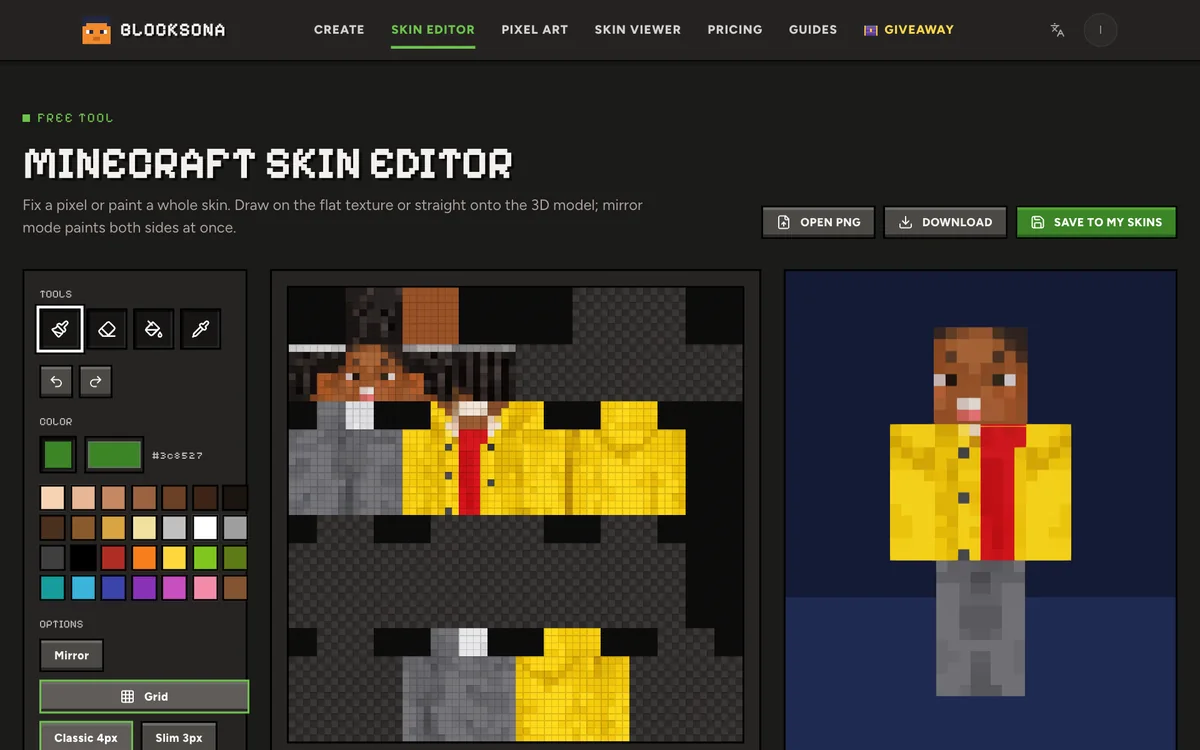
Switch on Paint on model to fix pixels right on the 3D body. It is easier around edges, where the face meets the side of the head.
Wear your skin in Minecraft
Download it from the result screen, or from My skins later.
- Java Edition (PC, Mac): Minecraft Launcher → Skins → New skin → choose Classic or Slim → Browse → Save & Use. Full steps in the Java install guide. You can also upload it on your minecraft.net profile, Mojang's own page for changing a Java skin.
- Bedrock (Windows, iPhone, iPad, Android): open the .mcpack and Minecraft imports it. Find it in Dressing Room → Classic Skins, in the pack "Blocksona: (name)". The Bedrock install guide covers the PNG method too.
- Xbox, PlayStation, Switch: consoles cannot import skin files.
Want the new you as a profile picture too? Open the PNG in the 3D skin viewer and press Download face avatar for a 512×512 PNG of your face.
FAQ
Is it safe to upload a selfie?
Your photo is used for that one skin and deleted automatically within 24 hours. Photos are never used to train models. The finished skin stays in your private My skins library until you delete it. Signing in is required to generate, which is how the free credits and the private library work.
Can I make a Minecraft skin of myself for free?
Yes. New accounts get 3 free credits, enough for three skins, and the skin editor is free with no account at all. After that, credits start at $4.99 for 20 on the pricing page.
Can I make skins of my friends from one group photo?
Not from the same photo. Group photos mix up whose hair and clothes go where, so crop each friend out and make one skin each. For matching outfits, see our list of Minecraft skin ideas.
I only have a drawing or a game avatar of myself. Does that work?
Yes. Use Image mode for a drawing, cartoon or avatar picture, or Roblox mode to bring your Roblox look over by username.
My photo only shows the front. What goes on the back?
The AI paints the back, sides, top and soles to match: your hair continues around the head and your hoodie wraps around the body. If a backpack or hair clip matters to you, add it in the editor.